Adding an insight widget to a dashboard in Yandex DataLens

To add a Neuroanalyst insight widget to the dashboard, follow these steps:
Warning
If you use the new DataLens object model with workbooks and collections:
- In the left-hand panel, select Collections and workbooks.
- Open the workbook you need and select an object.
Proceed with this guide from Step 2.
-
In the left-hand panel, click Dashboards and select the dashboard you need.
-
At the top of the page, click Edit.
-
In the panel at the bottom of the page, click Insight and drag it to a desired location.

-
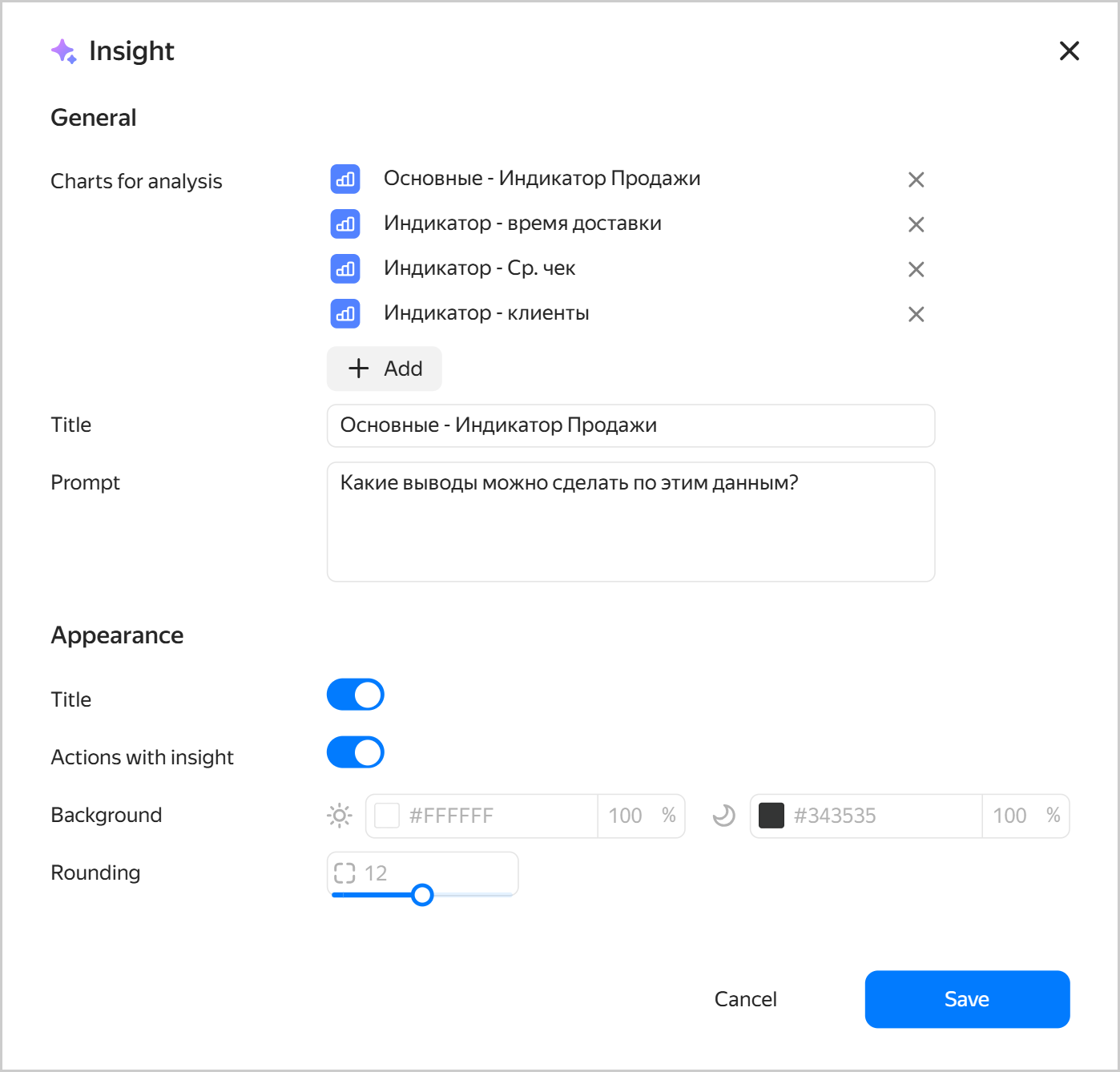
Specify the main widget settings:
- Charts for analysis. Click Add and select a chart from the list on the current dashboard tab. You can specify up to five charts from the current dashboard tab in one insight. With Neuroanalyst, you can discover data relationships not visible in individual charts.
- Title. It sets the widget name; by default, it is the name of the selected chart. The name is displayed at the top of the widget if the Header option is enabled under Appearance (which it is by default).
- Prompt. Enter a question for the Neuroanalyst to answer.
Specify widget appearance settings:
-
Title. Option to display the insight header.
-
Actions with insight. Option to display an action bar at the bottom of the insight:
- Copy. Copies insight content to the clipboard.
- Once more. Updates the insight response.
- This answer is good. Evaluates the insight response positively.
- This answer is bad. Evaluates the insight response negatively.
-
Background. It sets the widget background color and opacity for the light and dark theme individually.
-
Rounding. It sets the widget corner rounding.
Example of insight widget settings
-
Click Add. The widget will appear on the dashboard.
-
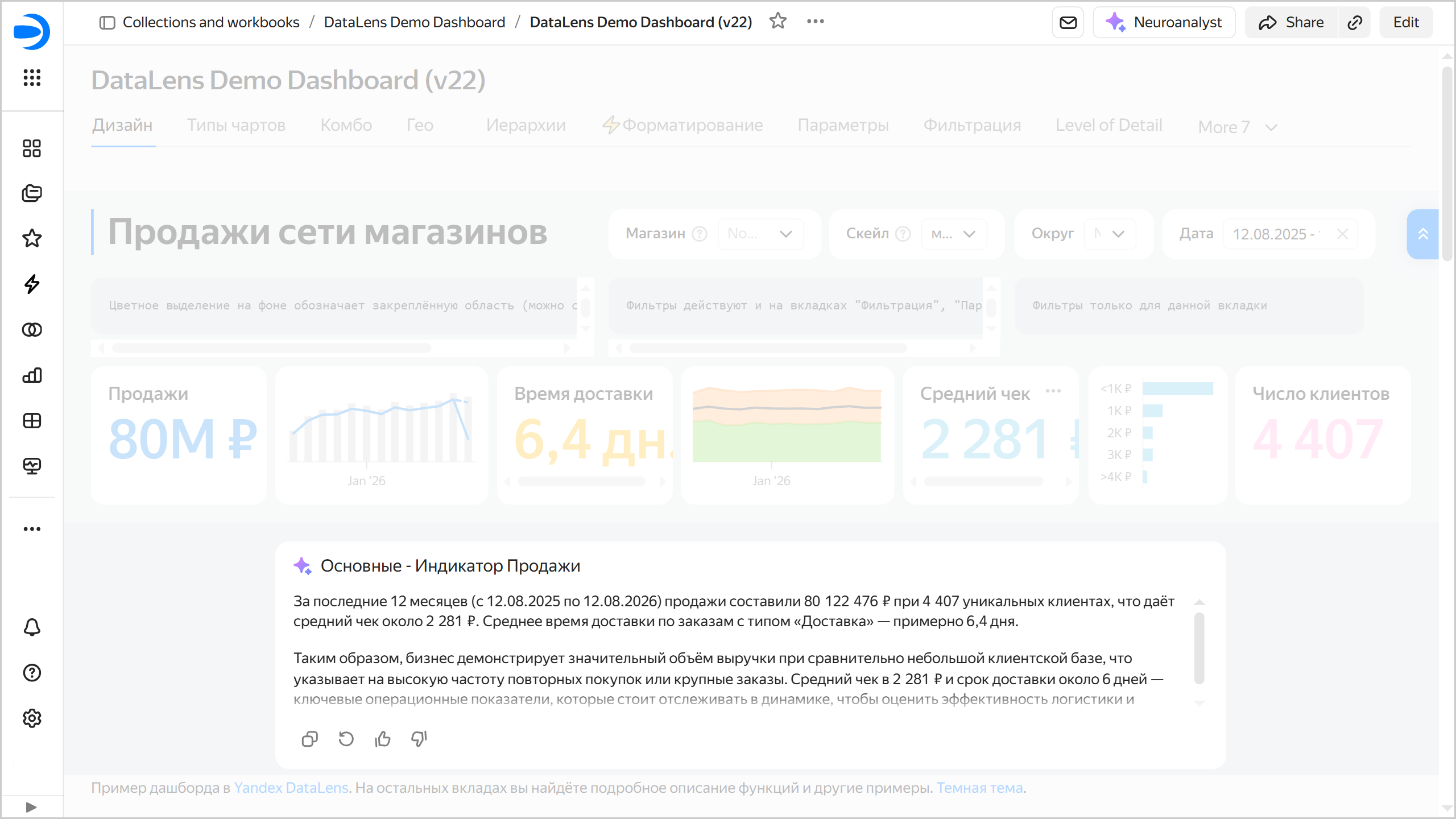
In the top-right corner of the dashboard, click Save. Neuroanalyst will analyze the specified chart and generate conclusions based on the data and the custom prompt. The result in Insight will be updated every time you open the dashboard. If the data in the chart linked to the Insight widget changes, an Update button will appear at the top of the widget.
Example of insight widget contents