DataLens Gallery

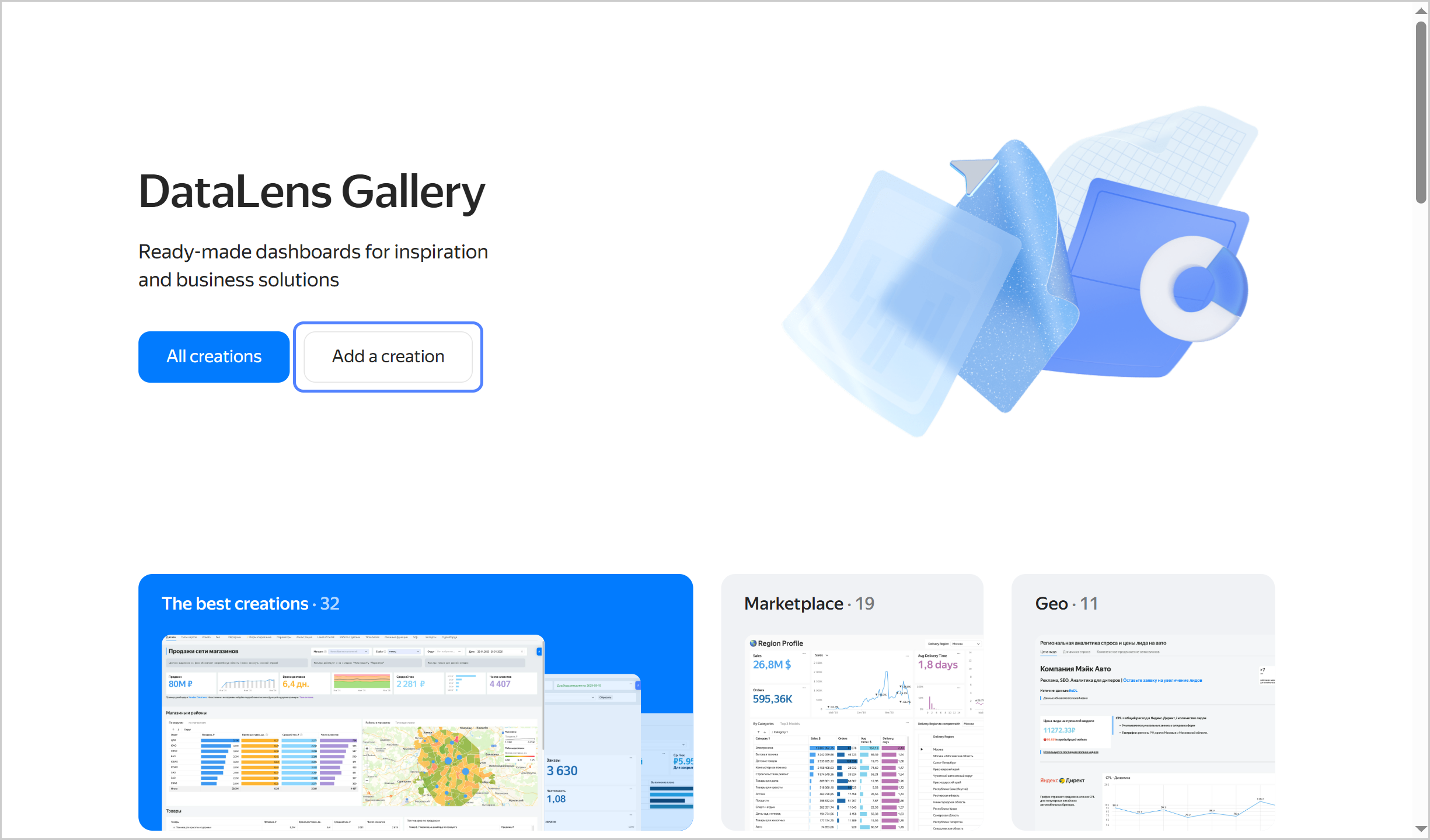
DataLens Gallery is a collection of ready-made dashboards for your inspiration and business needs.
The DataLens Gallery creations are contributed not only by the Yandex DataLens team but also the users. Browse the gallery for insights into diverse experiences of other analysts which can benefit your projects.
Things you can do with dashboards as a DataLens Gallery user:
- Search.
- View.
- Use (not all dashboards) by deploying in your instance or exporting to other DataLens environments.
- Add.
Search
The home page brings to you the Creation of the month, the best dashboards, and dashboards by popular category.
All user dashboards are sorted into categories the list of which keeps growing:
- Industry:
Healthcare,Education,Entertainment. - Scope:
Product management,Marketing,Production. - Feature set:
Editor,Geoanalytics,English(for dashboards with data in English).
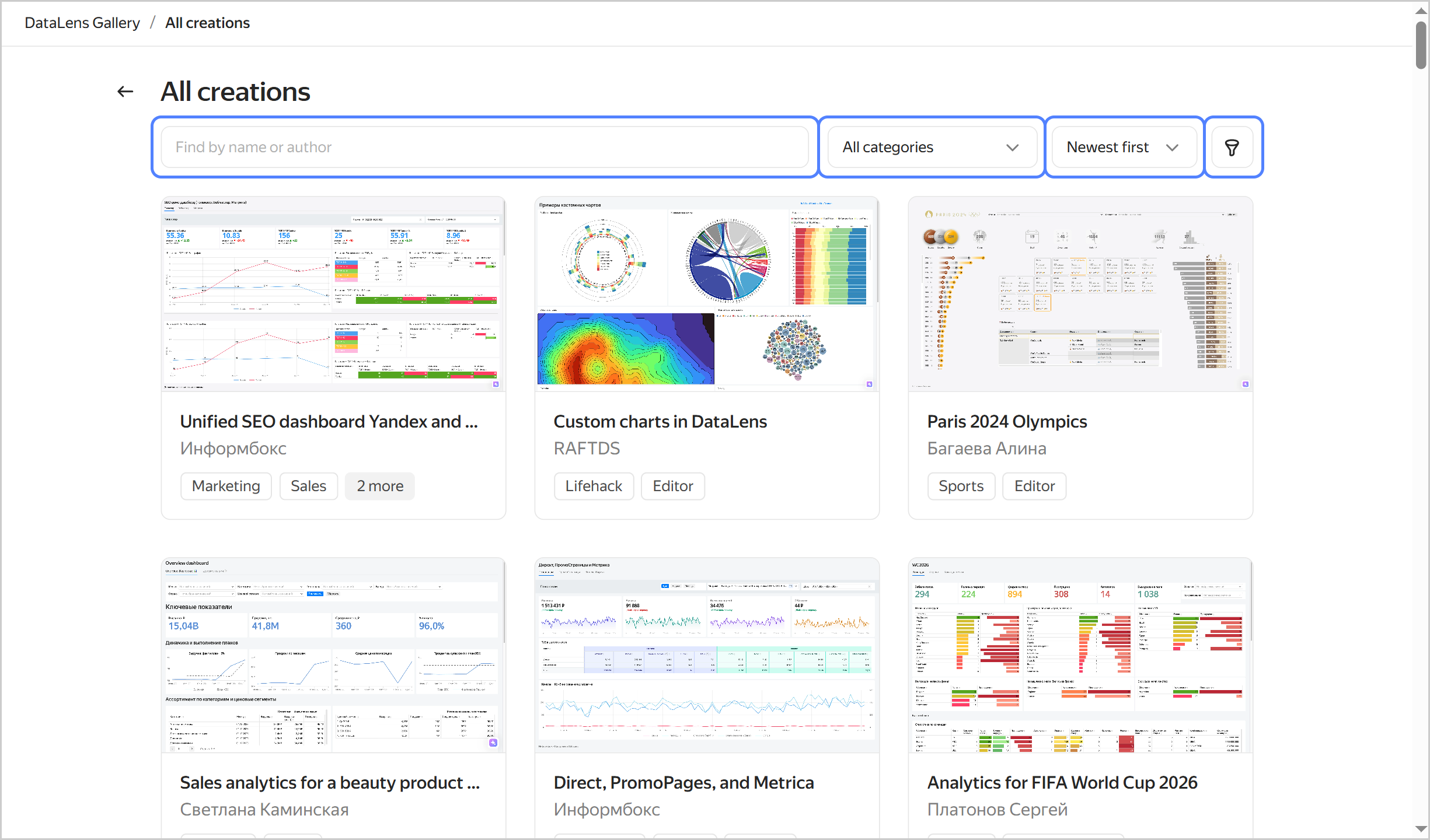
On the page that lists all the user dashboards, you can search for them by name or filter them by category or availability.
Search
Viewing a dashboard
To view a dashboard:
- Click the dashboard card.
- In the top-right corner, click Open. This will open a fully functional DataLens dashboard. You can apply its selectors, switch between tabs, etc., depending on the features built into it by its author.
In some cases, you can contact the author directly using the Contact the author button in the top-right corner.
To share a dashboard, copy its link using the button.
Viewing a dashboard
Using a dashboard
Some creators have made their works freely available. Search through them using the Available for use filter on the full list page.
There are two ways you can use dashboards from the Gallery:
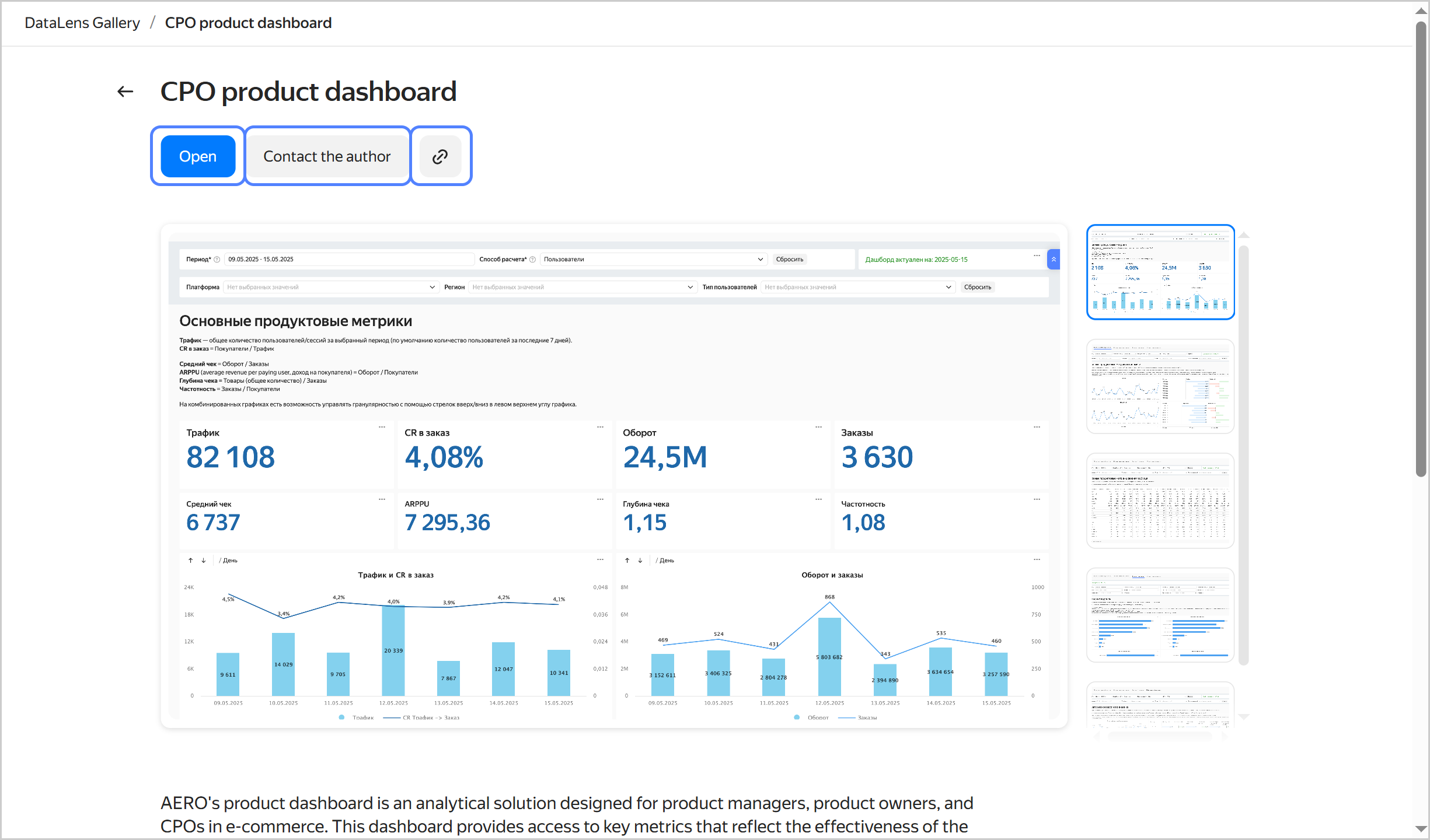
- Deploy them in your DataLens instance: this will create a copy of the workbook with all its objects.
- Download a JSON export file and import it to a third-party DataLens environment: DataLens Open Source or DataLens On-premises.
Note
You can deploy a dashboard in your DataLens instance if you have workbooks and collections on.
To deploy a dashboard in your DataLens instance:
- Click the dashboard card.
- Click Use → Deploy.
- Select where to save the workbook: workbook and collection root, existing collection, or new collection. Navigate to the saving destination and click Deploy. The workbook name must be unique, so edit the name if you need to.
- Click Create.
To download the export file:
- Click the dashboard card.
- Click Use → Download. The workbook will be downloaded as a JSON file.
Import the workbook using this guide.
Using a dashboard
Adding a dashboard
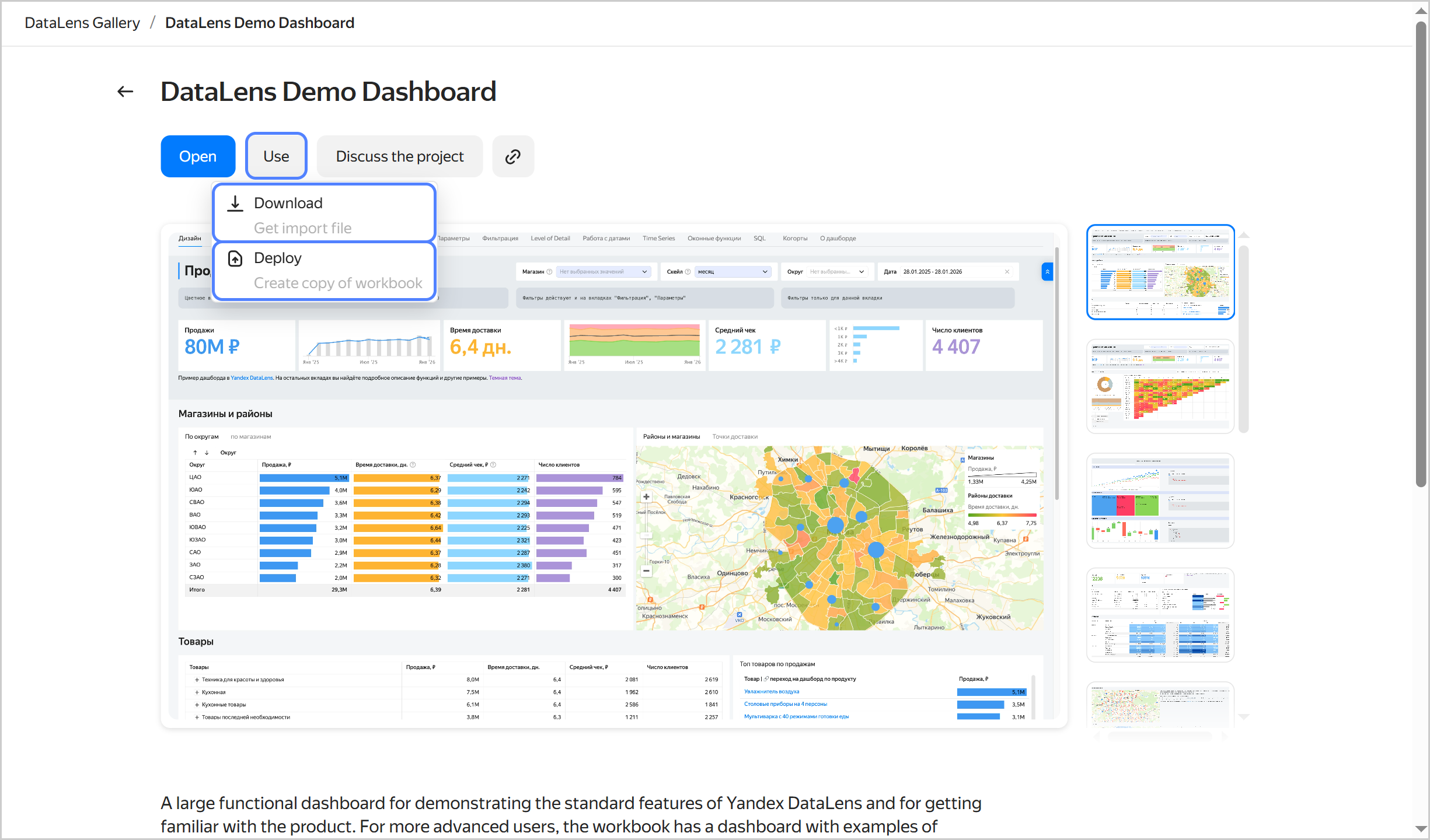
To contribute to the Gallery, click Add creation on the Gallery home page and fill out the form:
- Contact details. If you are a Yandex Cloud partner program participant and provide the email you use to authenticate in it, your dashboard will feature the Contact the author button for users to contact you directly.
- Name, description, and category of your dashboard.
- Link to the dashboard with public access configured.
- Exported workbook file.
- Dashboard screenshots for the card. Screenshot requirements:
- Dashboard only, no irrelevant UI or browser elements.
- Use the
_embedded=1parameter in the URL for light (_theme=light) or dark (_theme=dark) theme. Here is an example of such a link:https://datalens.yandex/9fms9uae7ip02?_embedded=1&_theme=light. - Size: 1920×1080 pixels.
- Format: PNG.
Adding a dashboard