Creating a connection to Trino in Yandex DataLens

To create a Trino connection:
-
Open the connection creation page.
-
Under Databases, select the Trino connection.
-
Select the connection type:
Select in organizationSpecify manually-
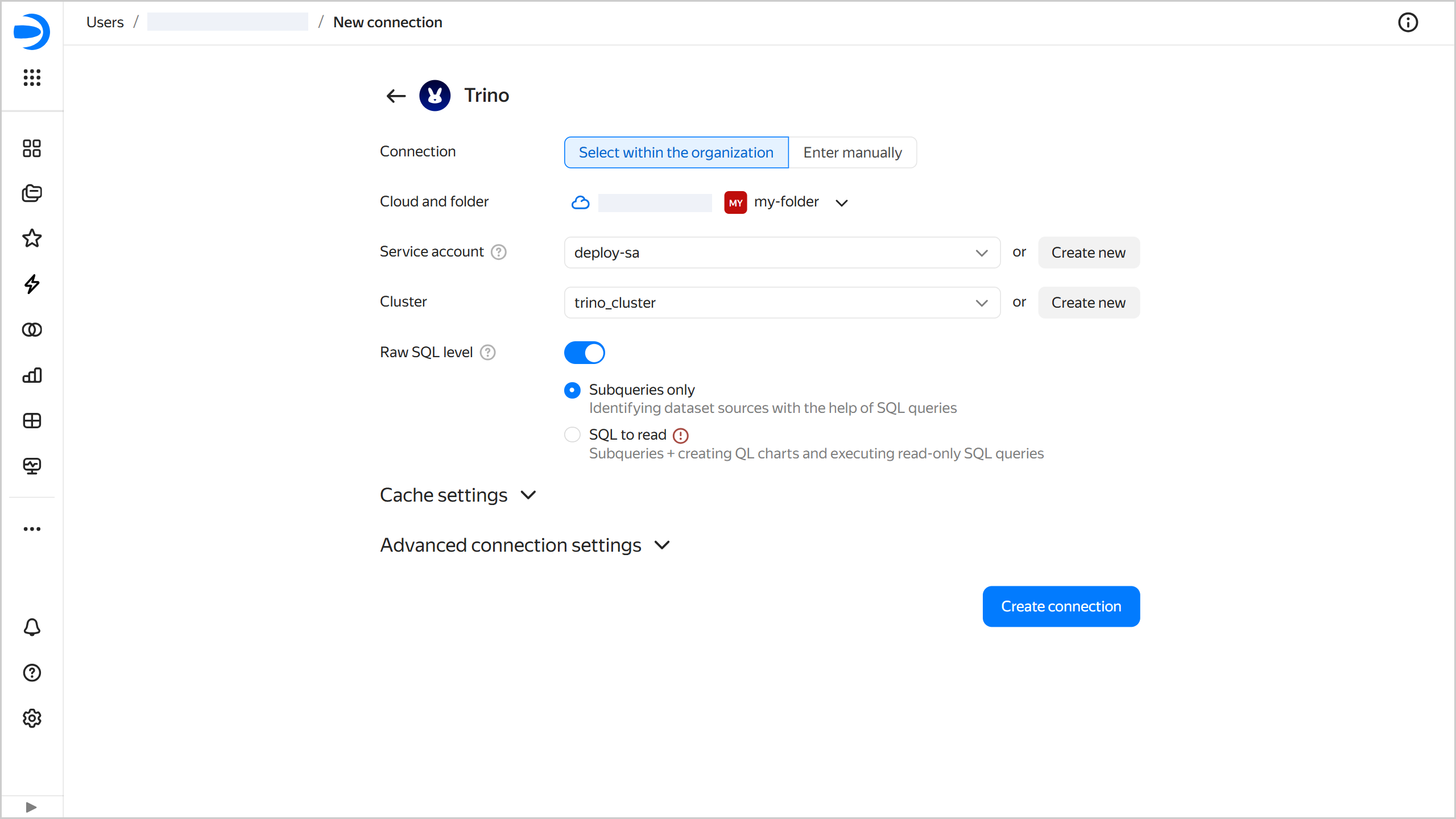
Select a managed database in the current Yandex Cloud organization and specify the connection parameters for it:
- Cloud and folder: Select the folder where your service account will be located.
- Service account: Select an existing service account or create a new one.
- Cluster. Specify the cluster from the list of available Trino clusters or create a new one.
-
Raw SQL level: Enables you to use an ad-hoc SQL query to generate a dataset. This option is disabled by default. When enabling it, you will need to select the raw SQL level:
- Subqueries only: Describe dataset sources using SQL queries.
- SQL to read: Describe dataset sources using SQL queries, create QL charts, and execute read-only SQL queries.
-
Optionally, specify the caching settings:
- Cache TTL: Specify cache TTL in seconds or leave the default value. The recommended value is 300 seconds (5 minutes).
- Allow cache verification in datasets: Specify the maximum cache validation interval in seconds.
-
Optionally, configure Advanced connection settings. For more information, see Additional settings.
-
Select the Authentication type:
Without authenticationPasswordJWT
-
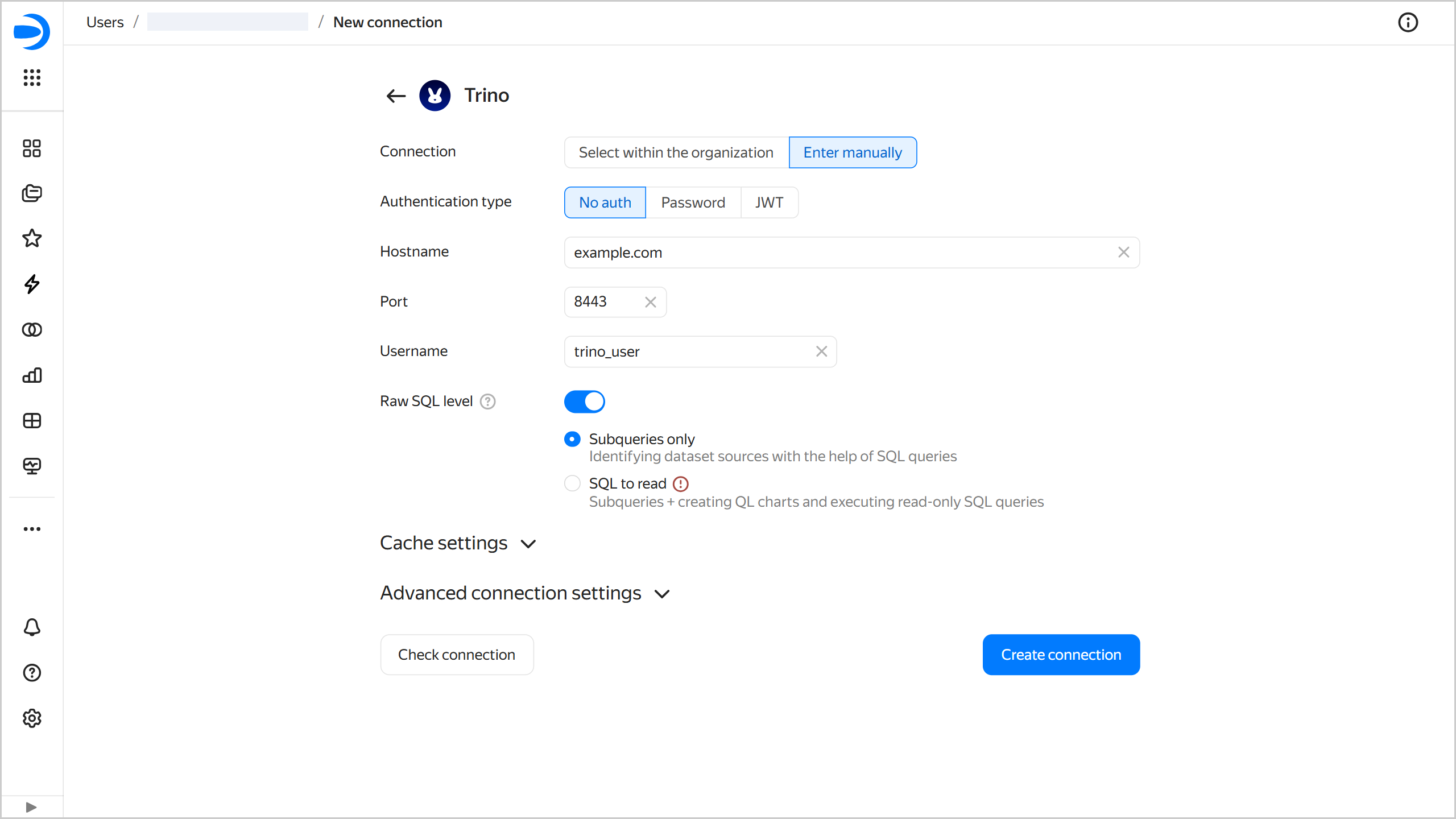
Specify the external database credentials for connection over a public network:
- Host name: Specify the Trino coordinator path or IP address.
- Port: Specify the Trino connection port. The default port is 8443.
- Username: Specify a username for the Trino connection. If authentication is off, you can use any username as it will not affect the connection. The field value will be sent to the source with the queries.
- Password: If the
Passwordauthentication type was selected, specify the password for the user. - JWT: If the
JWTauthentication type was selected, specify the JWT.
-
Raw SQL level: Enables you to use an ad-hoc SQL query to generate a dataset. This option is disabled by default. When enabling it, you will need to select the raw SQL level:
- Subqueries only: Describe dataset sources using SQL queries.
- SQL to read: Describe dataset sources using SQL queries, create QL charts, and execute read-only SQL queries.
-
Optionally, specify the caching settings:
- Cache TTL: Specify cache TTL in seconds or leave the default value. The recommended value is 300 seconds (5 minutes).
- Allow cache verification in datasets: Specify the maximum cache validation interval in seconds.
-
Optionally, configure Advanced connection settings. For more information, see Additional settings.
-
Optionally, test the connection by clicking Check connection.
-
-
Click Create connection.
-
Select a workbook to save your connection to or create a new one. If using legacy folder navigation, select a folder to save the connection to.
-
Enter a name for the connection and click Create.
Additional settings
You can specify additional connection settings under Advanced connection settings:
-
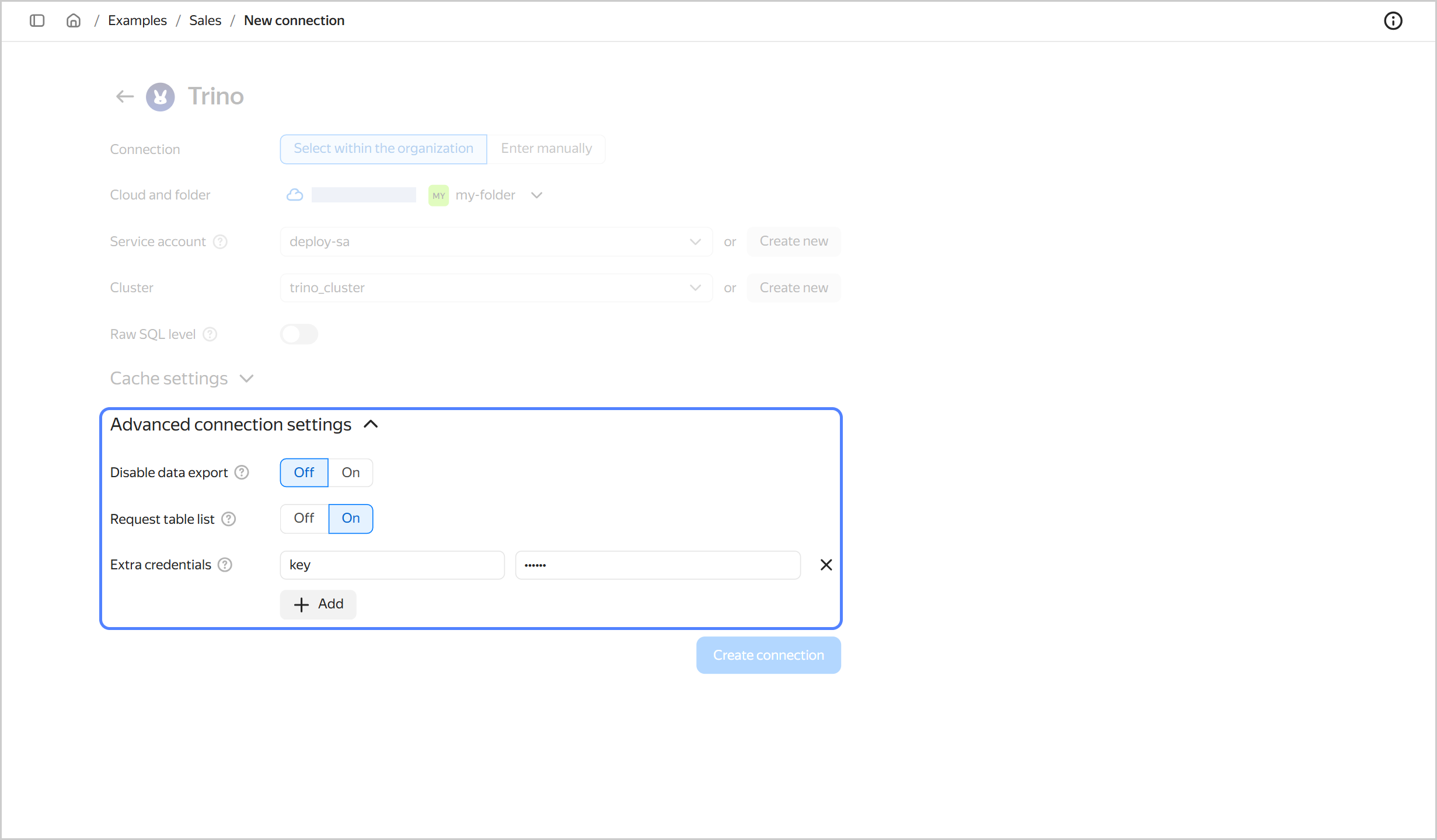
Disable data export: When this option is on, the data export item will not be available in the menu for the charts based on this connection. However, you will still be able to copy chart data and take screenshots.
-
Request table list: Disable this option if loading a table list from the source takes too long or produces errors. Instead, use SQL subqueries to add tables.
-
Additional credentials: This settings allows providing random name-value pairs to Trino in the
X-Trino-Extra-CredentialHTTP request header. For example, you can use it to access an external source on behalf of a specific user without creating a separate connection.The supported names are defined in the configuration by the Trino cluster administrator. If the connector on the Trino side is not configured to accept them, the values will be ignored.
The naming requirements are as follows:
- Non-empty string.
- ASCII characters.
- No spaces and no
=.
Values are stored encrypted and not displayed after saving. When you reopen the form, the value field will show a
Secret valueplaceholder.- To change the value, enter a new one.
- To keep the previous value, do not change the field.
- To delete the name-value pair, delete the entire string.
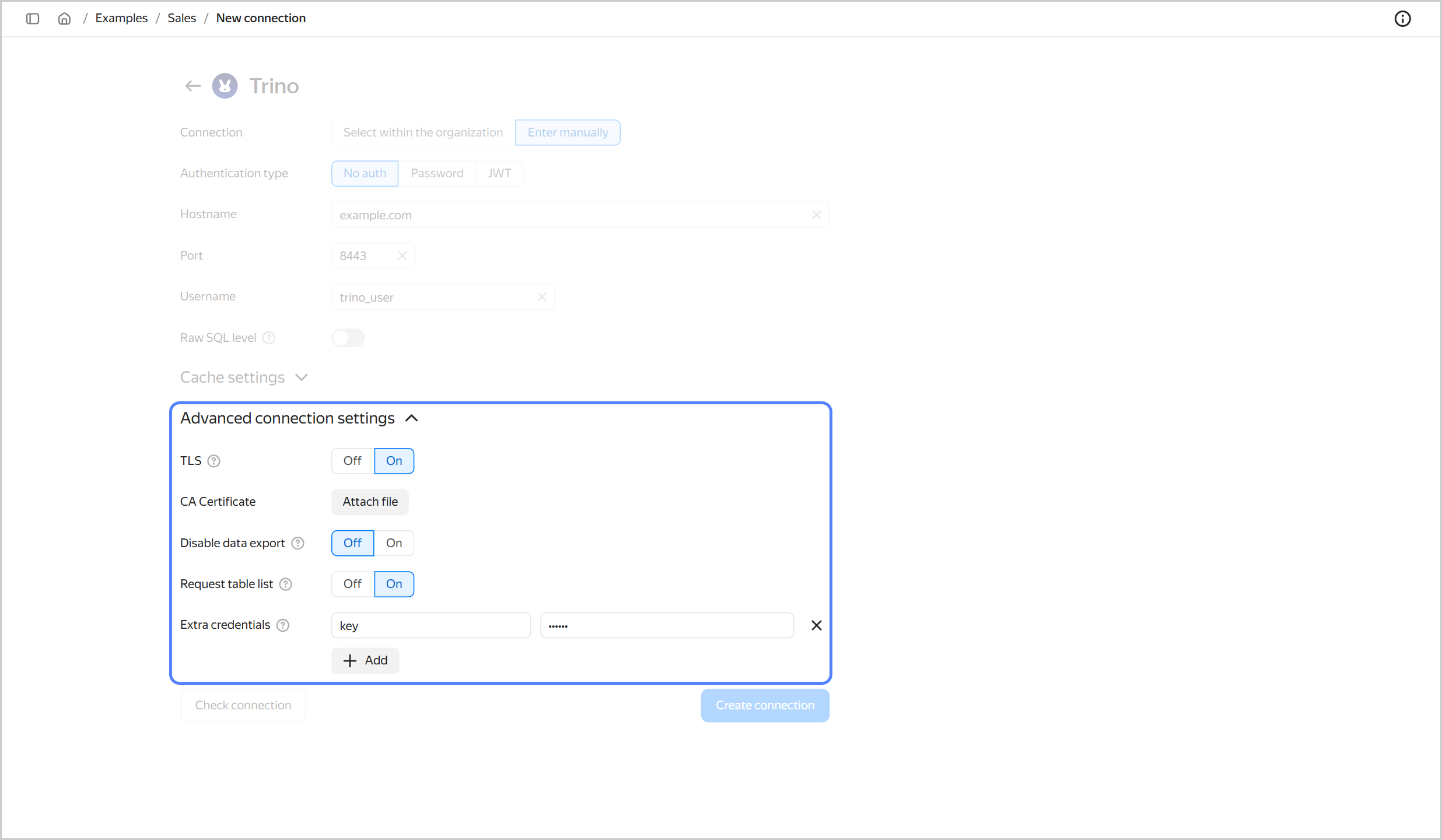
- TLS: If this option is enabled, Trino is accessed via
HTTPS; if not,HTTP. - CA Certificate: To upload a certificate, click Attach file and select the certificate file. When the certificate is uploaded, the field shows the file name.
-
Disable data export: When this option is on, the data export item will not be available in the menu for the charts based on this connection. However, you will still be able to copy chart data and take screenshots.
-
Request table list: Disable this option if loading a table list from the source takes too long or produces errors. Instead, use SQL subqueries to add tables.
-
Additional credentials: This settings allows providing random name-value pairs to Trino in the
X-Trino-Extra-CredentialHTTP request header. For example, you can use it to access an external source on behalf of a specific user without creating a separate connection.The supported names are defined in the configuration by the Trino cluster administrator. If the connector on the Trino side is not configured to accept them, the values will be ignored.
The naming requirements are as follows:
- Non-empty string.
- ASCII characters.
- No spaces and no
=.
Values are stored encrypted and not displayed after saving. When you reopen the form, the value field will show a
Secret valueplaceholder.- To change the value, enter a new one.
- To keep the previous value, do not change the field.
- To delete the name-value pair, delete the entire string.
Connecting an external database
Yandex Cloud holds no responsibility for configuring a remote connection on an external database server side. When connecting an external database that is not a Yandex Cloud resource:
-
When using your own SSL certificate, make sure it matches the one on the database side.
-
Grant access to the database to the following DataLens IP ranges (
/is followed by the subnet mask length):ipv4ipv6178.154.242.176/28178.154.242.192/28178.154.242.208/28178.154.242.128/28178.154.242.144/28178.154.242.160/28130.193.60.0/28
2a02:6b8:c03:500:0:f83d:a987:0/1122a02:6b8:c02:900:0:f83d:a987:0/1122a02:6b8:c0e:500:0:f83d:a987:0/1122a02:6b8:c41:1300:0:f83d:a987:0/112
Creating a dataset
The table search scope when connecting to Trino is limited to a specific folder.
When creating a dataset based on the Trino connection:
-
In the top-right corner of the connection page, click Create dataset.
-
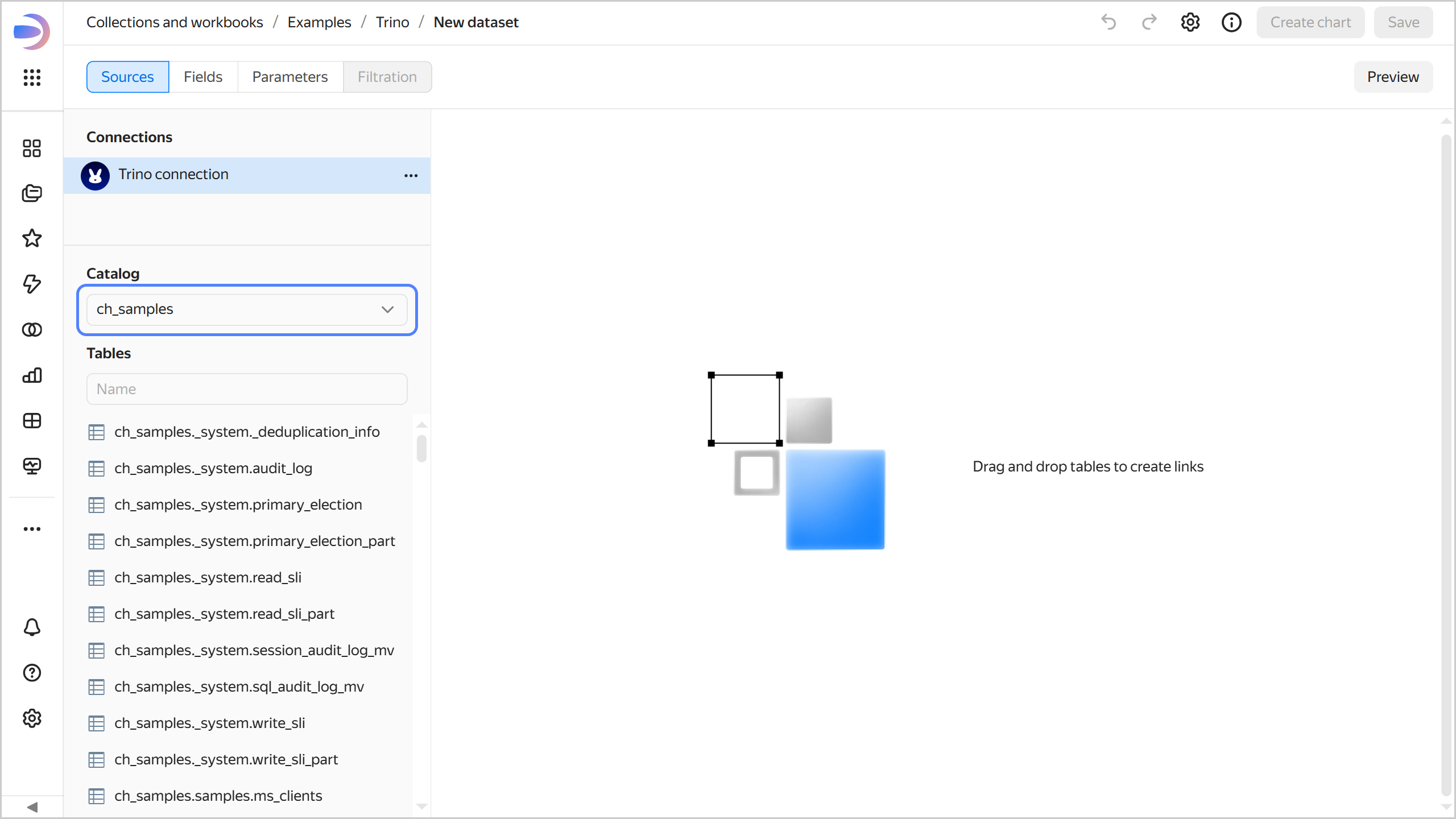
Select the folder in the source. The tables it contains will be shown on the panel below.
Selecting a folder in the source
-
Proceed with this guide from Step 4.