Creating a connection to StarRocks from Yandex DataLens

Warning
Yandex Cloud holds no responsibility for configuring a remote connection on an external database server side. When connecting an external database that is not a Yandex Cloud resource:
-
Make sure the database uses an SSL certificate signed by a SSL certificate authority. You will not be able to create a connection in DataLens if the database uses a self-signed SSL certificate.
-
Grant access to the database to the following DataLens IP ranges (
/is followed by the subnet mask length):ipv4ipv6178.154.242.176/28178.154.242.192/28178.154.242.208/28178.154.242.128/28178.154.242.144/28178.154.242.160/28130.193.60.0/28
2a02:6b8:c03:500:0:f83d:a987:0/1122a02:6b8:c02:900:0:f83d:a987:0/1122a02:6b8:c0e:500:0:f83d:a987:0/1122a02:6b8:c41:1300:0:f83d:a987:0/112
To create a StarRocks connection:
-
Open the connection creation page.
-
Under Databases, select the StarRocks connection.
-
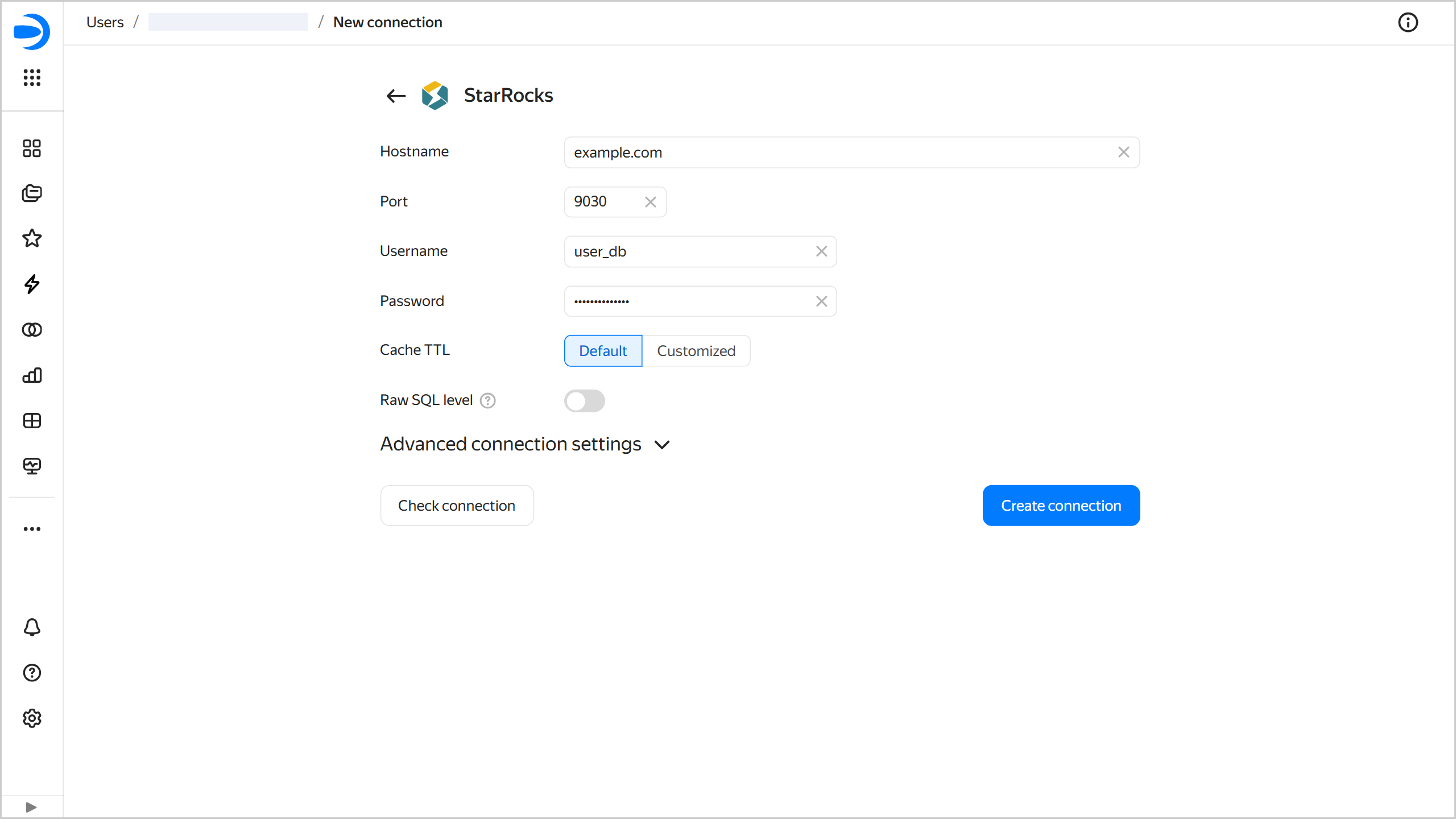
Specify the connection parameters for the StarRocks database:
- Host name: Specify the path to the StarRocks host. You can specify multiple hosts in a comma-separated list. If you fail to connect to the first host, DataLens will select the next one from the list.
- Port: Specify the StarRocks connection port. The default port is 9030.
- Username: Specify a username for the StarRocks connection.
- Password: Specify a password for the user.
- Cache TTL: Specify cache TTL in seconds or leave the default value. The recommended value is 300 seconds (5 minutes).
-
Raw SQL level: Enables you to use an ad-hoc SQL query to generate a dataset. This option is disabled by default. When enabling it, you will need to select the raw SQL level:
- Subqueries only: Describe dataset sources using SQL queries.
- Subqueries and parameters: Describe dataset sources using SQL queries and use source parameterization.
- SQL to read: Describe dataset sources using SQL queries, use source parameterization, and create QL charts.
-
Optionally, test the connection by clicking Check connection.
-
Click Create connection.
-
Select a workbook to save your connection to or create a new one. If using legacy folder navigation, select a folder to save the connection to. Click Create.
-
Enter a name for the connection and click Create.
Additional settings
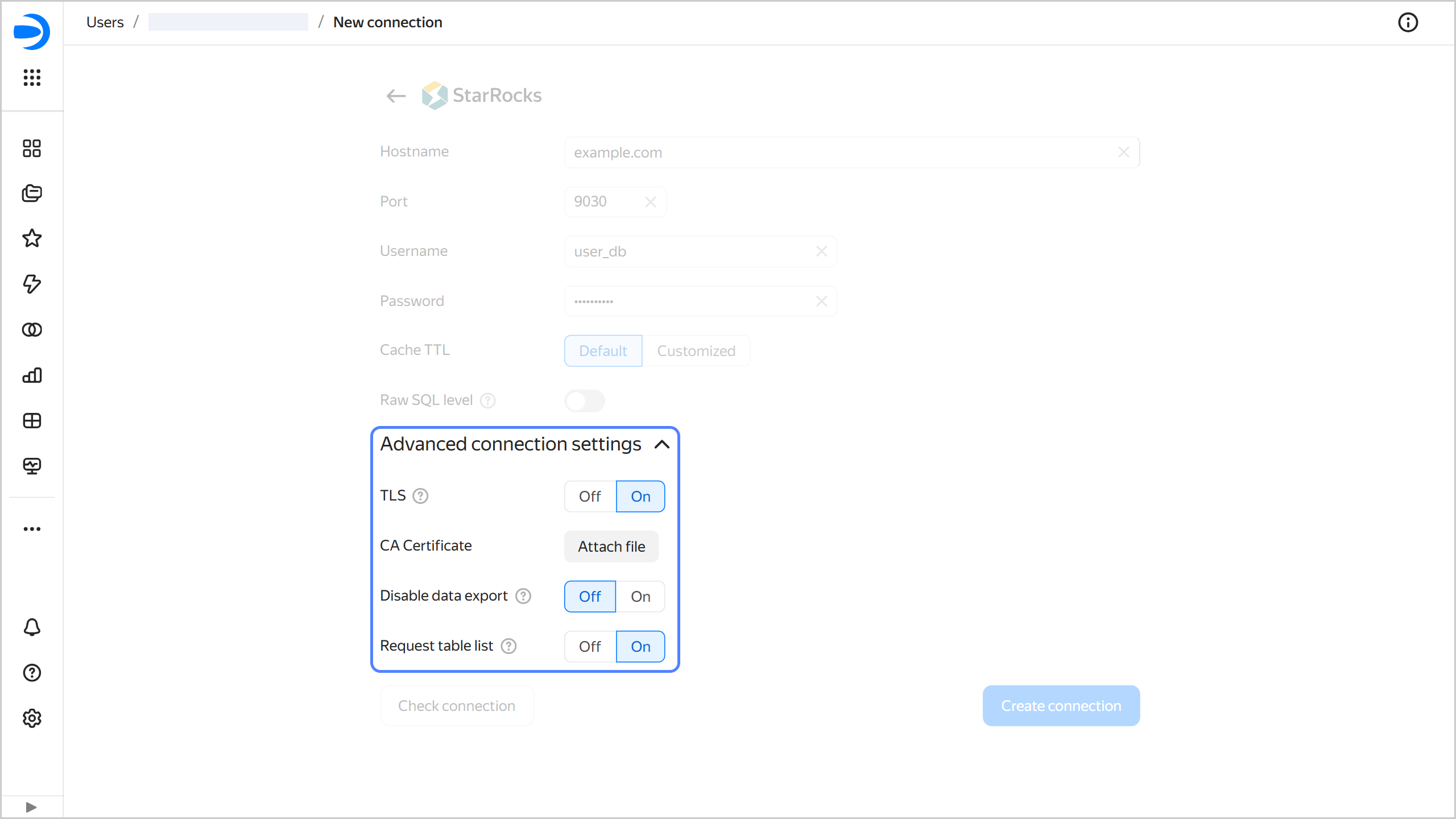
You can specify additional connection settings under Advanced connection settings:
- TLS: Indicates whether TLS is required. When this option is enabled, the connection requires using SSL.
- CA Certificate: To upload a certificate, click Attach file and select the certificate file. When the certificate is uploaded, the field shows the file name.
-
Disable data export: When this option is on, the data export item will not be available in the menu for the charts based on this connection. However, you will still be able to copy chart data and take screenshots.
-
Request table list: Disable this option if loading a table list from the source takes too long or produces errors. Instead, use SQL subqueries to add tables.