Yandex Cloud
Search
Contact UsTry it for free
  • Customer Stories
  • Documentation
  • Blog
  • All Services
  • System Status
    • Featured
    • Infrastructure & Network
    • Data Platform
    • AI for business
    • Security
    • DevOps tools
    • Serverless
    • Monitoring & Resources
  • All Solutions
    • By industry
    • By use case
    • Economics and Pricing
    • Security
    • Technical Support
    • Start testing with double trial credits
    • Cloud credits to scale your IT product
    • Gateway to Russia
    • Cloud for Startups
    • Center for Technologies and Society
    • Yandex Cloud Partner program
    • Price calculator
    • Pricing plans
  • Customer Stories
  • Documentation
  • Blog
© 2025 Direct Cursus Technology L.L.C.
Yandex DataLens
  • DataLens neuroanalyst
    • Overview
    • Seats
    • Users
    • Service plans and payment
    • Appearance
    • Security
    • Navigation
  • DataLens Gallery
  • Audit Trails events

In this article:

  • Disabling folder navigation
  • Enabling workbooks and collections
  1. Service settings
  2. Navigation

Navigation settings in Yandex DataLens

Written by

Yandex Cloud
Updated at December 19, 2025
  • Disabling folder navigation
  • Enabling workbooks and collections

Navigation settings allow you to manage object arrangement in Yandex DataLens. The administrator can disable folder navigation and switch to workbooks and collections.

  • Disabling folder navigation
  • Enabling workbooks and collections

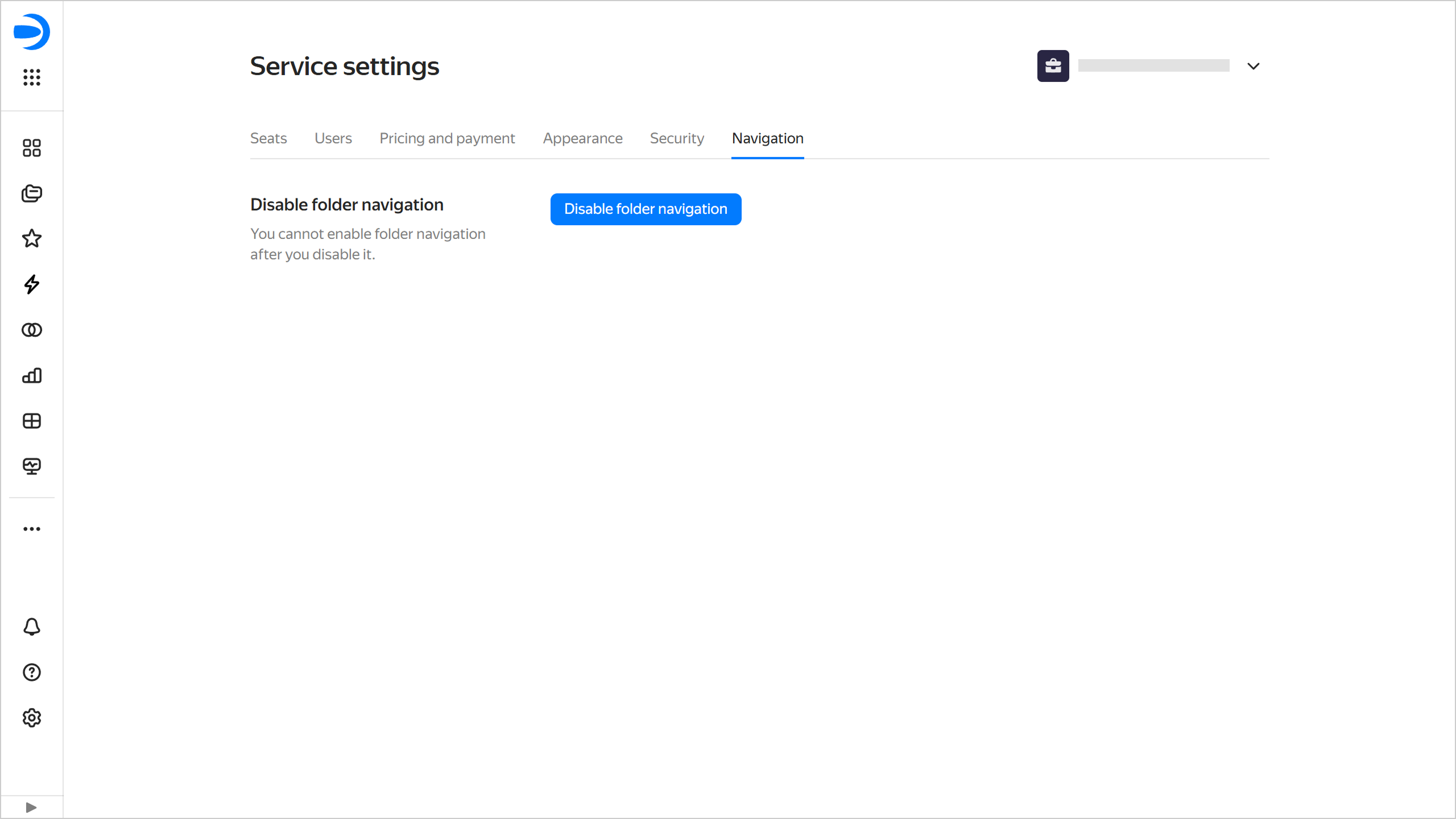
To access the navigation settings:

  1. In the left-hand panel, select Service settings. If the panel does not feature , first select More, then Service settings.

  2. Select the Navigation tab.

    image

Disabling folder navigationDisabling folder navigation

You can disable folder navigation after you switch to workbooks and collections for organizing objects. Before you disable it, migrate all objects in your folders to workbooks or delete them.

Folders can be disabled by the DataLens instance administrator (the datalens.admin role).

Warning

Once you disable folder navigation, it cannot be re-enabled.

To disable folder navigation:

  1. In the left-hand panel, select Service settings.
  2. Select the Navigation tab.
  3. In the Disable folder navigation section, click Disable folder navigation.
  4. In the window that opens, you will see a list of the remaining objects in the folders, which you need to migrate to workbooks or delete before disabling the folders. If the list of objects is empty, you can disable navigation. To do this, click Disable.

Enabling workbooks and collectionsEnabling workbooks and collections

Warning

  • To enable workbooks, a user must have the datalens.admin role. They can do this only if a DataLens instance is deployed at the organization level.
  • Only workbooks and collections are available in new DataLens instances.

To get started with workbooks:

  1. In the left-hand panel, select Service settings.

  2. Select the Navigation tab.

  3. Under Workbooks, click Enable workbooks.

    Workbooks enabled

    image

Was the article helpful?

Previous
Security
Next
DataLens Gallery
© 2025 Direct Cursus Technology L.L.C.