
Yandex Cloud
Search
Discuss with expertTry it for free
  • Customer Stories
  • Documentation
  • Blog
  • All Services
    • Cloud Interconnect
    • Cloud Backup
    • Cloud Registry
    • Yandex AI Studio
    • Compute Cloud
    • Object Storage
    • Managed Service for Kubernetes®
    • Yandex BareMetal
    • Smart Web Security
    • Security Deck
    • Managed Service for PostgreSQL
    • Managed Service for ClickHouse®
    • Monium
    • Cloud CDN
    • Network Load Balancer
    • Virtual Private Cloud
    • Cloud DNS
    • Application Load Balancer
    • Yandex Cloud Video
    • Stackland
    • Yandex Cloud Router
    • Yandex Managed Service for Trino
    • Managed Service for MySQL®
    • Managed Service for Valkey™
    • Managed Service for Apache Spark™
    • Yandex StoreDoc
    • Managed Service for OpenSearch
    • Managed Service for Apache Kafka®
    • Data Transfer
    • Yandex MPP Analytics Engine for PostgreSQL
    • Yandex Managed Service for Apache Airflow®
    • Data Processing
    • Yandex MetaData Hub
    • Managed Service for YDB
    • Managed Service for Sharded PostgreSQL
    • Managed Service for YTsaurus
    • Yandex WebSQL
    • DataLens
    • Yandex Search API
    • SpeechSense
    • SpeechKit
    • DataSphere
    • Vision OCR
    • Translate
    • Yandex Identity Hub
    • Key Management Service
    • Certificate Manager
    • Yandex Lockbox
    • Audit Trails
    • SmartCaptcha
    • Cloud Desktop
    • SourceCraft Code Assistant
    • Container Registry
    • Managed Service for GitLab
    • Managed Service for Prometheus®
    • Cloud Functions
    • API Gateway
    • Yandex Cloud Postbox
    • Message Queue
    • Serverless Integrations
    • IoT Core
    • Data Streams
    • Serverless Containers
    • Cloud Notification Service
    • Yandex Query
    • Identity and Access Management
    • Yandex Cloud Console
    • Resource Manager
    • Yandex Cloud Billing
    • Yandex Cloud Quota Manager
    • Cloud Apps
  • System Status
  • Marketplace
    • Featured
    • Infrastructure & Network
    • Data Platform
    • AI for business
    • Security
    • DevOps tools
    • Serverless
    • Monitoring & Resources
  • All Solutions
    • By industry
    • By use case
    • Economics and Pricing
    • Security
    • Technical Support
    • Start testing with double trial credits
    • Cloud credits to scale your IT product
    • Gateway to Russia
    • Cloud for Startups
    • Center for Technologies and Society
    • Yandex Cloud Partner program
    • Price calculator
    • Pricing plans
  • Customer Stories
  • Documentation
  • Blog
© 2026 Direct Cursus Technology L.L.C.
Yandex DataLens
  • DataLens neuroanalyst
    • Overview
    • Working with reports
    • Selectors in reports
    • Versioning
    • Neuroanalyst in reports
  • Gallery in DataLens
  • Audit Trails events
  1. Reports
  2. Overview

Reports in DataLens

Written by
Yandex Cloud
Updated at March 30, 2026
View in Markdown

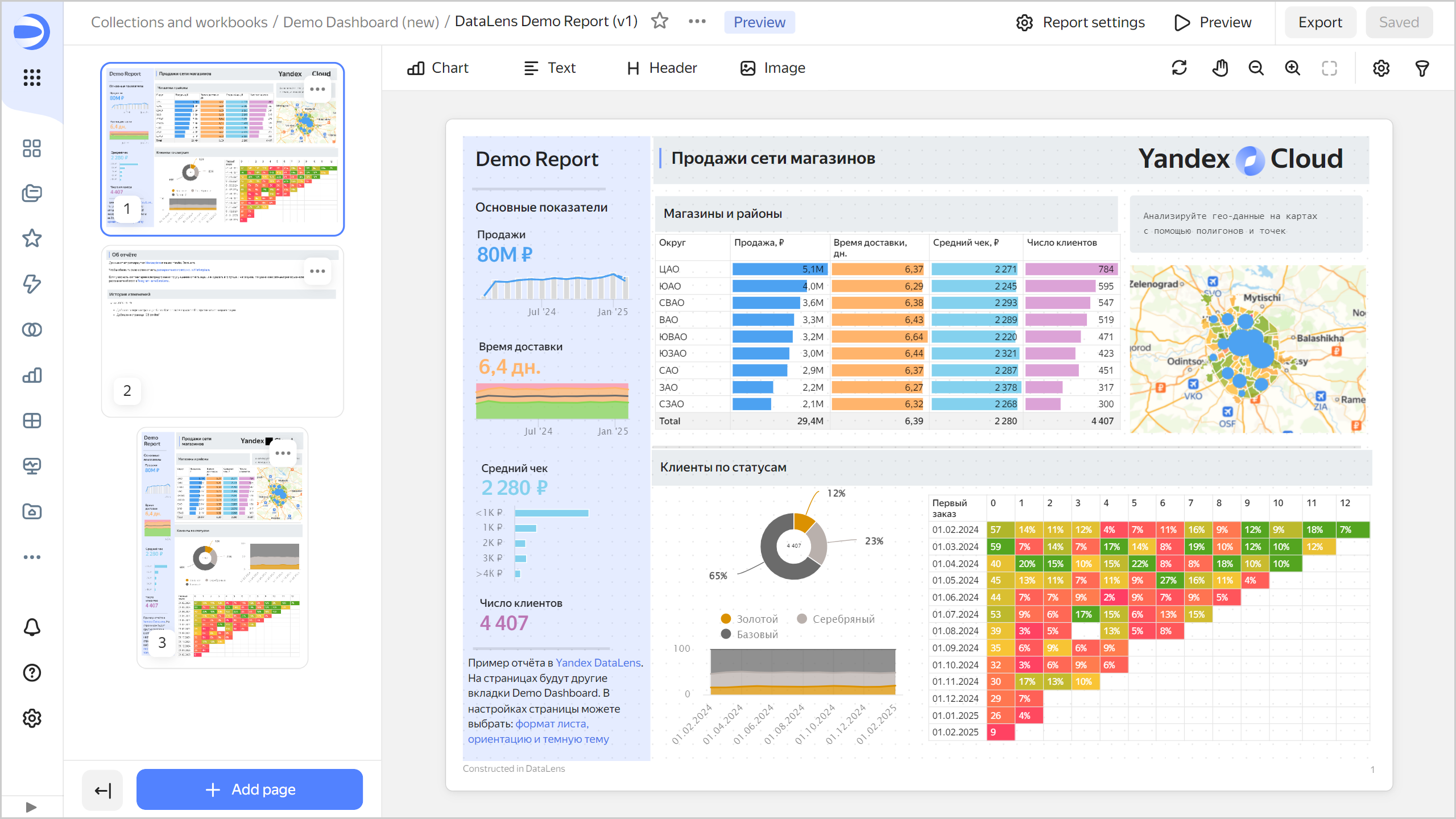
A report is a multi-page document in a specified format you can use as an interactive presentation or export to PDF and print. You can add charts, text blocks, headers, and images to the pages of the report.

To view an example of the report, deploy DataLens Demo Dashboard from the Gallery:

  1. Click Use → Deploy.
  2. Choose where to save the workbook: workbook and collection root, existing collection, or new collection. Navigate to the saving destination and click Deploy. The workbook name must be unique, so edit the name if you need to.
  3. Click Create. You will see the report example in your new workbook.

Join our Telegram community to explore more reports.
report-page

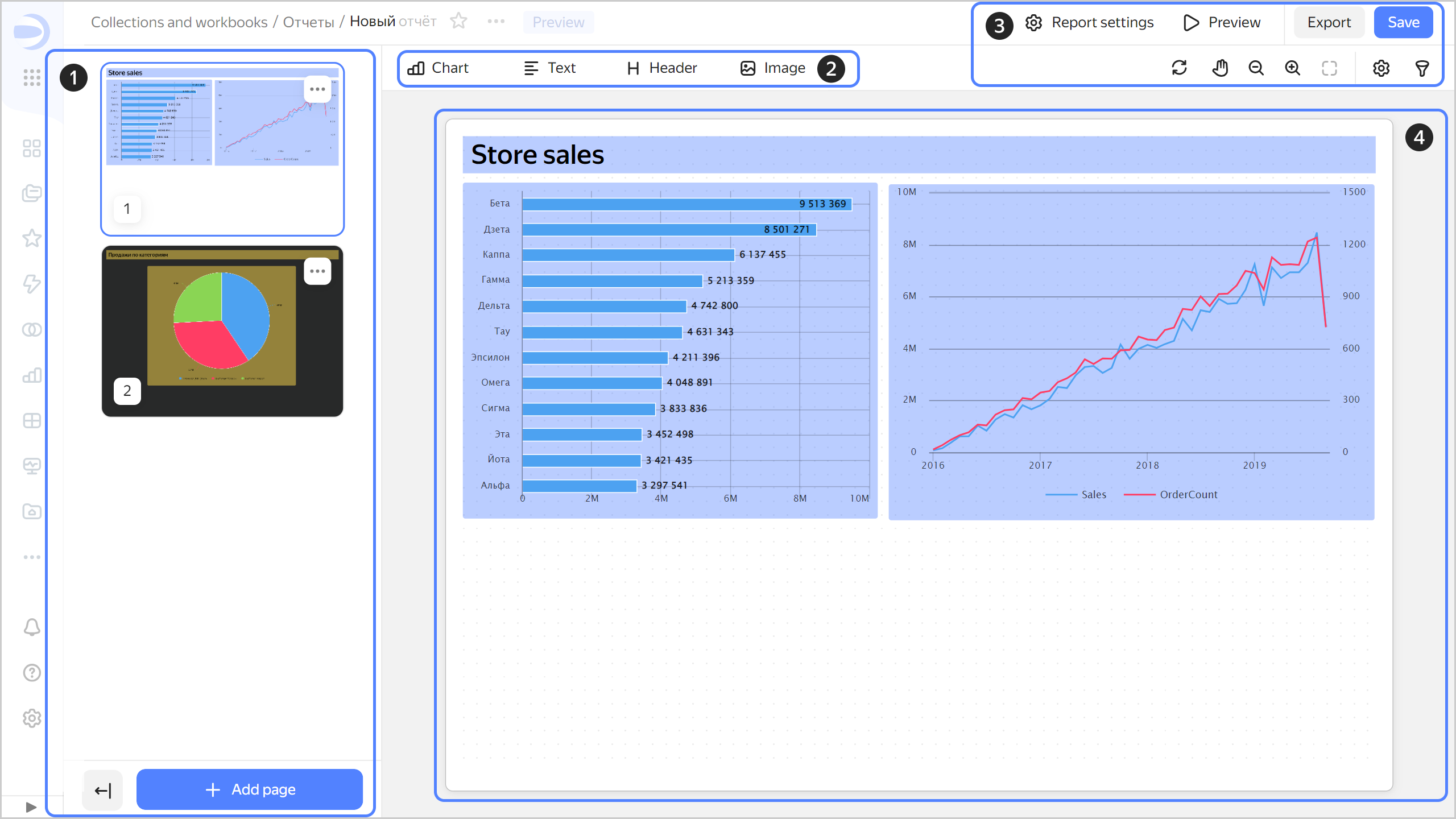
The report builder has these structural elements:

  1. Report page preview area. Here you can manage the report pages: add, move, or delete them. To collapse the preview area, click . Instead of pages, their sequence numbers will be displayed. Click to expand the preview area and display the pages.

  2. Panel for adding widgets to the report.

  3. Basic controls:

    • Report settings: Opens the report settings window.
    • Preview: Opens a full-screen view of the report as document or presentation.
    • Export: Exports the report in .pdf.
    • Save: Saves the report.
    • : Refreshes the report charts with applied parameters on the current page only.
    • : Moves the report page around the screen. When clicked again, returns you to move widget mode.
    • : Zooms out on the report.
    • : Zooms in on the report.
    • : Resets the report display scale and centers it on the screen.
    • : Opens the current page settings window.
    • : Opens the report selector settings window.
  4. Area for working with the contents of the current report page.
    report-page

Report widget featuresReport widget features

The behavior and settings of report widgets are different compared to dashboard widgets:

  • Widget height is set in the report editing window. Auto height adjustment is not supported.
  • You can overlap widgets, move them to the foreground or background.
  • You can set a background for any widget.
  • When you paste a widget copied from a dashboard, it gets the default settings.
  • Charts do not support tabs and filtering.

What's nextWhat's next

  • Working with a report

Was the article helpful?

Previous
Managing access to a dashboard
Next
Working with reports
© 2026 Direct Cursus Technology L.L.C.