Yandex Cloud
Search
Contact UsTry it for free
  • Customer Stories
  • Documentation
  • Blog
  • All Services
  • System Status
    • Featured
    • Infrastructure & Network
    • Data Platform
    • Containers
    • Developer tools
    • Serverless
    • Security
    • Monitoring & Resources
    • AI for business
    • Business tools
  • All Solutions
    • By industry
    • By use case
    • Economics and Pricing
    • Security
    • Technical Support
    • Start testing with double trial credits
    • Cloud credits to scale your IT product
    • Gateway to Russia
    • Cloud for Startups
    • Center for Technologies and Society
    • Yandex Cloud Partner program
    • Price calculator
    • Pricing plans
  • Customer Stories
  • Documentation
  • Blog
© 2025 Direct Cursus Technology L.L.C.
Yandex DataLens
  • DataLens neuroanalyst
    • Overview
    • Adding chart info
    • Opening a chart as a table
    • Versioning
    • Exporting data from charts
    • Chart inspector
    • Access management
  • DataLens Gallery
  • Audit Trails events
  1. Charts
  2. Adding chart info

Adding chart info in Yandex DataLens

Written by

Yandex Cloud
Updated at November 6, 2025

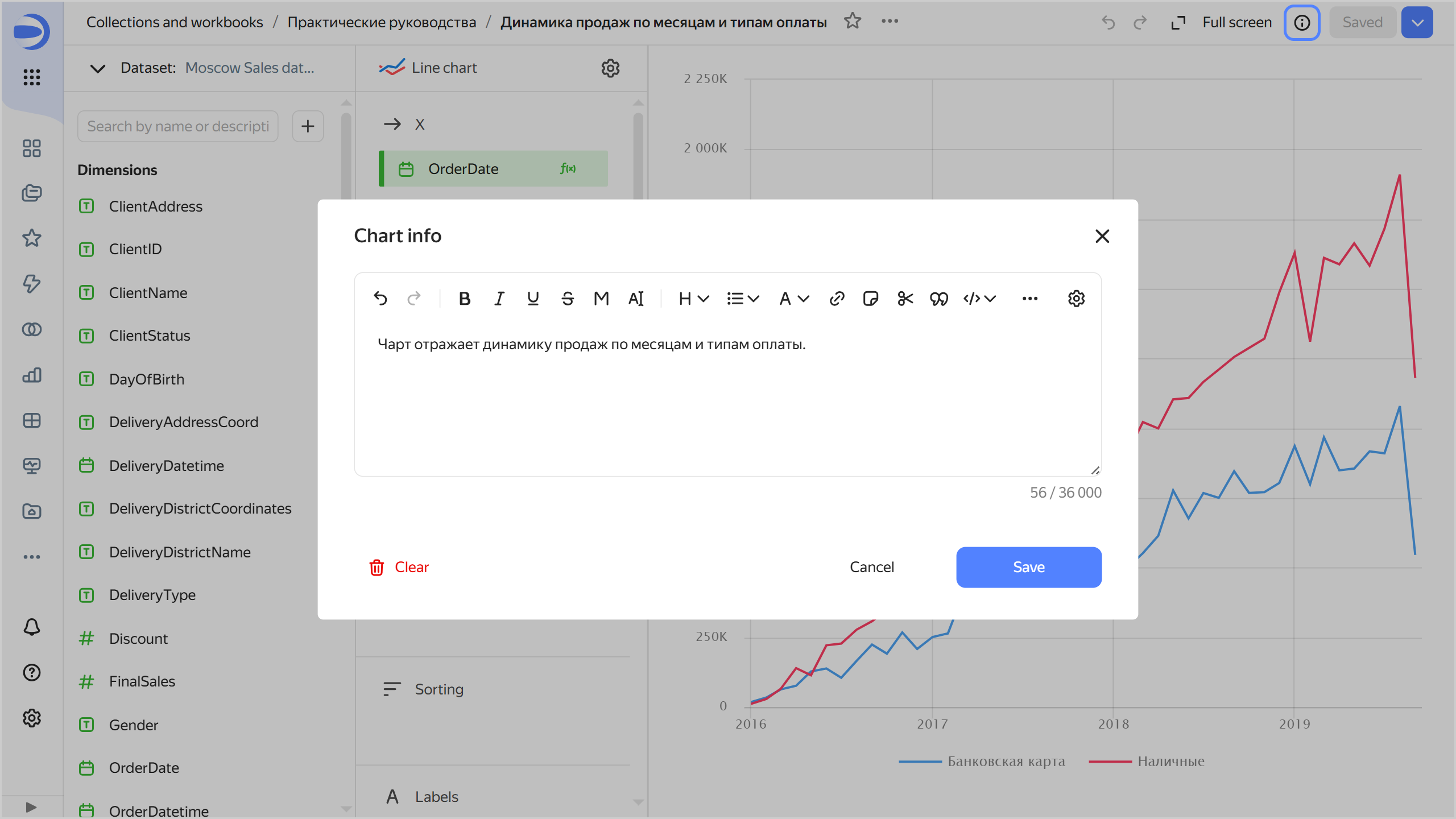
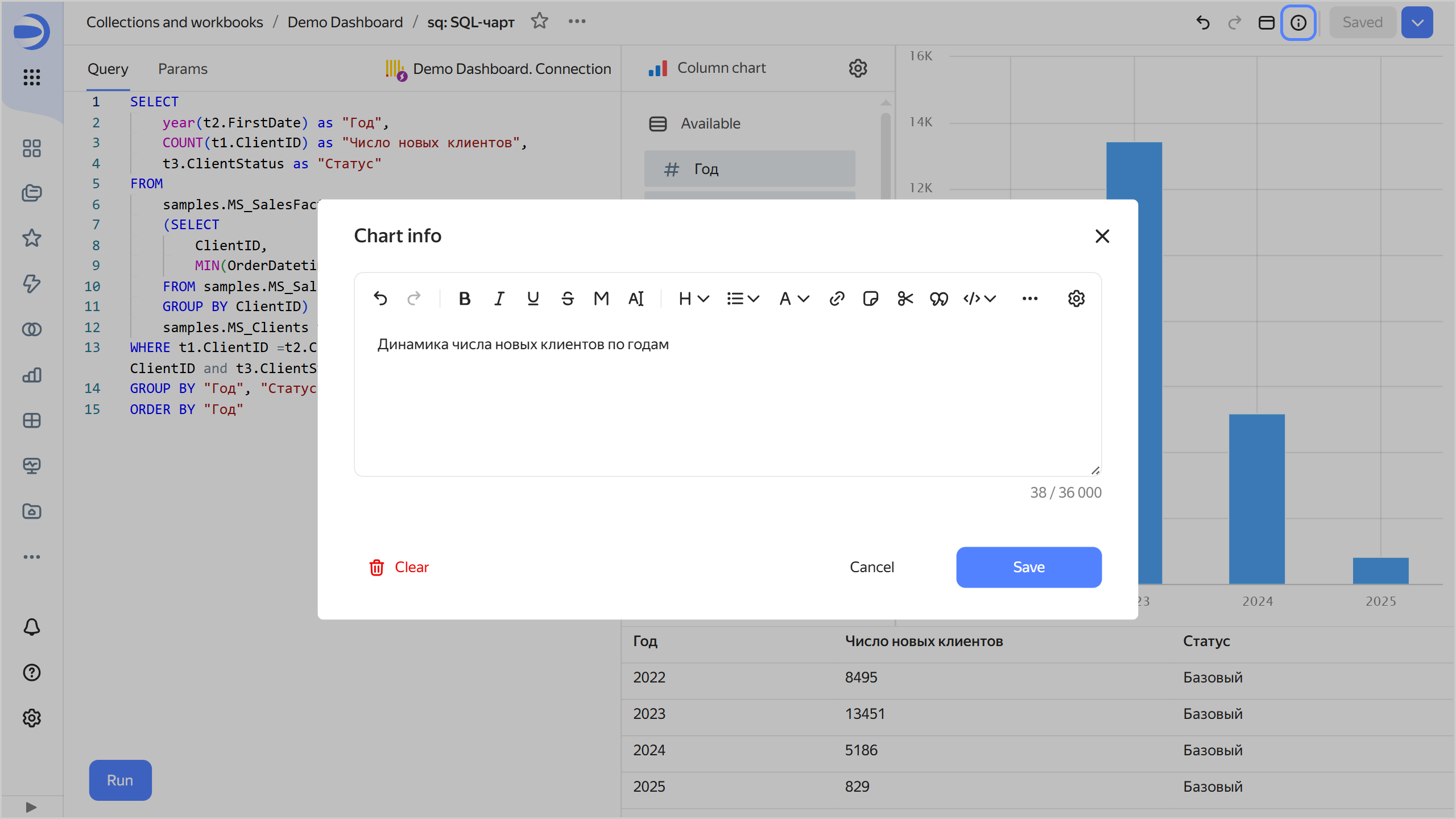
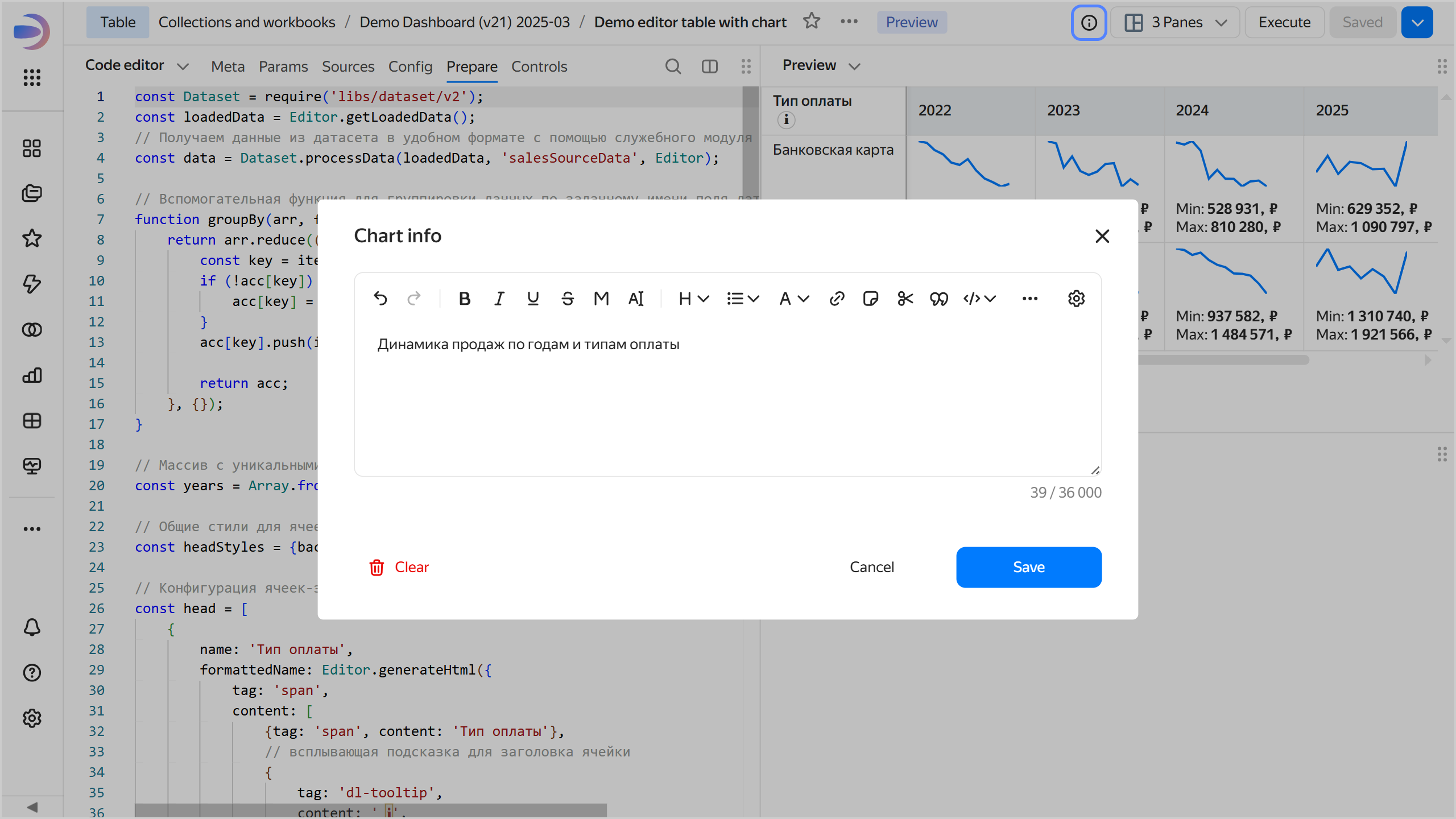
To add chart info, do the following:

  1. Open the chart to add info for.

  2. Click at the top of the screen.

  3. Enter the information and click Save.

    Adding chart info
    Wizard
    QL chart
    Editor

    add-description

    add-description

    add-description

  4. In the top-right corner, click Save.

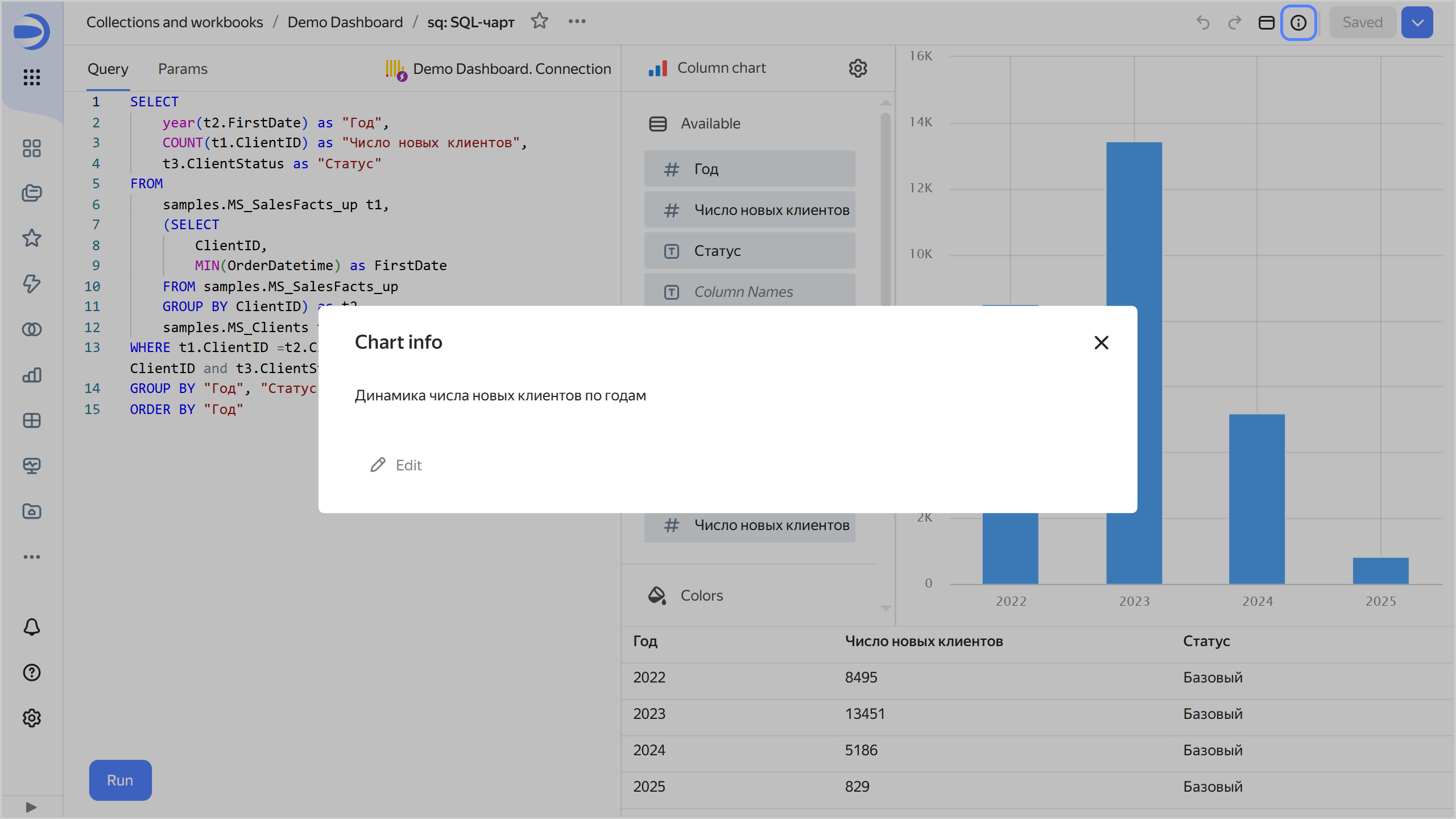
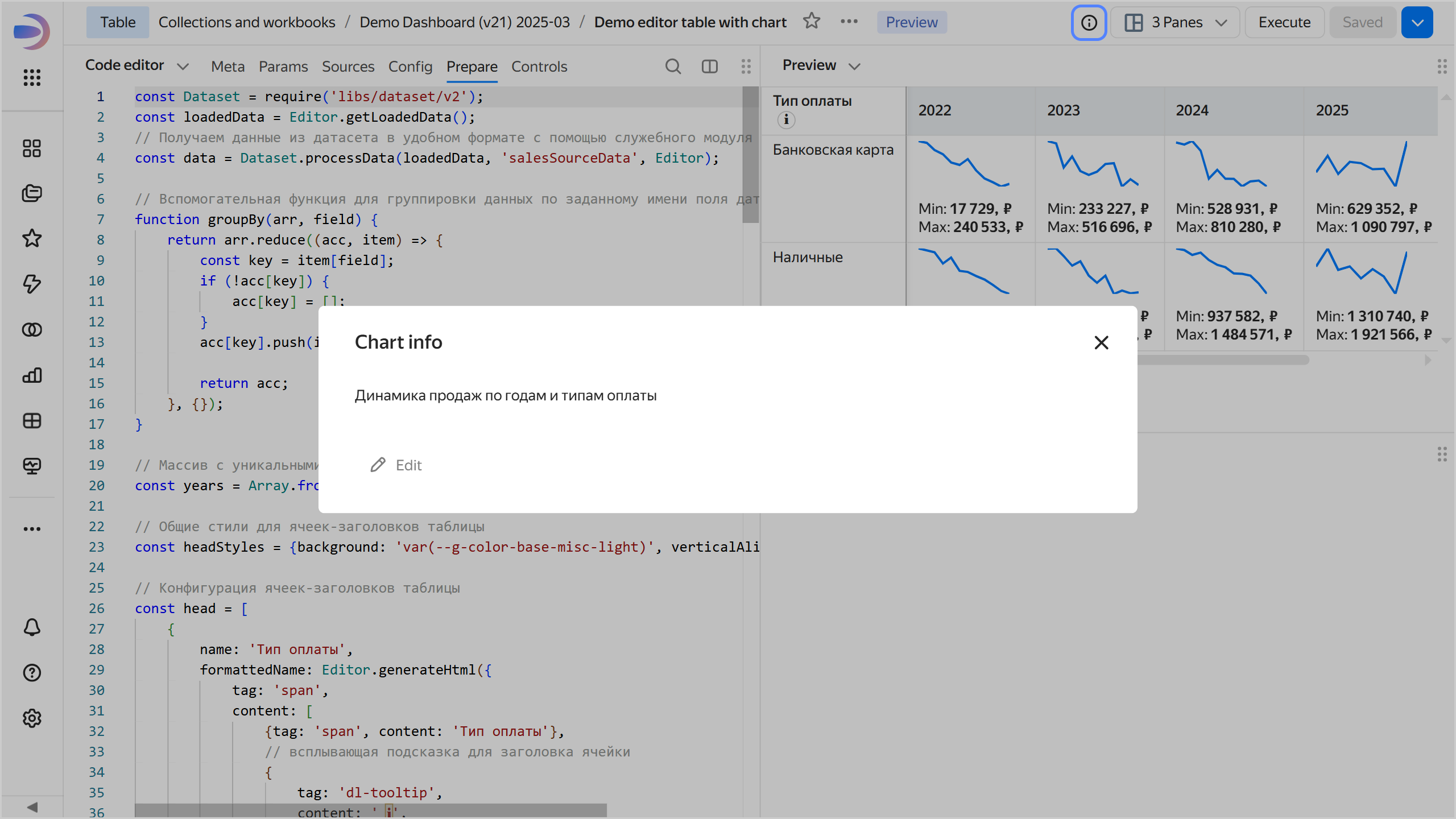
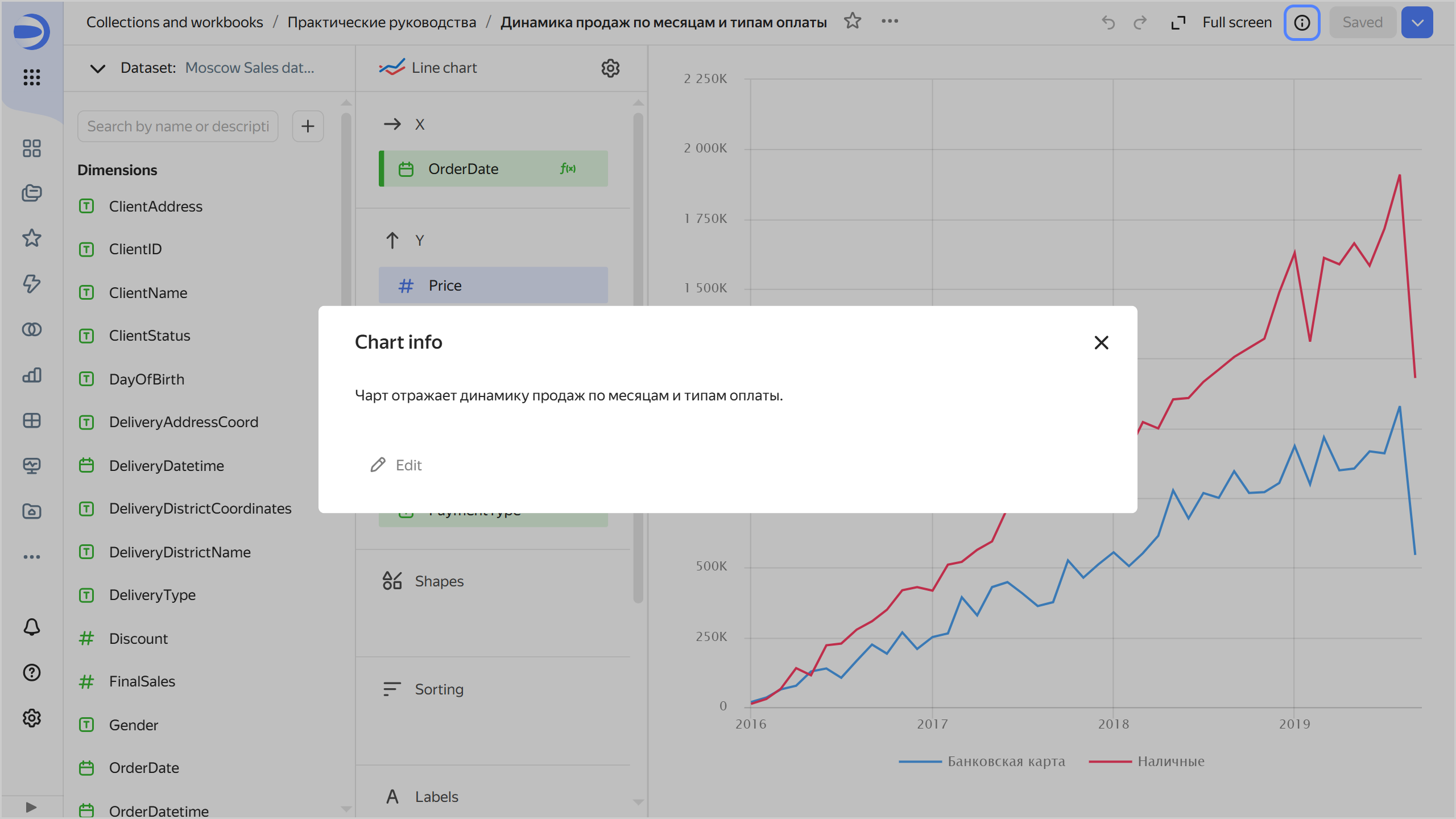
As a result, all users will see the icon in the top-right corner of the chart. Clicking it will open the Chart info window with the information.

Viewing chart info
Wizard
QL chart
Editor
description

description

description

To remove chart info, save an empty field in the Chart info window. Users will no longer see the icon.

Was the article helpful?

Previous
Adding parameters to a chart
Next
Opening a chart as a table
© 2025 Direct Cursus Technology L.L.C.