HTML pages in DataLens
Written by

The HTML page feature allows DataLens users to upload an HTML page to a workbook and share it with other users.
When preparing your HTML pages, use the GitHub skill that brings together the limitations and generation instructions.
Uploading an HTML page
You can use one of these methods to upload an HTML page:
Workbook
Navigation panel
- Go to the page with workbooks and collections.
- Open the workbook you want to create an HTML page in.
- In the top-right corner, click Create and select HTML page.
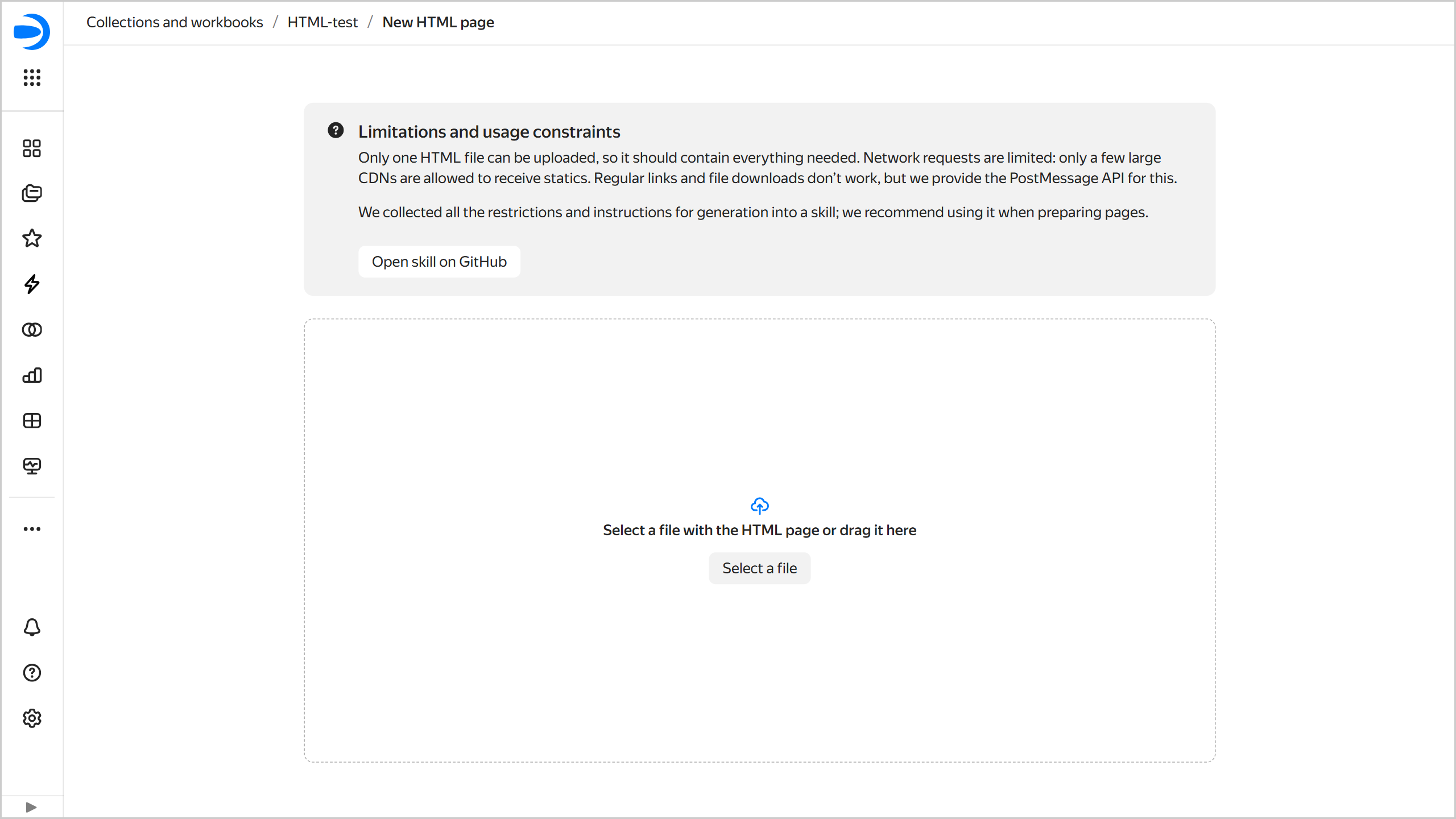
- Select an HTML page file or drag and drop it to the page.
- In the window that opens, enter a name for the page and click Create.
- Go to the DataLens main page.
- In the left-hand panel, select HTML pages and click Create HTML page.
- Select the workbook to store your HTML page in and click Create.
- Select an HTML page file or drag and drop it to the page.
- In the window that opens, enter a name for the page and click Create.
Uploading a new version of an HTML page
To update your HTML page:
- Modify the original HTML page file as needed.
- In DataLens, open the HTML page to update.
- At the top right, click Upload new version.
- Select an HTML page file or drag and drop it to the page.
You will now see the new version of your HTML page, while the previous one will be saved to the version history.
Sharing a link to an HTML page
To copy a link to an HTML page, click at the top or click and select Copy link. You can distribute this link to users with access to the HTML page.
Limitations and features
- You can upload one HTML file only, so it should include everything you need.
- Network requests are limited: you can get static IPs only from a number of large CDNs.
- Common links and file downloads do not work; however, DataLens provides the postMessage API for this purpose.