Yandex Cloud
Search
Discuss with expertTry it for free
  • Customer Stories
  • Documentation
  • Blog
  • All Services
    • Cloud Interconnect
    • Cloud Backup
    • Cloud Registry
    • Yandex AI Studio
    • Compute Cloud
    • Object Storage
    • Managed Service for Kubernetes®
    • Yandex BareMetal
    • Smart Web Security
    • Security Deck
    • Managed Service for PostgreSQL
    • Managed Service for ClickHouse®
    • Monium
    • Cloud CDN
    • Network Load Balancer
    • Virtual Private Cloud
    • Cloud DNS
    • Application Load Balancer
    • Yandex Cloud Video
    • Stackland
    • Yandex Cloud Router
    • Yandex Managed Service for Trino
    • Managed Service for MySQL®
    • Managed Service for Valkey™
    • Managed Service for Apache Spark™
    • Yandex StoreDoc
    • Managed Service for OpenSearch
    • Managed Service for Apache Kafka®
    • Data Transfer
    • Yandex MPP Analytics Engine for PostgreSQL
    • Yandex Managed Service for Apache Airflow®
    • Data Processing
    • Yandex MetaData Hub
    • Managed Service for YDB
    • Managed Service for Sharded PostgreSQL
    • Managed Service for YTsaurus
    • Yandex WebSQL
    • DataLens
    • Yandex Search API
    • SpeechSense
    • SpeechKit
    • DataSphere
    • Vision OCR
    • Translate
    • Yandex Identity Hub
    • Key Management Service
    • Certificate Manager
    • Yandex Lockbox
    • Audit Trails
    • SmartCaptcha
    • Cloud Desktop
    • SourceCraft Code Assistant
    • Container Registry
    • Managed Service for GitLab
    • Managed Service for Prometheus®
    • Cloud Functions
    • API Gateway
    • Yandex Cloud Postbox
    • Message Queue
    • Serverless Integrations
    • IoT Core
    • Data Streams
    • Serverless Containers
    • Cloud Notification Service
    • Yandex Query
    • Identity and Access Management
    • Yandex Cloud Console
    • Resource Manager
    • Yandex Cloud Billing
    • Yandex Cloud Quota Manager
    • Cloud Apps
  • System Status
  • Marketplace
    • Featured
    • Infrastructure & Network
    • Data Platform
    • AI for business
    • Security
    • DevOps tools
    • Serverless
    • Monitoring & Resources
  • All Solutions
    • By industry
    • By use case
    • Economics and Pricing
    • Security
    • Technical Support
    • Start testing with double trial credits
    • Cloud credits to scale your IT product
    • Gateway to Russia
    • Cloud for Startups
    • Center for Technologies and Society
    • Yandex Cloud Partner program
    • Price calculator
    • Pricing plans
  • Customer Stories
  • Documentation
  • Blog
© 2026 Direct Cursus Technology L.L.C.
Yandex DataLens
  • DataLens neuroanalyst
    • Overview
    • Publishing objects
    • Public embedding
    • Sharing an object within an organization

    • Embedding via JWT
  • Gallery in DataLens
  • Audit Trails events
  1. Publishing and embedding
  2. Sharing an object within an organization

Sharing an object within an organization

Written by
Yandex Cloud
Updated at July 22, 2026
View in Markdown

You can share a dashboard, connection, dataset, chart, or report with users within your organization.

The way you share an object depends on whether it is located in a workbook or a folder:

In a workbook
In a folder
  1. In the left-hand panel, select Collections and workbooks.

  2. Open the workbook of interest and select a dashboard or chart.

  3. At the top of the object, click and select Share.

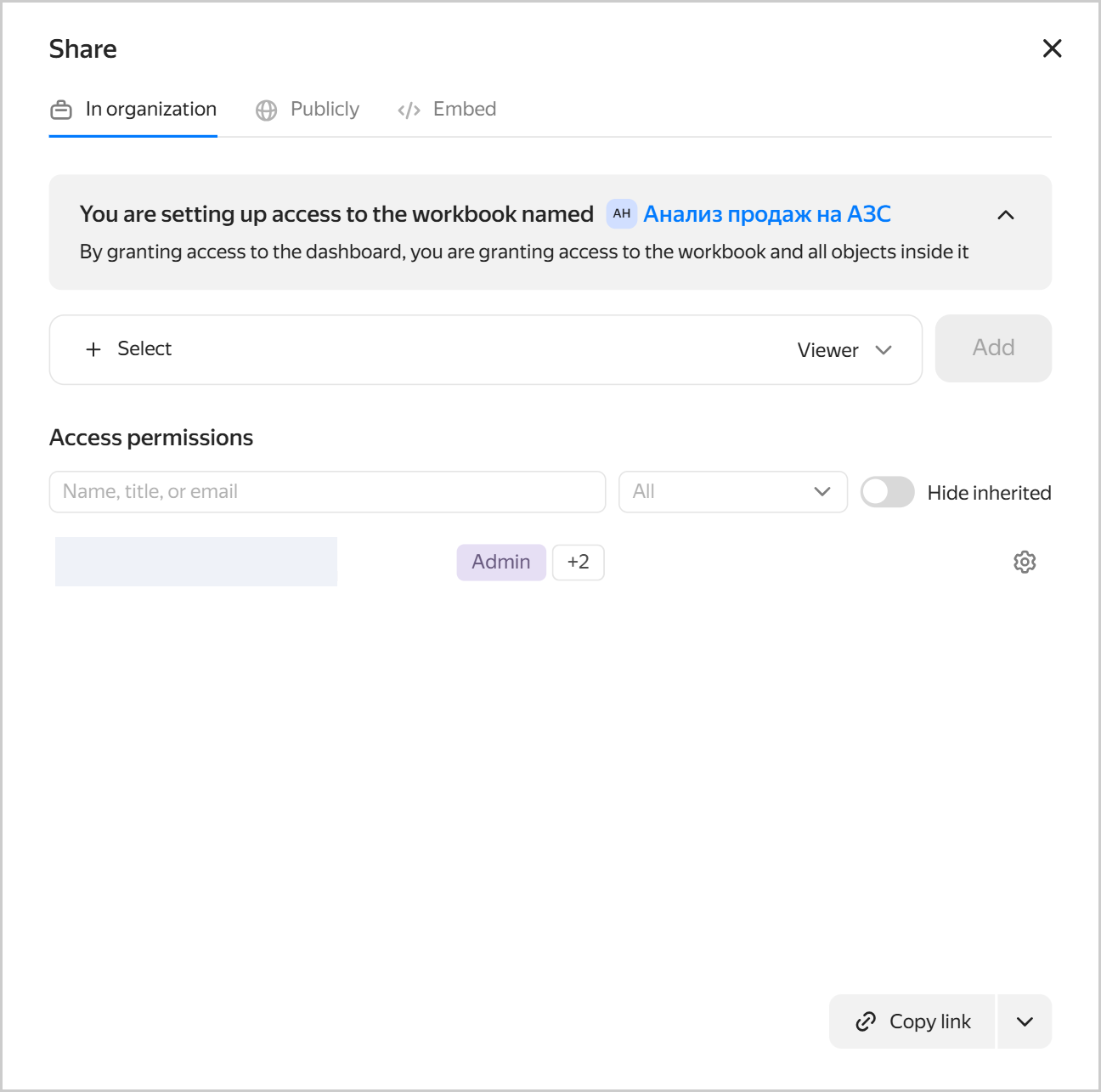
  4. In the window that opens, go to the In organization tab and configure access to the workbook containing the chart or dashboard:

    1. Click Select.

    2. In the window that opens, select a user or user group and specify an access permission. For more information, see the description of workbook roles.

    3. Click Add. The user or group will get permissions for access to the workbook and objects inside it.

    4. Click  Copy link at the bottom right. To configure the link parameters, click → Link with parameters to the right of the button and proceed as follows:

      • Set language, theme, and menu display.
      • Optionally, save selector values.
      • Optionally, enable Open current tab by default.
      • Optionally, if you have an identity federation configured, save the federation to share the link with the federation users.

      Share the copied link with the users to whom you have granted access to the object.

    Sharing within an organization
    image

Sharing a dashboard
Sharing another object
  1. On the navigation page, find the dashboard and open it.

  2. At the top of your dashboard, click and select Share.

  3. In the window that opens:

    • Set language, theme, and menu display.
    • Optionally, save selector values.
    • Optionally, enable Open current tab by default.
    • Optionally, if you have an identity federation configured, save the federation to share the link with the federation users.
  4. Copy the link with the selected appearance settings by clicking icon in the Link field or by clicking Copy and close. You can distribute this link to users with access to the dashboard.

  1. On the navigation page, find the object and open it.
  2. At the top of the object, click and select Copy link or copy it from your browser address bar. You can distribute this link to users with access to the object.

Note

The generated link provides access to the objects only to authenticated users with appropriate permissions.

Was the article helpful?

Previous
Public embedding
Next
Embedding via JWT
© 2026 Direct Cursus Technology L.L.C.