Publishing using a temporary link

You can use a temporary link to make a workbook dashboard public for a limited period of time. A link like that can be created by a user with the Administration role for the workbook.
As long as the link is active, any user can use it and view the dashboard without logging in. However, no user can view the chart settings, connections, dataset, or run an SQL query.
Warning
Before publishing any data, make sure that your charts and dashboards do not contain any personal data or trade secrets. Access to published data is not restricted.
The rules for granting access to a dashboard via a temporary link are the same as those for object publishing. Once the link expires, you no longer can use it to access the dashboard.
A user with the Administration role for the workbook the temporary link was created in can revoke the link before it expires.
Dashboard views via a temporary link are counted for billing purposes because they are using up the quota for requests from private embedded objects.
Creating a temporary link
-
In the left-hand panel, select Collections and workbooks.
-
Open the workbook of interest and select a dashboard.
-
At the top of the object, click and select Share.
-
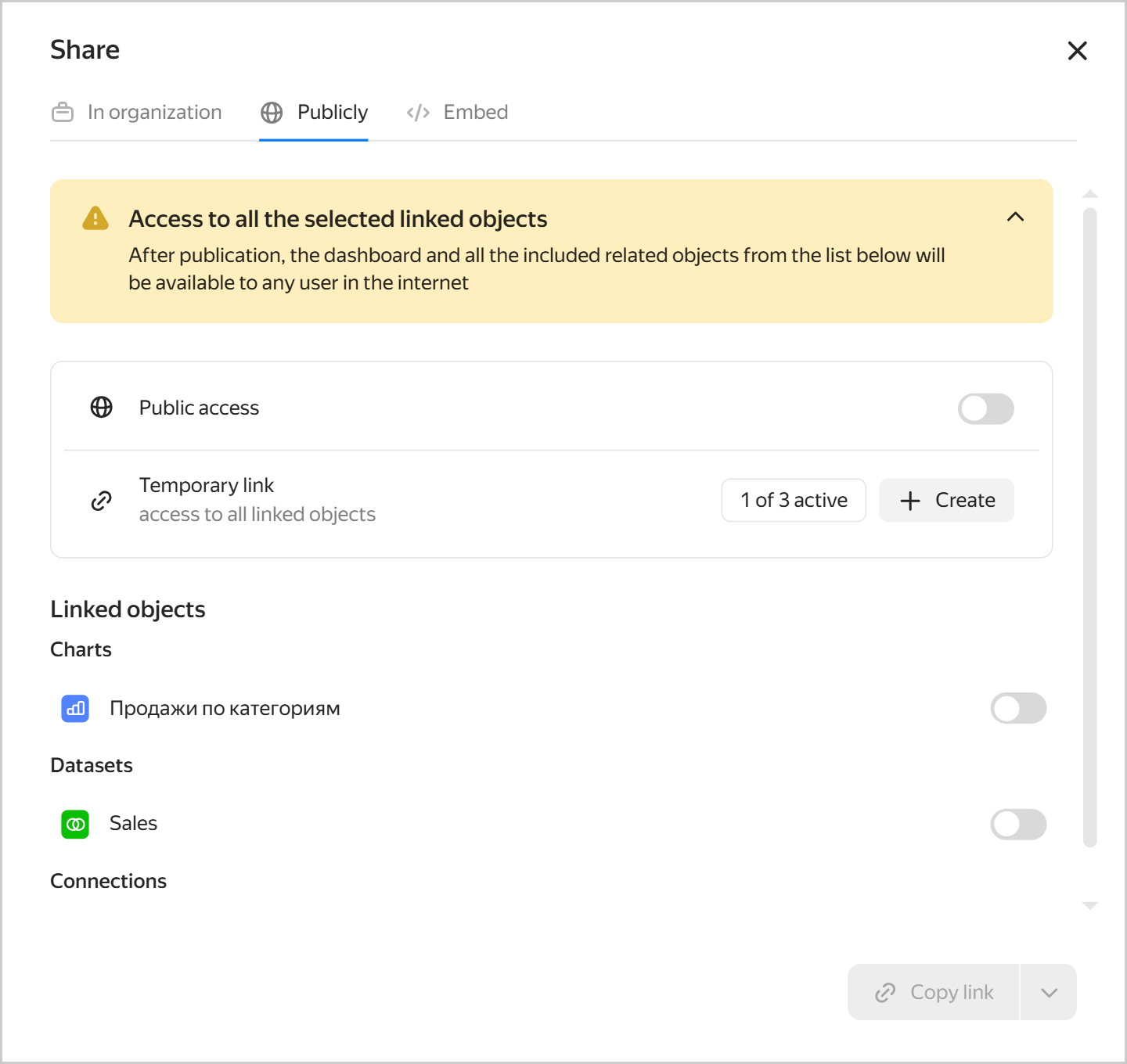
In the window that opens, go to the Public tab.
-
Under Temporary link, click Create. In the window that opens:
-
Select the temporary link active period from the drop-down list:
1 hour,2 hour,3 hours,5 hours,10 hours, or24 hours. The maximum validity period for a temporary link is24 hours. The default value is10 hours. -
Click Create. A temporary link will be created and copied to the clipboard.
Note
- Via the temporary link, the dashboard and all its linked objects will be available to any internet user.
- The link from the browser address bar provides access to the dashboard and all its linked objects only to authenticated users with appropriate permissions.
Public access and temporary links
-
Revoking a temporary link
A user with the Administration role for the workbook the temporary link was created in can revoke the link before it expires.
-
Open the workbook of interest and select a dashboard.
-
At the top of the object, click and select Share.
-
In the window that opens, go to the Public tab.
-
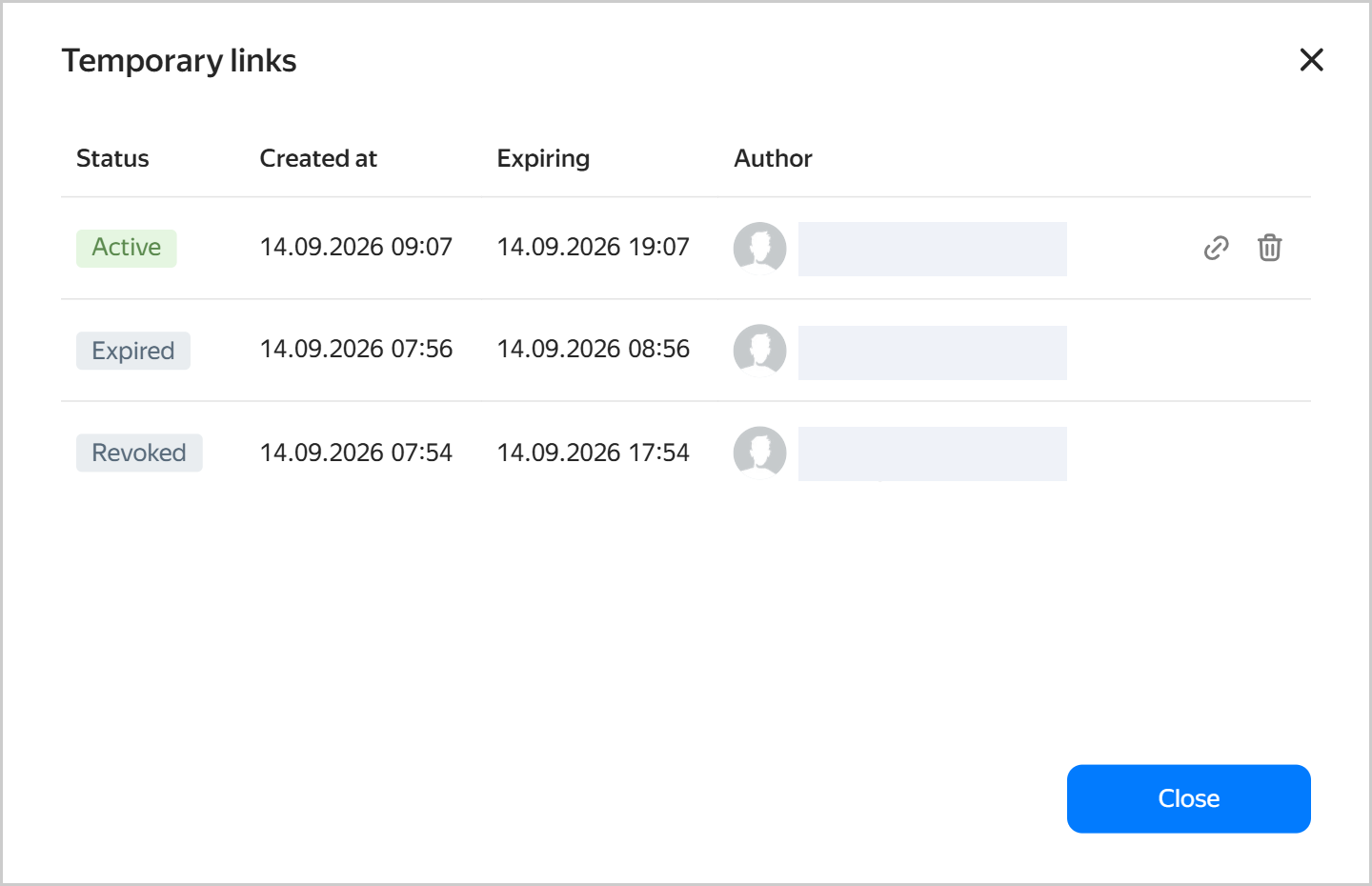
If at least one temporary link is active for the current dashboard, there will be a button in the Temporary link section showing the number of active links and the total number of links. Click this button. In the window that opens:
-
Click (Revoke) next to the link. The temporary link will be revoked, and no user will be able to use it to view the dashboard.
-
Click Close.
Temporary links
-
Copying a temporary link
A user with the Administration role for for the workbook the temporary link was created in can copy the link and share it with another user.
-
Open the workbook of interest and select a dashboard.
-
At the top of the object, click and select Share.
-
In the window that opens, go to the Public tab.
-
If at least one temporary link is active for the current dashboard, there will be a button in the Temporary link section showing the number of active links and the total number of links. Click this button. In the window that opens:
-
Next to the link, click (Copy link). Your temporary link will be copied to the clipboard.
-
Click Close.
Note
- Via the temporary link, the dashboard and all its linked objects will be available to any internet user.
- The link from the browser address bar provides access to the dashboard and all its linked objects only to authenticated users with appropriate permissions.
Temporary links
If there are no active links, create a new one.
-