Creating a Yandex SpeechSense connection

To create a SpeechSense connection:
-
Go to the DataLens home page.
-
In the left-hand panel, select Collections and workbooks and open the workbook in question or create a new one. If using legacy folder navigation, select a folder or create a new one to save the connection to.
-
In the top-right corner, click Create → Connection.
-
Under Files and services, select the SpeechSense connection.
-
Select the authorization mode and specify the connection settings:
Current userService accountNote
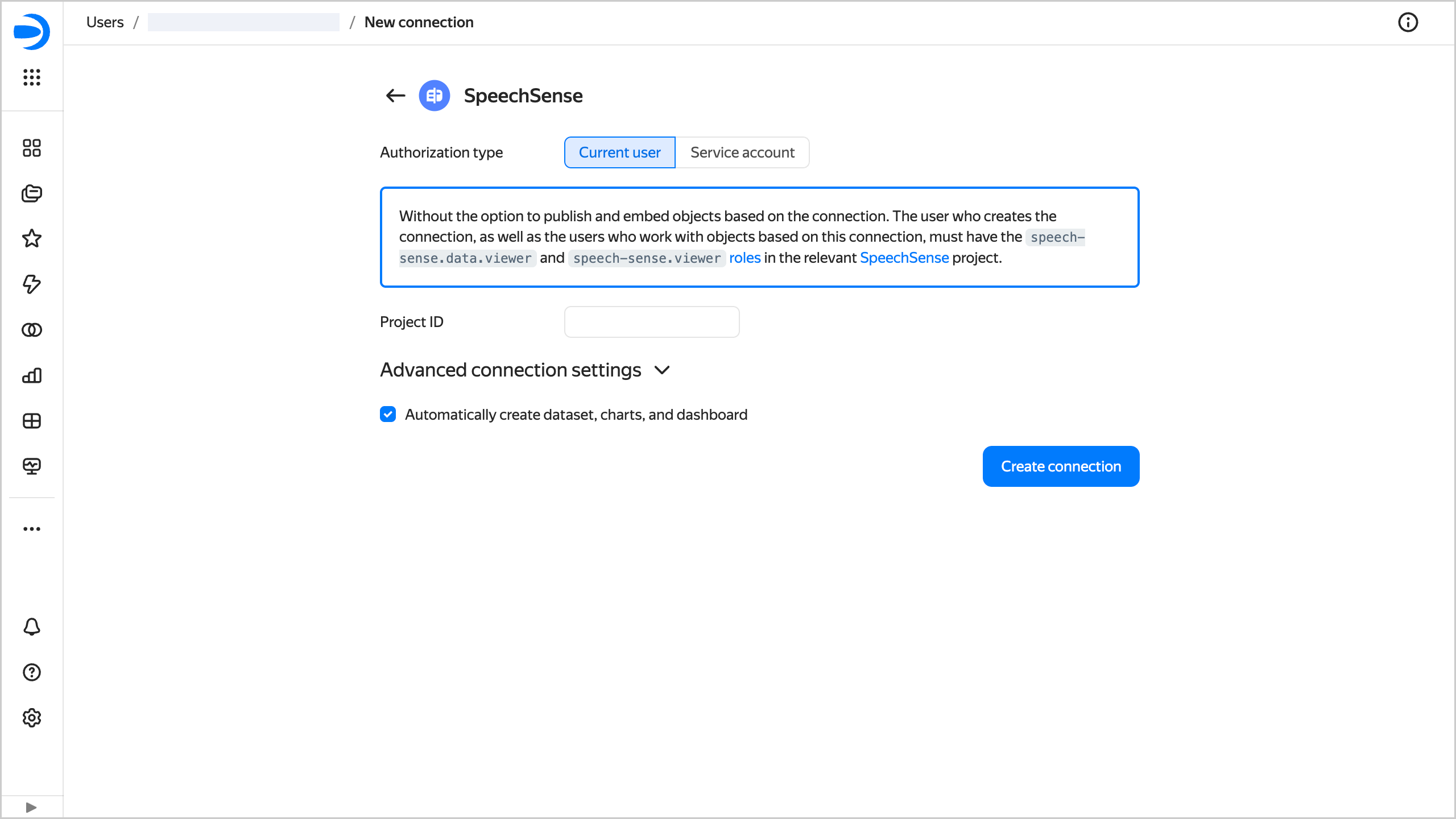
To create a connection and use datasets and charts built on it, the user must have the
speech-sense.data.viewerandspeech-sense.viewerroles in the relevant SpeechSense project.-
Copy the ID of the SpeechSense project in question and paste it in the Project ID field.
-
Leave the Automatically create dashboard, charts, and dataset on top of connection option enabled if you want to get a ready-made dashboard, dataset, and standard charts.
-
Click Create connection.
-
Enter a name for the connection and click Create.
Note
If the project with the ID you specified does not exist or the user has no access to it, the connection will not be created and you will get an error.
Note
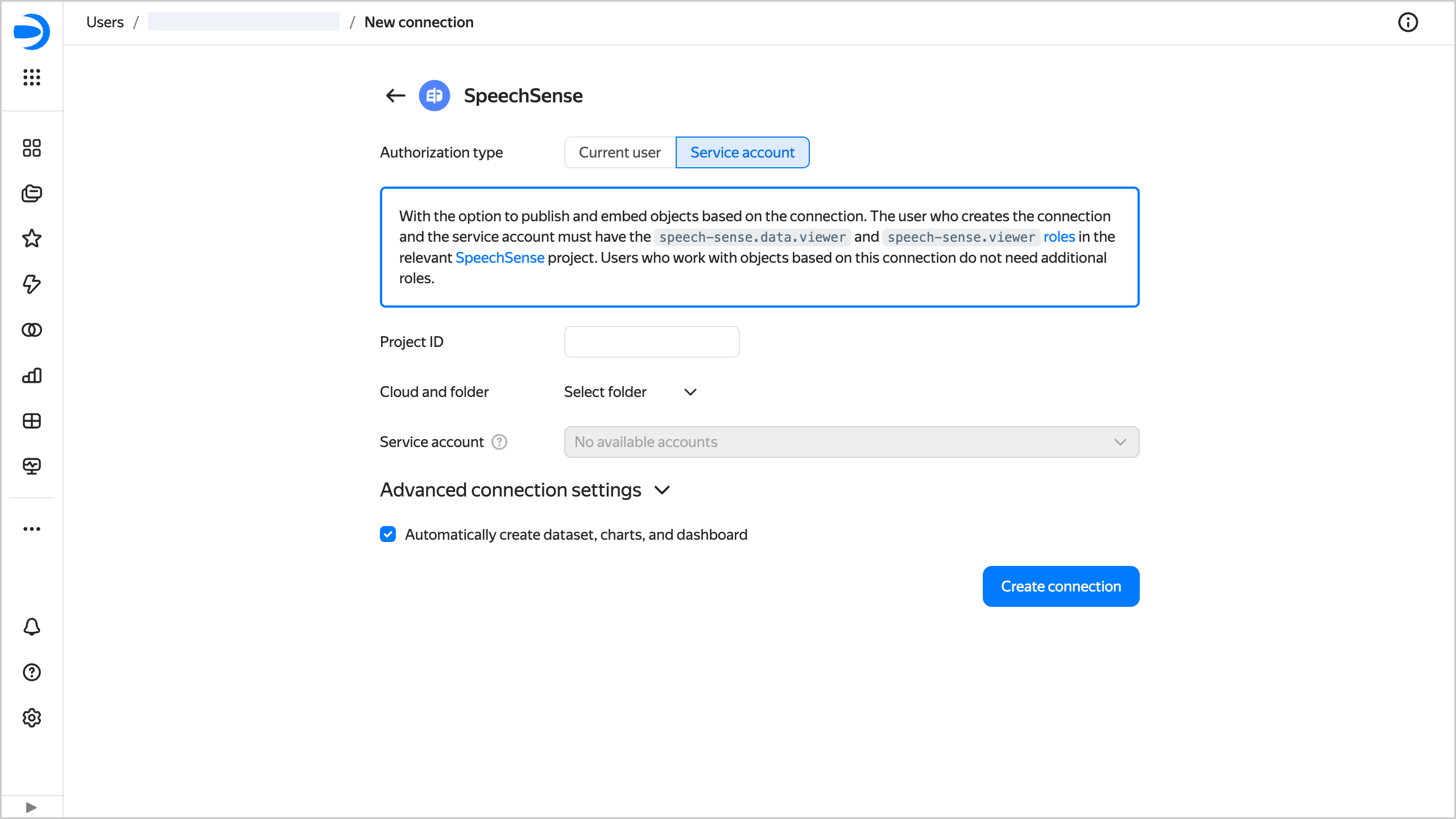
To create a connection and use datasets and charts built on it, the service account and user must have the
speech-sense.data.viewerandspeech-sense.viewerroles in the relevant SpeechSense project.-
Copy the ID of the SpeechSense project you need and paste it into the Project ID field.
-
Select a cloud and a folder within it.
-
Select an existing service account or create a new one.
-
Leave the Automatically create dashboard, charts, and dataset on top of connection option enabled if you want to get a ready-made dashboard, dataset, and standard charts.
-
Click Create connection.
-
Enter a name for the connection and click Create.
Note
If the project with the ID you specified does not exist or the service account has no access to it, the connection will not be created and you will get an error.
-