Operations with a Yandex DataLens workbook

In this section, you will learn how to use a workbook:
- Creating a workbook
- Editing a workbook
- Moving a workbook
- Copying a workbook
- Exporting a workbook
- Adding or removing embedding keys
- Setting up access to a workbook
- Deleting a workbook
- Restoring workbook objects
You can perform most actions either from a collection or from the workbook page.
Next to the workbook, click and select the required action.
On the workbook page, click at the top and select the required action. Some actions have separate buttons.
Below are the actions performed from the workbook page.
Creating a workbook
To create a workbook:
-
Go to the DataLens home page.
-
In the left-hand panel, select Collections and workbooks.
Note
If you do not see Collections and workbooks in the left-hand panel, ask the user with the
datalens.adminrole to enable workbooks and collections in your organization. -
In the top-right corner, click Create → Create workbook.
-
Enter a name for the workbook.
-
Optionally, enter a description for the workbook.
-
Optionally, click Select file to import a workbook.
-
Click Create.
Editing a workbook
To change workbook name and description:
- At the top of the workbook page, click Edit next to the name.
- Enter a new name and description for the workbook and click Save.
Moving a workbook
To move a workbook:
- At the top of the workbook page, click → Move.
- Select the collection you want to move the workbook to and click Move. To move the workbook to a new collection, click Create collection.
Copying a workbook
To create a copy of a workbook:
- At the top of the workbook page, click → Copy.
- In the window that opens, select the target collection and click Copy. To copy the workbook to a new collection, click Create collection.
- Enter a name for the new workbook and click Copy.
After you have copied a workbook, you can delete redundant objects or create new ones in it.
Exporting a workbook
You can export a workbook and download the export file in JSON format. Using the export and import tools in DataLens, you can transfer workbooks between installations. For more information, see Exporting and importing Yandex DataLens workbooks.
Adding or deleting embedding keys
You can securely embed private objects into a website or app using special JWT token links. A JWT token is generated using embedding keys.
To add embedding keys:
-
On the workbook page, click at the top and select Embedding keys.
-
Click Create key.
-
Enter the key name and click Create.
-
At the bottom, click Download key file or copy the key value.
Warning
After you close the window, all data from it will be lost.
The new key for embedding will appear in the list.
To delete an embedding key:
- On the workbook page, click at the top and select Embedding keys.
- Next to the key, click and confirm the deletion of the key.
For more information on embedding private objects, see Embedding via JWT.
Setting up access to a workbook
You can assign access permissions to users and user groups for each workbook and collection. Access permissions determine what you can do with a workbook or collection. Permissions are inherited as follows:
- Workbook permissions apply to all objects within the workbook.
- Collection permissions apply to all collections and their workbooks, as well as objects within workbooks.
You can grant permissions to individual users or groups of authenticated users.
Note
- You can assign permissions for workbooks and collections to users even if they have yet to accept their invitation to DataLens.
- Permissions are inherited by all nested objects. You can only update the inherited permissions at the parent object level.
Assigning access permissions
To assign access permissions for a workbook:
-
On the workbook page, click Access at the top.
Under Inherited permissions, you can see the users who inherited object permissions, because they were granted permissions for one of its parent objects. For each user, the inherited permission and the object it is inherited from are displayed.
Under Direct permissions, you can see the users who have permissions for the selected object.
-
Click Add user.
-
In the window that opens, select a user or user group, specify the appropriate permission, and click Save. The user or user group will get permissions for this object.
Revoking permissions
To revoke access permissions for a workbook:
-
On the workbook page, click Access at the top.
-
Under Direct permissions, click next to the user or user group to revoke permissions from.
Note
If the user is missing from the list, they might have permissions for the parent object. You can revoke permissions for the parent object. To switch to the object that inherits permissions, find the user in the Inherited permissions list and click the object name.
-
In the window that opens, click Revoke role.
Deleting a workbook
To delete a workbook:
-
At the top of the workbook page, click → Delete.
-
Confirm the deletion of the workbook.
You can restore a deleted workbook.
Restoring workbook objects
A user with the Editor role for a workbook can restore its deleted objects, such as connections, datasets, charts, dashboards, reports, or HTML pages.
To restore a workbook object:
-
At the top of the workbook page, click → Deleted objects.
-
You will see a window with info on all objects deleted from the workbook, including the object name, deletion date, and the name of the user who deleted it.
You can sort the list by name or deletion date.
You can also search by object name or switch between tabs with object types:
Charts,Dashboards,Reports,More→Datasets/Connections/HTML pages.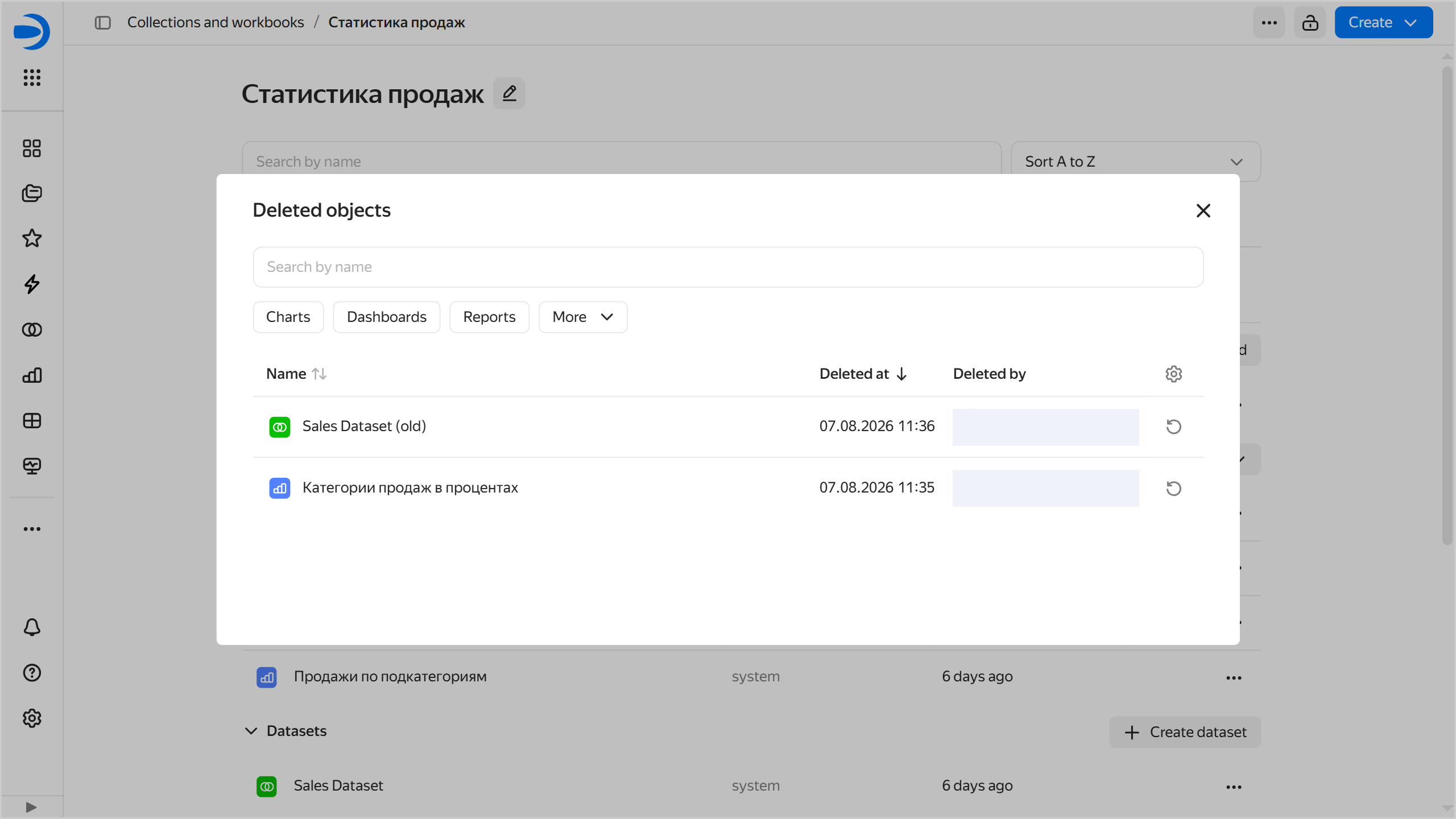
Click next to the object to restore.
-
Confirm restoring the object.