Visualizing data from CHYT

This section explains how to connect CHYT using a public clique as a data source for DataLens.
Getting started
To use a YTsaurus table as a data source, select the CHYT clique you will be working with.
Note
A clique is a virtual cluster in CHYT. It is represented by an operation and has an ID (operation_id) or alias (alias). There are public and private cliques.
When working with CHYT, you can use the public *ch_public clique.
Prepare a data table on YTsaurus
Before creating a connector in CHYT, prepare your table on YTsaurus:
-
The table must be static. Learn more about static tables in YTsaurus.
-
The table must be schematized. DataLens queries the table and gets its schema to create a dataset. Learn more about schemas in YTsaurus.
Tip
Recommended:
- Sorting tables by the main fields used for filtering, e.g., by fields containing dates.
- Enabling the columnar chunk storage format using the
optimize_for = scanattribute. Thus DataLens will process the table faster.
Create a chart
To create a chart in DataLens, you need to create a connection and dataset over it.
Create a connection
To work with CHYT, create a CHYT connection.
To create a YTsaurus CHYT connection:
-
Open the page for creating a new connection.
-
Under Databases, select the YTsaurus CHYT connection.
-
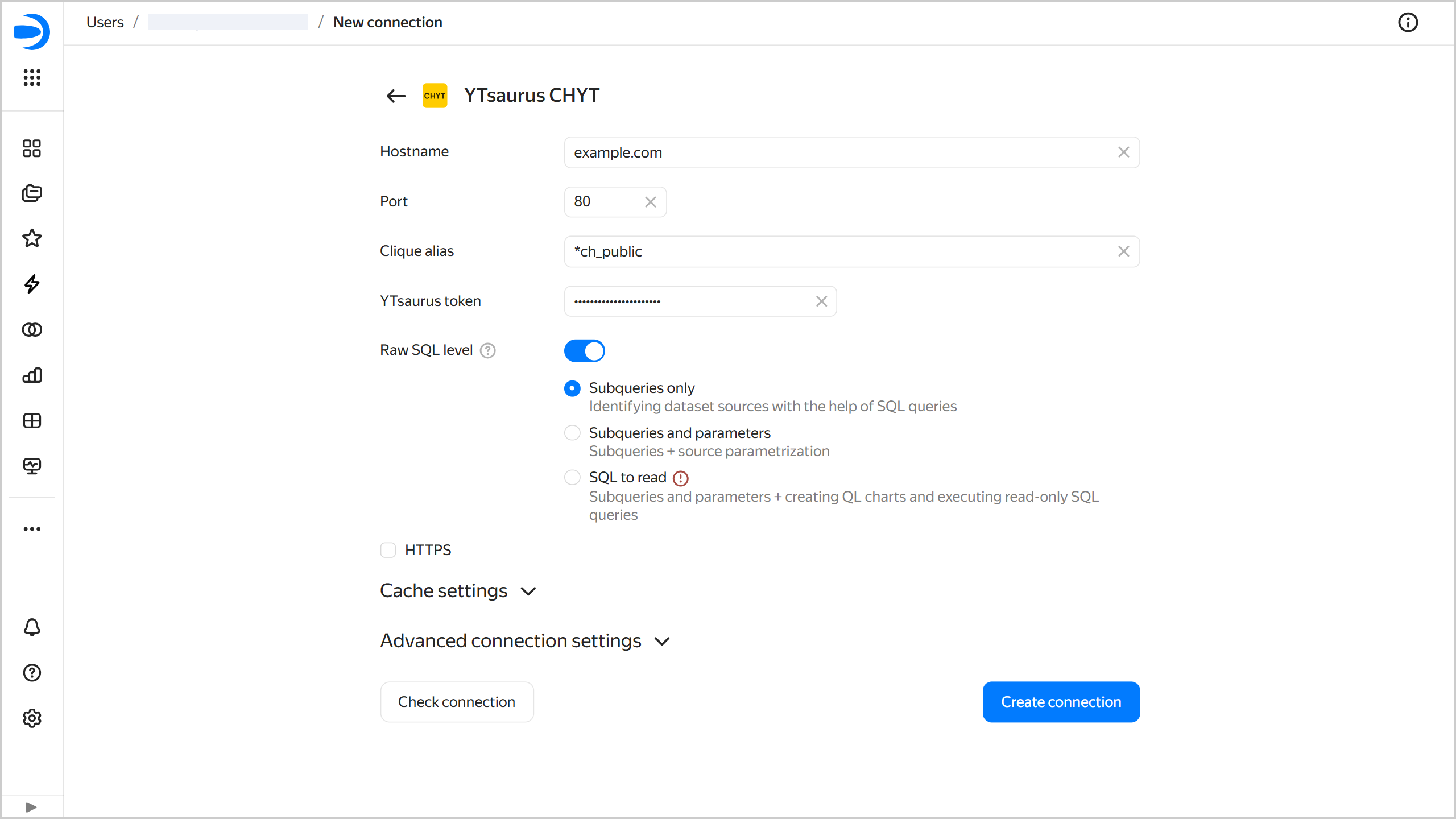
Configure the connection as follows:
- Host name: Specify the YTsaurus proxy server address.
- Port: Specify the CHYT connection port.
- Clique alias: Specify the alias of a running clique. By default, the
*ch_publicpublic clique is used. - YTsaurus token: Manually set the OAuth token to use with YTsaurus. For more information, see this YTsaurus guide.
- Cache TTL in seconds: Specify cache TTL or leave the default value. The recommended value is 300 seconds (5 minutes).
-
Raw SQL level: Enables you to use an ad-hoc SQL query to generate a dataset. This option is disabled by default. When enabling it, you will need to select the raw SQL level:
- Subqueries only: Describe dataset sources using SQL queries.
- Subqueries and parameters: Describe dataset sources using SQL queries and use source parameterization.
- SQL to read: Describe dataset sources using SQL queries, use source parameterization, and create QL charts.
- HTTPS. Enable the secure connection option if your server supports HTTPS.
-
Optionally, test the connection by clicking Check connection.
-
Click Create connection.
-
Select a workbook to save your connection to or create a new one. If using legacy folder navigation, select a folder to save the connection to. Click Create.
-
Enter a name for the connection and click Create.
Additional settings
You can limit data export from charts by enabling the Disable data export option under Advanced connection settings. Thus, for charts based on the respective connection, the export data option will not be available in their menu. However, you will still be able to copy chart data and take screenshots.
You can go straight to creating a dataset from the connection creation interface. To do this, in the top-right corner, click Create dataset.
Create a dataset
After creating a connection, you can create a dataset over it.
-
In the left-hand navigation menu, click and then click Create dataset in the top-right corner.
-
In the window that opens, in the Connections section, click + Add. Select the CHYT connection you created earlier.
-
Select the source indication method:
-
Table: One table on YTsaurus. URL from the browser or a full path to a table.
-
List: Multiple tables on YTsaurus. URL from the browser or a full path to a table. Use a new row for each table.
-
Range: Range of tables on YTsaurus. You can set your own table range using the Start with and Finish at fields. DataLens will add all the tables specified in the range to the dataset in alphabetical order. If the limit values are left blank, DataLens will use all the tables in the specified folder. You can also set only one limit value.
Note
Let's assume a folder contains twenty tables named
table_1,table_2,table_3, ... . If you set the limits as1and5, DataLens will use only five tables from the folder. -
SQL: Selecting data for a dataset via an SQL query. We recommend copying a query from Query in ClickHouse® syntax and then pasting it into the field.
Warning
First, process the query you got from Query: delete all semicolon characters (
;). An entire Query query from DataLens is run as a subquery.
-
-
Click Save. Make sure the data is displayed in the dataset preview.
-
Click Save in the top-right corner. Enter a name for the dataset and click Create. The dataset will appear in the list of datasets available to you.
On top of the created dataset, you can create various charts and place them on dashboards.
Frequently asked questions
Interface error: Access to table was denied
ERR.DS_API.DB.CHYT.TABLE_ACCESS_DENIED
The YTsaurus token user has no access to the selected table. Use a different token (from a user who has access to the table) or grant access to the table to the user with a token specified in the connection.
If you do not know who created the connection, create a new one.
Interface error: Clique not running
ERR.DS_API.CLIQUE_STOPPED
The CHYT clique specified in the current connection is not running. Restart the clique.
Interface error: Column used in join expression is not a key column
ERR.DS_API.DB.CHYT.INVALID_SORTED_JOIN
When you use a CHYT connection, key columns of YTsaurus tables are significant. In multi-table datasets, you can only link tables (by running JOINs) by key columns in these tables. To do this, the following requirements must be met:
- All the columns used to join two tables must form a part of the key for both of them.
- The keys of both tables must begin with exactly those columns.
- The columns must be listed in the same order in the keys of both tables.
To work around this issue, recreate the source tables and specify the keys that will meet the above requirements.
Interface error: YTsaurus table has no schema. Only schematized tables are supported
ERR.DS_API.DB.CHYT.TABLE_HAS_NO_SCHEMA
Your YTsaurus table has no schema. You cannot use such tables in DataLens. Recreate the table with a schema (specify the data types).
Interface error: Requested database column does not exist
For more information, see here.
ClickHouse® is a registered trademark of ClickHouse, Inc.