Creating charts in the Yandex DataLens Editor

Editor is a JavaScript-based data and selector visualization tool. With Editor, you can upload data from one or multiple sources, manage chart parameters, and configure visualizations. You can use datasets and connections as data sources.
You can use Editor to create standalone DataLens objects:
- Editor charts are more flexible than Wizard charts, as the former support multiple data sources and enable you to render any visualization using HTML and SVG.
- With Editor selectors, you can implement code-driven selection fields with custom logic.
In this tutorial, you will learn how to create charts in Editor and complete the following steps:
- Create an Editor chart using a connection and dataset.
- Add the chart and selectors to a dashboard.
- Retrieve and process dashboard parameters in Editor.
As your data source, you will use a direct connection to a ClickHouse® demo database storing a Moscow retail chain's sales data.
Note
In this tutorial, all objects will be created and stored in a workbook. If using legacy folder navigation, create an individual folder to work in.
Create a folder
- Go to the DataLens home page.
- In the left-hand panel, select All objects or Personal folder.
- In the top-right corner, click Create → Folder.
- Enter a name for the folder.
- Click Create.
To visualize and explore data, set up DataLens and follow the steps below:
- Create a workbook.
- Create a connection.
- Create a dataset.
- Create a simple chart in Editor.
- Create a dashboard and add the chart.
- Get dashboard filter and parameter values.
- Create a chart processing dashboard filters and parameters.
- Add interactive elements to the chart.
Getting started
To get started with DataLens:
- Log in to your Yandex account. If you do not have an account, create one.
- Open the DataLens home page.
- Click Start in cloud.
- Confirm that you have read the Terms of use and click Log in.
-
Log in to your Yandex account.
-
Open the DataLens home page.
-
Click Start in cloud.
-
Select one of these options:
-
If you already have an organization, select it from the drop-down menu in the Organizations tab and click DataLens.
Note
To activate a DataLens instance, the user must have the
adminorownerrole. For more information about roles, see Access management in Yandex Identity Hub. -
If you have a cloud but no organization, click Add new DataLens. In the window that opens, enter a name and description for your organization and click Create organization and DataLens. For more information about working with organizations, see Getting started with organizations.
-
If you encounter a technical issue with the service, contact Yandex Cloud support. To ask for advice, discuss a solution to your issue, or explore current best practices, join the DataLens chat in Telegram.
Create a workbook
- Go to the DataLens home page.
- In the left-hand panel, select Collections and workbooks.
- In the top-right corner, click Create → Create workbook.
- Name your workbook:
Charts in Editor. - Click Create.
Create a connection
-
In the top-right corner of the workbook, click Create → Connection.
-
Under Databases, select the ClickHouse® connection.
-
In the window that opens, select
Specify manuallyfor the connection type and provide the following connection parameters:- Host name:
rc1a-ckg8nrosr2lim5iz.mdb.yandexcloud.net - HTTP interface port:
8443(default). - Username:
samples_ro. - Password:
MsgfcjEhJk.
- Host name:
-
Enable Raw SQL level → SQL to read.
-
Click Check connection and make sure you get a green check mark.
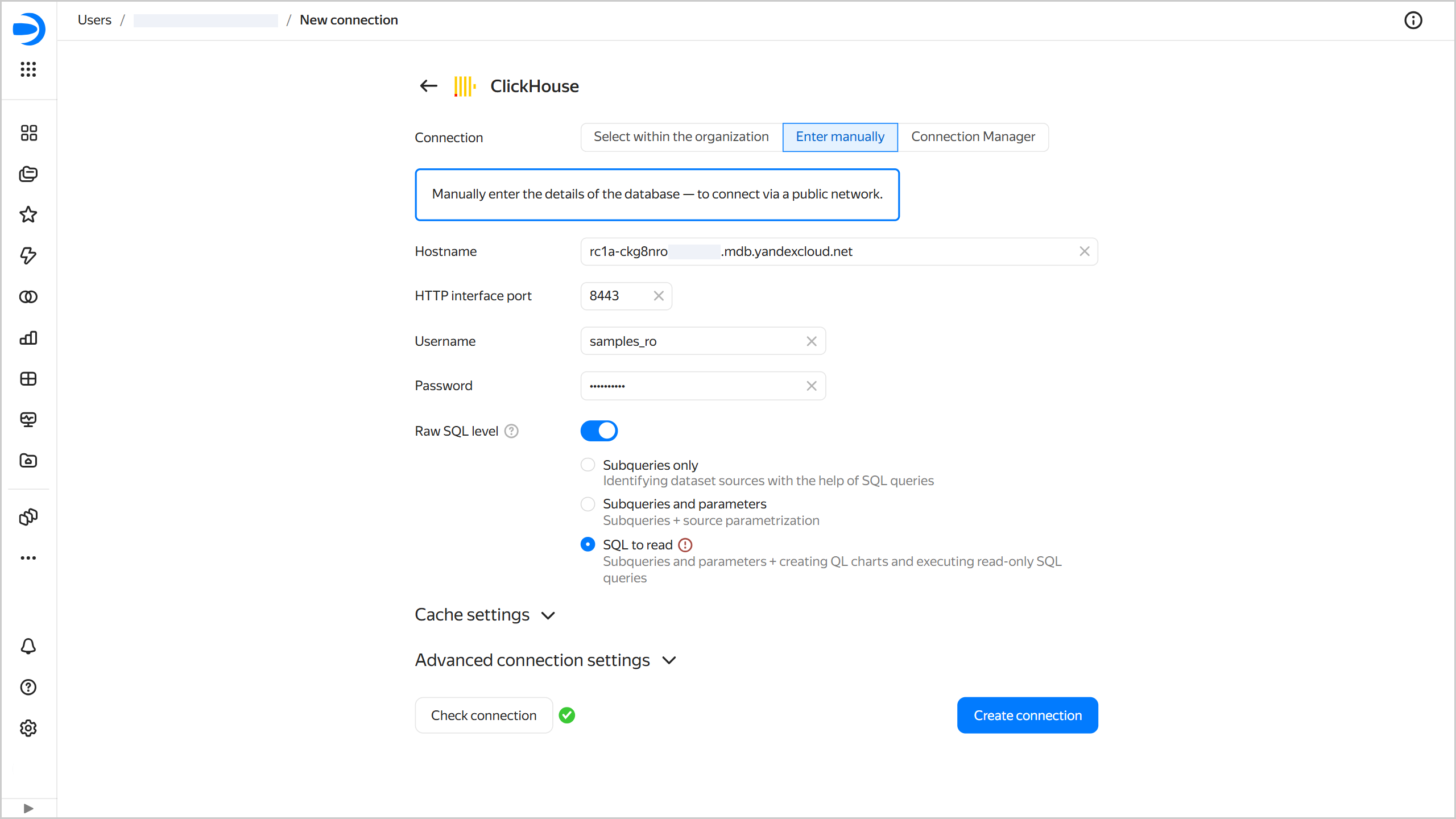
-
Click Create connection.
-
Enter the connection name:
Sample ClickHouse. -
Click Create.
-
Wait for the connection to be saved.
Create a dataset
Create a dataset based on the Sample ClickHouse connection:
-
In the top-right corner of the connection page, click Create dataset.
-
Drag the
MS_SalesFactstable to the workspace. -
Drag the
MS_Productstable to the workspace. The tables will be linked together automatically. -
Go to the Fields tab.
-
Delete the
ProductID (1)duplicate field left over from joining the tables. To do this, on the right side of the field row, click → Delete. -
Create an order date field named
OrderDate:- Duplicate the
OrderDatetimefield: on the right side of the row with the field, click → Duplicate. - Rename the
OrderDatetime (1)duplicate field toOrderDate: click the field name, delete the current name, and enter the new one. - In the Type column, change the data type from Date and time to Date.
- Duplicate the
-
Create a measure for the order amount: in the Aggregation column, select Sum for the
Salesfield. The aggregation field will change its color to blue: it is now a measure. -
Create a measure for the number of orders:
- Duplicate the
OrderIDfield. - Rename the
OrderID (1)duplicate field toOrderCount. - Change the aggregation type to Number of unique.
- Duplicate the
-
Save the dataset:
- In the top-right corner, click Save.
- Enter
Sales datasetfor the dataset name and click Create.
-
Copy the dataset ID by clicking → Copy ID at the top of the dataset. The ID will be copied to the clipboard.
Create a simple chart in Editor
-
In the left-hand panel, select Collections and workbooks and go to the
Charts in Editorworkbook. -
In the top-right corner, click Create → Chart in Editor.
-
Under Charts, select the Table visualization type.
-
Link the chart with the dataset by navigating to the Meta tab and adding the ID you copied from
Sales datasettolinks:{ "links": { "salesDataset": "<dataset_ID>" } }Where:
<dataset_ID>: Dataset ID copied after creating the dataset.salesDataset: Any alias name you assign to the dataset and use to request data for your chart.
-
On the Params tab, define the parameters used in the chart:
{ module.exports = { metrics_list: ['Sales', 'OrderCount'], date_interval: ['__interval_2019-05-25T00:00:00.000Z_2019-06-15T00:00:00.000'], date_dimension: ['OrderDate'], limit: ['5'] } }Where:
metrics_list: List of dataset measures to display in the chart.date_interval: Date range for data filtering.date_dimension: Dataset field of theDatetype used for filtering.limit: Limit on the number of requested rows.
-
To get data from the source, enter the following code on the Source tab:
Note
- In this example, we use the
const {buildSource} = require('libs/dataset/v2');service module for more convenient operations with datasets. - To output data to the console as JSON objects for debugging, use the
console.log(<variable_name>)method.
const {buildSource} = require('libs/dataset/v2'); const params = Editor.getParams(); const date_interval = params.date_interval[0]; const limit = parseInt(params.limit[0]); const metrics_list = params.metrics_list; // You can output data to the console as JSON objects //console.log(params) // Creating an empty array to populate with conditions let where = []; // Columns for selection let cols = []; // Parameters for the dataset let filled_params = [] // Basic date filter setup as is // Field to filter by const date_dim = params.date_dimension[0]; // Parsing dates from the interval const {from:from_date,to:to_date} = Editor.resolveInterval(date_interval); // Assembling the filter object const dateFilter = {column: date_dim, operation: 'BETWEEN', values: [from_date, to_date]} // Adding to the `where` array where.push(dateFilter) // Adding the `ProductCategory` column cols.push('ProductCategory'); // Adding the `ProductSubcategory` column cols.push('ProductSubcategory'); // Adding columns for metric selection cols.push(...metrics_list); module.exports = { salesSourceData: buildSource({ id: Editor.getId('salesDataset'), columns: cols, where: where, parameters:filled_params, limit:limit, order_by:[{'direction':'DESC','column':metrics_list[0]}] }) }Where:
-
params: Object receiving parameters via the Editor.getParams() method. -
date_interval: Date interval obtained from theparamsobject. -
limit: Row limit obtained from theparamsobject. -
metrics_list: Array of fields obtained from theparamsobject. -
date_dim: Name of the field used for data filtering, obtained from theparamsobject. -
from_dateandto_date: Period start and end dates obtained fromdate_intervalusing the Editor.resolveInterval(arg) method. -
dateFilter: JSON object for date-based filtering:{ column: date_dim, operation: 'BETWEEN', values: [from_date, to_date], }Where:
column: Field used for filtering.operation: Filtering operation.values: Filter values.
-
where: Array of conditions populated using thewhere.push(<filter_conditions>)method. -
cols: Array of columns for selection, populated usingcols.push("<column_name>")orcols.push(...<array_of_column_names>). -
filled_params: Array of parameters provided to the dataset.
Dataset data is loaded to
module.exportsusing the internalbuildSourcemodule:id: Dataset ID you can get using theEditor.getId('dataset_alias_from_meta_tab')method.columns: List of dataset columns to select.where: Data filtering conditions.parameters: Parameters provided to the dataset.limit: Row limit for selection.order_by: Data sorting as an array:[{"direction": "<sorting_order>","column": "<column_name>"}].
- In this example, we use the
-
Configure the data display on the Config tab:
module.exports = { title: { text: 'Metrics selection table', style: { 'text-align': 'center', 'font-size': '16px', 'font-style': 'italic', 'color': 'var(--g-color-text-hint)', 'margin-bottom': '16px', } }, size: 'l', };Where all the fields are optional:
-
title: Object in the following format:{ text: "<string>", style: <object>, // header CSS styles style: { 'text-align': 'center', 'font-size': '20px' }Where:
text: Table header.style: Description of CSS styles for the table header. The value type is an object from CSS properties.
-
size: Table size, including the font size, line spacing, and indentation within cells. The value type is a string of thel,m, orsvalue.
-
-
On the Prepare tab, create a table:
// Importing the libraries and getting parameters const Dataset = require('libs/dataset/v2'); // Library for data processing const params = Editor.getParams(); // Getting parameters from the editor const loadedData = Editor.getLoadedData(); // Getting loaded data const preparedData = Dataset.processData(loadedData, 'salesSourceData', Editor); // Processing the data // You can output data to the console as JSON objects //console.log(preparedData) // Getting parameters for the pivot table const metrics_list = params.metrics_list; // List of metrics // Dimensions for rows (up to four dimensions, with empty ones filtered out) const dimensions = Object.keys(preparedData[0]).filter(key => !metrics_list.includes(key)); // Generating headers const head = [ // First, adding the dimensions ...dimensions.map(dim => ({ id: dim, name: dim, type: 'text' })), // Then metrics with indicators ...metrics_list.map(metric => ({ id: metric, name: metric, })) ]; // Generating rows const rows = preparedData.map(row => ({ cells: [ // Cells for dimensions ...dimensions.map(dim => ({ value: row[dim], })), // Cells for metrics with indicators ...metrics_list.map(metric => ({ value: row[metric] })) ] })); module.exports = {head, rows}; -
At the top of the chart, click Execute. The preview area will display a table with dataset data.
-
Save the chart:
- In the top-right corner, click Save.
- Enter your chart name:
Simple chart in Editor. Click Save.
Get dashboard filter and parameter values
Add the chart and selectors to a dashboard to demonstrate how parameters are provided to Editor.
Create a dashboard and add the chart
Create a dashboard and add your chart:
- In the left-hand panel, select Collections and workbooks and go to the
Charts in Editorworkbook. - In the top-right corner, click Create → Dashboard.
- In the panel at the bottom of the page, click Chart and drag it to a desired location.
- In the window that opens, click Select.
- Select
Simple chart in Editor. - Click Add.
Add selectors to the dashboard
-
Add a period selector. To do this, in the panel at the bottom of the page, click Selector and drag it where you want it to be. Configure the selector:
- Select
Manual inputas the source type. - In Field or parameter name, enter
date_interval. - Select
Calendaras the selector type. - Enable Range.
- Set Default value to this range:
15.05.2019 - 10.06.2019. - Enable the Required field option.
- In the Header field, enter
Select period. - Click Save.
- Select
-
Add a metric selector:
- Select
Manual inputas the source type. - In Field or parameter name, enter
metrics_list. - Select
Listas your selector type. - Enable Multiple choice.
- Add
SalesandOrderCountas possible values. - Select
Salesas the default value. - Enable the Required field option.
- In the Header field, enter
Select metrics. - Click Save.
- Select
-
Add a selector for the number of output rows:
- Select
Manual inputas the source type. - In Field or parameter name, enter
limit. - Select
Input fieldas the selector type. - The default value is
5. - In the Header field, enter
Number of rows. - Click Save.
- Select
-
Save the dashboard:
- In the top-right corner of the dashboard, click Save.
- Enter
Editor chart examplesfor the dashboard name and click Create.
Get filter and parameter values
-
Set the selector values:
- In the product category selector, select
SalesandOrderCount. - In the period selector, select a range, e.g.,
10.05.2019 - 10.07.2019. - In the row number selector, enter
3.
This will filter your data accordingly.
- In the product category selector, select
-
Open your
Simple chart in Editorfor editing by hovering over the chart and clicking → Edit in its top-right corner.The dashboard parameters and their values are displayed at the top.
Create a chart processing dashboard filters and parameters
Create a chart in Editor with more flexible processing of dashboard filters and parameters and add the new chart to your dashboard.
Create a chart in Editor
-
In the left-hand panel, select Collections and workbooks and go to the
Charts in Editorworkbook. -
In the top-right corner, click Create → Chart in Editor.
-
Under Charts, select the Table visualization type.
-
Link the chart with the dataset by navigating to the Meta tab and adding the ID you copied from
Sales datasettolinks.Meta tab
{
    "links": {
        "salesDataset": "<dataset_ID>"
	   }
}
Where:
<dataset_ID>: Dataset ID copied after creating the dataset.salesDataset: Any alias name you assign to the dataset and use to request data for your chart.
-
On the Params tab, define the parameters used in the chart.
Params tab
{
    module.exports = {
        metrics_list: ['Sales', 'OrderCount'],
        date_interval: ['__interval_2019-09-12T00:00:00.000Z_2019-09-18T00:00:00.000'],
        filter_date_dimension: ['OrderDate'],
        date_scale: ['week'],
        params_to_send: [],
        filter_fields_ids: ['<dataset_field_1_ID>|<dataset_field_2_ID>'],
        mass_filter_fields_ids: [],
        row_limit: ['5']
	   }
}
Where:
metrics_list: List of dataset fields to display in the chart.date_interval: Date range for data filtering.filter_date_dimension: Dataset field of theDatetype used for filtering.date_scale: Scale for dates.params_to_send: List of dashboard parameters to provide to the dataset when requesting data.filter_fields_ids: Dataset field IDs 1 to use for data filtering, separated by|.mass_filter_fields_ids: List of dataset field IDs 1, separated by|, for which a multiple value is specified.row_limit: Limit on the number of requested rows.
1 To copy a field ID, open the dataset, go to the Fields tab, and click → Copy ID next to the relevant field. The ID will be copied to the clipboard.
-
On the Source tab, create a data query using the
buildSourcemodule.-
In the
paramsobject, get the parameter values using the Editor.getParams() method. For convenience, set a separate variable for each parameter:const params = Editor.getParams(); // Putting all parameters into variables without `params` for convenience const date_interval = params.date_interval[0]; const filter_date_dimension = params.filter_date_dimension[0]; const date_scale = params.date_scale[0]; const limit = parseInt(params.row_limit[0]); const metrics_list = params.metrics_list; const filter_fields = params.filter_fields_ids['0'].split('|'); const params_to_send = params.params_to_send.length > 0? params.params_to_send['0'].split('|'):[]; const filter_mass = params.mass_filter_fields_ids.length > 0? params.mass_filter_fields_ids['0'].split('|'):[];In this case, the following applies:
- All parameters are provided as arrays.
- In this example, only the
metrics_listparameter is specified as a list of values, so it is put into a variable without any additional processing. The remaining parameters are specified as a single value, so only the first array element is used. - Parse
filter_fields_ids['0']andmass_filter_fields_ids['0']to get an array of string values separated by|. - Check the
params_to_sendandmass_filter_fields_idsparameters: if they are empty, return empty arrays instead of parsing their values. Optionally, add the same check for thefilter_fields_idsparameter.
Note
You can implement a different parameter structure and processing method.
-
Provide the variables to generate a query:
// Array to populate with conditions let where = []; // Columns for selection let cols = []; // Parameters for the dataset let filled_params = [] -
Process dashboard filters and parameters:
-
Separately process the manual selector’s date interval filter by using the
getDateFilters()function and adding the filter to thewherearray:let q = getDateFilters(date_interval, filter_date_dimension, date_scale); where.push(q)You can reuse the
getDateFilters()function to process date intervals. It returns a filter object in the following format:{ column: <column_for_filtering>, operation: 'BETWEEN', values: [<period_start_date>, <period_end_date>] }getDateFilters() function
function getDateFilters(date_interval, date_dimension, scale_name) { let scale_dict = {'day':'D','week':'W','month':'M'}; const {from:from_date,to:to_date} = Editor.resolveInterval(date_interval); let right_date = to_date; let left_date = from_date; //console.log(right_date,left_date); const dateTo = dateTimeParse(right_date).add(1,scale_name).startOf(scale_dict[scale_name]).add(-1,'day').format(FORMAT); const dateFrom = dateTimeParse(left_date).startOf(scale_dict[scale_name]).format(FORMAT); const dateFilter = {column: date_dim, operation: 'BETWEEN', values: [dateFrom, dateTo]} return dateFilter; } -
All parameters and filters are provided to the chart as parameters; process them within a single run.
Parameter and filter processing run
for (const [key, value] of Object.entries(params)) {
    // Adding all provided non-empty parameters

    // If in the `params_to_send` list, adding to the `filled_params` array
    if (params_to_send.includes(key)) {
       filled_params.push({id:key,value:value.toString()});
    };

    // If in the `filter_fields` filter list, processing and adding to the `where` array
    if (filter_fields.includes(key) && value != '') {
             let val, suff;

       if (value[0] && value[0].substr(0, 2) === '__') {
             const {operation:suffx, value:vala} = Editor.resolveOperation(value);
             val = value.length == 1 ? vala:valArrayFromPrefix(value);
             suff = suffx;

       } else {
             val = value;
             suff = 'IN';
       }


       if  (Editor.resolveRelative(val) != null) {
             val = Editor.resolveRelative(val);
          }
       if  (Editor.resolveInterval(value) != null) {
             val = [Editor.resolveInterval(value)['from'],Editor.resolveInterval(value)['to']];
             suff = 'BETWEEN'
          }

       if  (filter_mass.includes(key)) {
             suff = 'IN';
             val = value[0].split(' ');
       }

    where.push({type:'id', column: key, operation: suff, values: arrayChecker(val)})
 }

       if ((key.startsWith('dimension_') || key.startsWith('dim_col'))  && value[0] != '') {
             cols.push(value[0]);
    }

}
In this case, the following applies:
-
Add the parameter specified in the
filter_fieldslist on theParamstab to thewherearray:where.push({type:'id', column: key, operation: suff, values: arrayChecker(val)})Where:
type: 'id': Defines the field by ID.column: Dataset field for data selection.operation: Comparison operation.values: Array of values.arrayChecker(val): Helper function returning an array of values for either the provided array or single value.
Before adding the parameter, process its value:
-
Values starting with
__are parsed using the Editor.resolveOperation(args) method to generate an expression. Multiple values are added as an array:if (value[0] && value[0].substr(0, 2) === '__') { const {operation:suffx, value:vala} = Editor.resolveOperation(value); val = value.length == 1 ? vala:valArrayFromPrefix(value); suff = suffx; } -
Other values (not starting with
__) are added with theINcondition:else { val = value; suff = 'IN'; } -
Interval date values are processed using the Editor.resolveInterval(arg) method:
if (Editor.resolveInterval(value) != null) { val = [Editor.resolveInterval(value)['from'],Editor.resolveInterval(value)['to']]; suff = 'BETWEEN' } -
Relative dates are processed using the Editor.resolveRelative(arg) method:
if (Editor.resolveRelative(val) != null) { val = Editor.resolveRelative(val); } -
If the parameter being processed has a multiple value in the
filter_masslist (themass_filter_fields_idsparameter on theParamstab), add them as an array:if (filter_mass.includes(key)) { suff = 'IN'; val = value[0].split(' '); }A multiple value must be specified as a string of values separated by spaces (
-
Add the parameter specified in the
params_to_sendlist on theParamstab to thefield_paramsarray:if (params_to_send.includes(key)) { filled_params.push({id:key,value:value.toString()}); };To provide parameters to a dataset, enable source parameterization.
For an example of using parameters in a source, see Source parameterization in DataLens.
-
-
-
Generate a query against the dataset using the
buildSourcemodule and these generated variables:where,cols,field_params, androw_limit:module.exports = { dataset: buildSource({ id: Editor.getId('dataset'), columns: cols, where: where, parameters:filled_params, order:params.date_dimension[0], limit:row_limit, order_by:[{'direction':'DESC','column':metrics_list[0]}] }) }
Source tab full code
// SOURCES TAB CODE Parameter and filter processing const {buildSource} = require('libs/dataset/v2'); const {dateTimeParse,dateTime,addDays, addUnits,startOf} = require('@gravity-ui/date-utils'); const FORMAT = 'YYYY-MM-DD' function arrayChecker(some) { if (Array.isArray(some)) { return some } else { return [some] } } function valArrayFromPrefix(arr) { let vals = []; arr.forEach((element) => { const {operation:suffx, value:vala} = Editor.resolveOperation(element); vals.push(vala); }); return vals; } function getDateFilters(date_interval, date_dimension, scale_name) { let scale_dict = {'day':'D','week':'W','month':'M'}; const {from:from_date,to:to_date} = Editor.resolveInterval(date_interval); let right_date = to_date; let left_date = from_date; //console.log(right_date,left_date); const dateTo = dateTimeParse(right_date).add(1,scale_name).startOf(scale_dict[scale_name]).add(-1,'day').format(FORMAT); const dateFrom = dateTimeParse(left_date).startOf(scale_dict[scale_name]).format(FORMAT); const dateFilter = {column: date_dimension, operation: 'BETWEEN', values: [dateFrom, dateTo]} return dateFilter; } const params = Editor.getParams(); // Putting all parameters into variables without `params` for convenience const date_interval = params.date_interval[0]; const filter_date_dimension = params.filter_date_dimension[0]; const date_scale = params.date_scale[0]; const limit = parseInt(params.row_limit[0]); const metrics_list = params.metrics_list; const filter_fields = params.filter_fields_ids['0'].split('|'); const params_to_send = params.params_to_send.length > 0? params.params_to_send['0'].split('|'):[]; const filter_mass = params.mass_filter_fields_ids.length > 0? params.mass_filter_fields_ids['0'].split('|'):[]; // You can output data to the console as JSON objects //console.log(params) // Array to populate with conditions let where = []; // Columns for selection let cols = []; // Parameters for the dataset let filled_params = [] // 1) Date filter: separate processing let q = getDateFilters(date_interval, filter_date_dimension, date_scale); where.push(q) // 2) Dashboard filters and parameters: following the run for (const [key, value] of Object.entries(params)) { // Adding all provided non-empty parameters // If in the `params_to_send` list, adding to the `filled_params` array if (params_to_send.includes(key)) { filled_params.push({id:key,value:value.toString()}); }; // If in the `filter_fields` filter list, processing and adding to the `where` array if (filter_fields.includes(key) && value != '') { let val, suff; if (value[0] && value[0].substr(0, 2) === '__') { const {operation:suffx, value:vala} = Editor.resolveOperation(value); val = value.length == 1 ? vala:valArrayFromPrefix(value); suff = suffx; } else { val = value; suff = 'IN'; } if (Editor.resolveRelative(val) != null) { val = Editor.resolveRelative(val); } if (Editor.resolveInterval(value) != null) { val = [Editor.resolveInterval(value)['from'],Editor.resolveInterval(value)['to']]; suff = 'BETWEEN' } if (filter_mass.includes(key)) { suff = 'IN'; val = value[0].split(' '); } where.push({type:'id', column: key, operation: suff, values: arrayChecker(val)}) } if ((key.startsWith('dimension_') || key.startsWith('dim_col')) && value[0] != '') { cols.push(value[0]); } } // Adding columns for data selection cols.push(...metrics_list); // Requesting data from the dataset module.exports = { salesSourceData: buildSource({ id: Editor.getId('salesDataset'), columns: cols, where: where, parameters:filled_params, order:params.filter_date_dimension[0], limit:limit, order_by:[{'direction':'DESC','column':metrics_list[0]}] }) } -
-
Configure the data display on the Config tab.
Config tab
module.exports = { title: { text: 'Table of sales by category', style: { 'text-align': 'center', 'font-size': '16px', 'font-style': 'italic', 'color': 'var(--g-color-text-hint)', 'margin-bottom': '16px', } }, size: 'l', }; -
On the Prepare tab, create a table:
Prepare tab
// Importing the libraries and getting parameters const Dataset = require('libs/dataset/v2'); // Library for data processing const params = Editor.getParams(); // Getting parameters from the editor const loadedData = Editor.getLoadedData(); // Getting loaded data const preparedData = Dataset.processData(loadedData, 'salesSourceData', Editor); // Processing the data // Getting parameters for the pivot table const metrics_list = params.metrics_list; // List of metrics // Dimensions for rows (up to four dimensions, with empty ones filtered out) const dimensions = Object.keys(preparedData[0]).filter(key => !metrics_list.includes(key)); // Generating headers const head = [ // First, adding the dimensions ...dimensions.map(dim => ({ id: dim, name: dim, type: 'text' })), // Then metrics with indicators ...metrics_list.map(metric => ({ id: metric, name: metric, })) ]; // Generating rows const rows = preparedData.map(row => ({ cells: [ // Cells for dimensions ...dimensions.map(dim => ({ value: row[dim], })), // Cells for metrics with indicators ...metrics_list.map(metric => ({ value: row[metric] })) ] })); module.exports = {head, rows}; -
Save the chart:
- In the top-right corner, click Save.
- Enter your chart name:
Chart with parameter processing in Editor. Then click Save.
Create a new dashboard and add the chart and selectors
-
In the left-hand panel, select Collections and workbooks and go to the
Charts in Editorworkbook. -
In the top-right corner, click Create → Dashboard.
-
Add the selector chart to the dashboard:
- In the panel at the bottom of the page, click Chart and drag it to a desired location.
- In the window that opens, click Select.
- Select
Chart with parameter processing in Editor. - Click Add.
-
Add a period selector: in the panel at the bottom of the page, click Selector and drag it where you want it to be. Specify the following settings:
- Select
Manual inputas the source type. - In Field or parameter name, enter
date_interval. - Select
Calendaras the selector type. - Enable Range.
- Set Default value to this range:
15.05.2019 - 10.06.2019. - Enable the Required field option.
- In the Header field, enter
Select period. - Click Save.
- Select
-
Add a product category selector:
- Select
Based on datasetas the source type. - Under Dataset, select
Sales dataset. - Under Field, select
ProductCategory. - Select
Listas your selector type. - In the Operation field, select
Equals to. - In the Header field, enter
Product category. - Click Save.
- Select
-
Add a product subcategory selector:
- Select
Based on datasetas the source type. - Under Dataset, select
Sales dataset. - Under Field, select
ProductSubcategory. - Select
Listas your selector type. - Enable Multiple choice.
- In the Operation field, select
Does not belong to a set. - In the Header field, enter
Exclude subcategories. - Click Save.
- Select
-
Add a selector to set the period scale:
- Select
Manual inputas the source type. - In Field or parameter name, enter
date_scale. - Select
Listas your selector type. - Add
day,week, andmonthas possible values. - Select
weekas the default value. - In the Header field, enter
Period scale. - Click Save.
- Select
-
Save the dashboard:
- In the top-right corner of the dashboard, click Save.
- Enter
Processing filters and parameters in Editorfor the dashboard name and click Create.
-
Set the selector values:
- In the period selector, select a range, e.g.,
10.05.2019 - 10.07.2019. - In the product category selector, select
Household goods. - In the Exclude subcategories selector, select
KitchenwareandBeauty and health products. - In the Period scale selector, select
day.
This will filter your data accordingly.
- In the period selector, select a range, e.g.,
-
Open the chart inspector by hovering over the chart and clicking → Inspector in its top-right corner. Make sure the query is based on the parameters provided to the Editor chart.
-
Open your
Simple chart in Editorfor editing by hovering over the chart and clicking → Edit in its top-right corner.The parameters and their values from the dashboard are displayed at the top.
Add interactive elements to the chart
To add interactive elements, use an advanced chart to create HTML files with secure markup using the Editor.generateHtml(args) function and flexible SVG visualizations based on the d3, d3-chord, and d3-sankey libraries.
Create an advanced chart and add buttons for selecting metrics and tooltips.
-
In the left-hand panel, select Collections and workbooks and go to the
Charts in Editorworkbook. -
In the top-right corner, click Create → Chart in Editor.
-
Under Charts, select the Advanced chart visualization type.
-
On the Prepare tab, set the initial parameters and add code that renders elements and handles chart events.
-
To simplify the example, in the metric description constants, set the default metric of your choice and provide them to the configuration object:
const primaryData = [{x: 'Category A', y: 30, id: 'A'},{x: 'Category B', y: 80, id: 'B'},{x: 'Category C', y: 45, id: 'C'},{x: 'Category D', y: 60, id: 'D'},{x: 'Category E', y: 20, id: 'E'}]; const secondaryData = [{x: 'Category A', y: 50, id: 'A'},{x: 'Category B', y: 40, id: 'B'},{x: 'Category C', y: 75, id: 'C'},{x: 'Category D', y: 30, id: 'D'}]; // Selected metric const selectedMetric = 'primary'; // Configuration const config = { data: {primaryData:primaryData,secondaryData:secondaryData}, selectedMetric: selectedMetric }; -
In the
module.exportsmodule, use the Editor.wrapFn(args) function to describe:- Under
render, chart rendering. - Under
events, theclickevent handling and the chart state updates. - Under
tooltip, tooltip rendering.
The
Editor.wrapFn(args)function for generating a chart handler runs in a sandboxed browser with limited access to the browser API. - Under
Prepare tab full code
// PREPARE TAB CODE Handling clicks and tooltips // Data for two metrics const primaryData = [{x: 'Category A', y: 30, id: 'A'},{x: 'Category B', y: 80, id: 'B'},{x: 'Category C', y: 45, id: 'C'},{x: 'Category D', y: 60, id: 'D'},{x: 'Category E', y: 20, id: 'E'}]; const secondaryData = [{x: 'Category A', y: 50, id: 'A'},{x: 'Category B', y: 40, id: 'B'},{x: 'Category C', y: 75, id: 'C'},{x: 'Category D', y: 30, id: 'D'}]; // Selected metric const selectedMetric = 'primary'; // Configuration const config = { data: {primaryData:primaryData,secondaryData:secondaryData}, selectedMetric: selectedMetric }; module.exports = { render: Editor.wrapFn({ fn: function(dimensions, config) { const {width, height} = dimensions; const state = Chart.getState() || {}; const selectedItem = state.selectedItem || config.selectedMetric; const currentData = selectedItem === 'secondary' ? config.data.secondaryData : config.data.primaryData; const sortedData = [...currentData].sort((a, b) => b.y - a.y); // Creating a container const container = document.createElement('div');container.style.setProperty('display', 'flex');container.style.setProperty('flex-direction', 'column');container.style.setProperty('height', '100%');container.style.setProperty('font-family', 'sans-serif'); // Metrics section const metricsContainer = document.createElement('div');metricsContainer.style.setProperty('display', 'flex');metricsContainer.style.setProperty('margin', '10px');metricsContainer.style.setProperty('gap', '10px'); // Identifying which metric is selected const isPrimarySelected = selectedItem === 'primary'; // `Primary` button const primaryBtn = document.createElement('div'); primaryBtn.innerHTML = 'Primary metric';primaryBtn.style.setProperty('padding', '8px 12px');primaryBtn.style.setProperty('border-radius', '4px');primaryBtn.style.setProperty('cursor', 'pointer');primaryBtn.style.setProperty('user-select', 'none');primaryBtn.style.setProperty('background-color', isPrimarySelected ? '#1e88e5' : '#e0e0e0'); primaryBtn.style.setProperty('color', isPrimarySelected ? 'white' : 'black'); primaryBtn.setAttribute('data-id', 'primary'); metricsContainer.appendChild(primaryBtn); // `Secondary` button const secondaryBtn = document.createElement('div'); secondaryBtn.innerHTML = 'Secondary metric'; secondaryBtn.style.setProperty('padding', '8px 12px');secondaryBtn.style.setProperty('border-radius', '4px');secondaryBtn.style.setProperty('cursor', 'pointer');secondaryBtn.style.setProperty('user-select', 'none'); // STYLES, depending on the selection secondaryBtn.style.setProperty('background-color', !isPrimarySelected ? '#1e88e5' : '#e0e0e0'); secondaryBtn.style.setProperty('color', !isPrimarySelected ? 'white' : 'black'); secondaryBtn.setAttribute('data-id', 'secondary'); metricsContainer.appendChild(secondaryBtn); container.appendChild(metricsContainer); // Chart section const chartContainer = document.createElement('div'); chartContainer.style.setProperty('flex', '1'); chartContainer.style.setProperty('position', 'relative'); chartContainer.style.setProperty('margin', '10px'); // Creating an SVG element const svg = document.createElementNS('http://www.w3.org/2000/svg', 'svg'); svg.setAttribute('width', '100%');svg.setAttribute('height', '90%');svg.setAttribute('viewBox', `-20 0 ${width} ${height}`);svg.style.setProperty('overflow', 'visible'); const margin = {top: 20, right: 20, bottom: 40, left: 50}; const innerWidth = width - margin.left - margin.right; const innerHeight = height - margin.top - margin.bottom; // Group for padding const g = document.createElementNS('http://www.w3.org/2000/svg', 'g'); g.setAttribute('transform', `translate(${margin.left},${margin.top})`); svg.appendChild(g); // Scales: now `x` is values, `y` is categories const xScale = d3.scaleLinear() .domain([0, d3.max(sortedData, d => d.y)]).nice() .range([0, innerWidth]); const yScale = d3.scaleBand() .domain(sortedData.map(d => d.x)) .range([0, innerHeight]) .padding(0.2); // X-axis (bottom) const xAxis = d3.axisBottom(xScale); const xAxisGroup = document.createElementNS('http://www.w3.org/2000/svg', 'g'); xAxisGroup.setAttribute('transform', `translate(0,${innerHeight})`); g.appendChild(xAxisGroup); d3.select(xAxisGroup).call(xAxis); // Y-axis (left) const yAxis = d3.axisLeft(yScale); const yAxisGroup = document.createElementNS('http://www.w3.org/2000/svg', 'g'); g.appendChild(yAxisGroup); d3.select(yAxisGroup).call(yAxis); // Columns (now horizontal-oriented) const bars = document.createElementNS('http://www.w3.org/2000/svg', 'g'); g.appendChild(bars); d3.select(bars) .selectAll('rect').data(sortedData).enter().append('rect').attr('y', d => yScale(d.x)).attr('x', 0).attr('height', yScale.bandwidth()).attr('width', d => xScale(d.y)).attr('fill', '#4caf50') .attr('data-id', d => d.id) .attr('cursor', 'pointer'); svg.appendChild(g); chartContainer.appendChild(svg); container.appendChild(chartContainer); return Editor.generateHtml(container.outerHTML); }, args: [config], libs: ['d3'] }), events: { click: Editor.wrapFn({ fn: function(event, config) { const clickedId = event.target?.getAttribute('data-id'); if (!clickedId) return; // Checking if the metric button is clicked if (clickedId === 'primary' || clickedId === 'secondary') { console.log('got') // Updating the action parameters for filtering Chart.setState({ selectedItem: clickedId }); } }, args: [config] }) }, tooltip: { renderer: Editor.wrapFn({ fn: function(event, config) { const dataId = event.target?.getAttribute('data-id'); if (!dataId) return null; // Checking if this is a metric button if (dataId === 'primary' || dataId === 'secondary') { return null; } // Identifying which metric is selected const state = Chart.getState() || {}; const selectedItem = state.selectedItem || config.selectedMetric; const currentData = selectedItem === 'secondary' ? config.data.secondaryData : config.data.primaryData; const item = currentData.find(d => d.id === dataId); if (!item) return null; return Editor.generateHtml(` <div style="padding: 10px; font-family: sans-serif; font-size: 14px;"> <div><strong>Category:</strong> ${item.x}</div> <div><strong>Value:</strong> ${item.y}</div> </div> `); }, args: [config] }) } }; -
-
At the top of the chart, click Execute. The preview area will display a chart with interactive elements. You can use buttons to switch between metrics and view tooltips when hovering over chart elements.
-
Save the chart:
- In the top-right corner, click Save.
- Enter
Advanced chartas the chart name and click Save.
ClickHouse® is a registered trademark of ClickHouse, Inc.