Getting started with Managed Service for Apache Kafka®


To get started:
Getting started
-
Navigate to the management console and log in to Yandex Cloud or sign up if not signed up yet.
-
If you do not have a folder yet, create one:
-
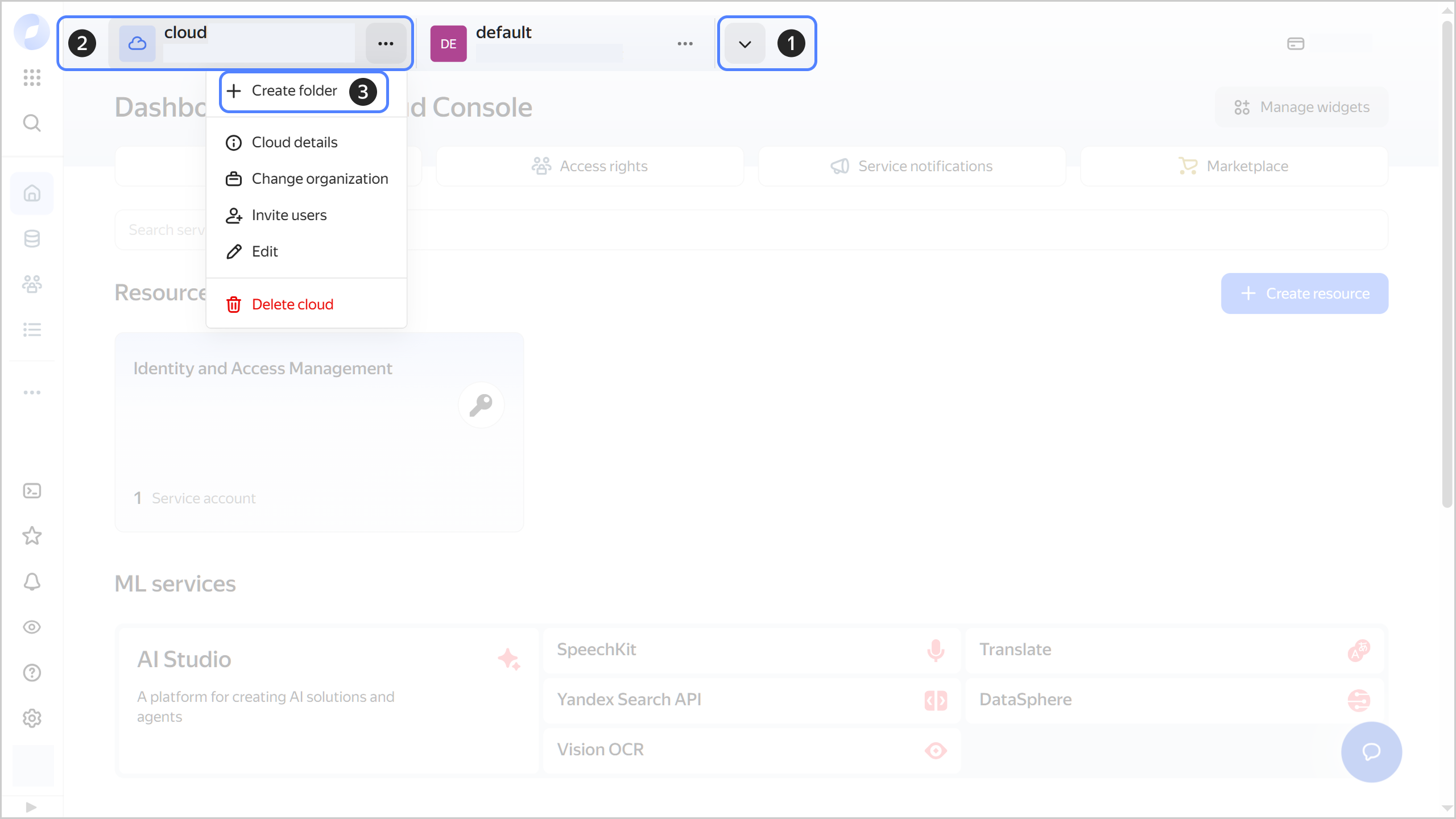
In the management console, in the top panel, click or and select the cloud.
-
To the right of the cloud name, click .
-
Select Create folder.
-
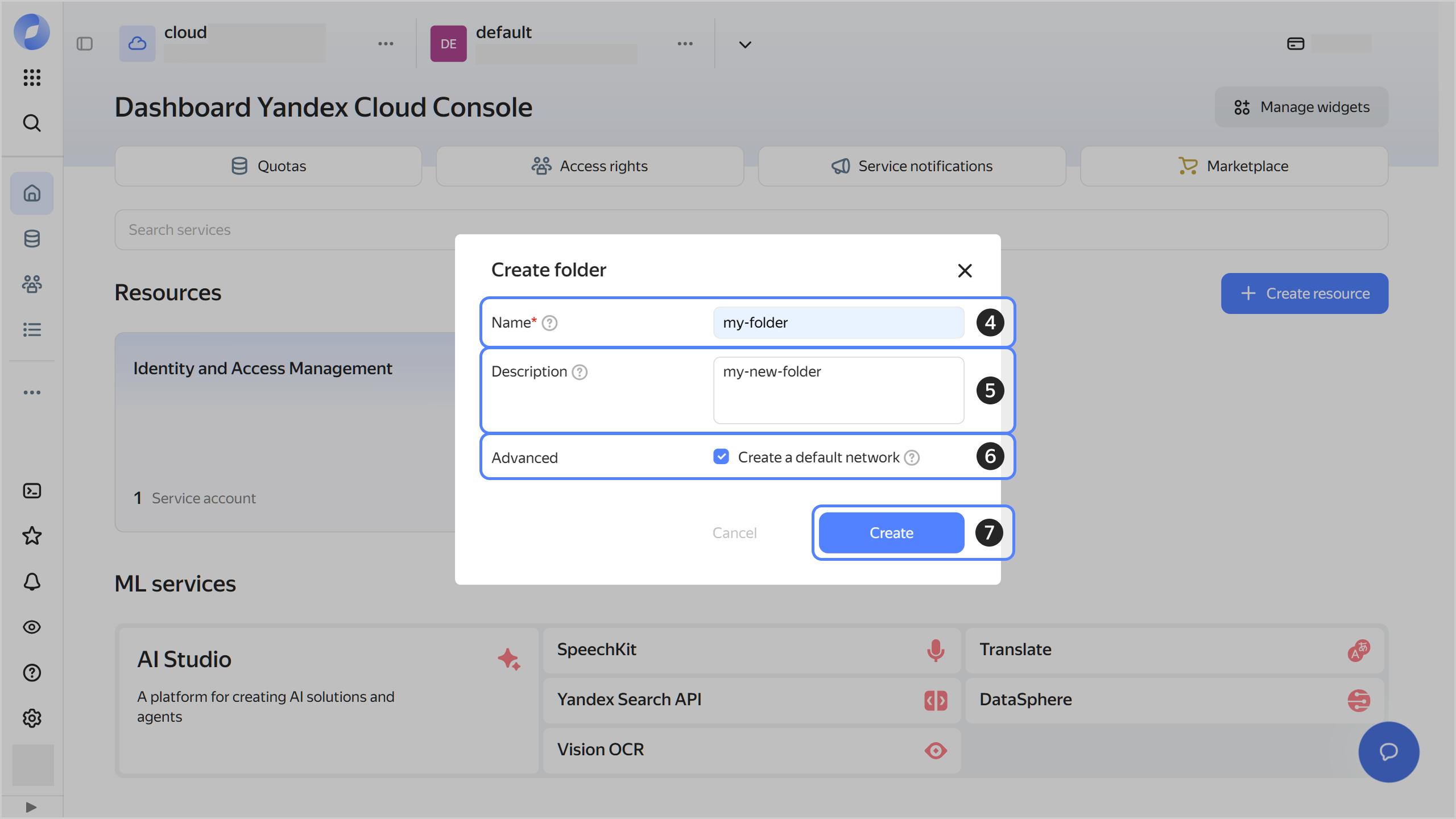
Give your folder a name. The naming requirements are as follows:
- Length: between 3 and 63 characters.
- It can only contain lowercase Latin letters, numbers, and hyphens.
- It must start with a letter and cannot end with a hyphen.
-
Optionally, specify the description for your folder.
-
Select Create a default network. This will create a network with subnets in each availability zone. Within this network, a default security group will be created, which allows connections to resources over
SSHandRDP, incoming traffic overICMP, and any outgoing traffic. -
Click Create.
-
-
Assign the following roles to your Yandex Cloud account:
-
managed-kafka.editor or higher: To create a cluster.
-
mdb.viewer: To view managed database (MDB) clusters on the dashboard in the management console.
Note
If you cannot manage roles, contact your cloud or organization administrator.
-
-
You can connect to an Apache Kafka® cluster from both inside and outside Yandex Cloud:
-
Connect to your VM over SSH.
Note
It is assumed that you are connecting to the cluster from a Linux VM.
-
Install
kafkactl, a command line interface for Apache Kafka®:wget https://github.com/deviceinsight/kafkactl/releases/download/v<version_number>/<archive_name>.tar.gz tar xzf <archive_name>.tar.gz kafkactl sudo mv kafkactl /usr/local/binYou can look up the archive version and name on the
kafkactlreleases page.Check that you can connect to the Managed Service for Apache Kafka® source cluster over SSL with
kafkactl.
Create a cluster
To create a cluster:
- In the management console, select the folder where you want to create a cluster.
- Navigate to Managed Service for Kafka.
- Click Create cluster.
- Specify the cluster settings and click Create. For more information, see Creating a cluster.
- Wait until the cluster is ready: its status on the Managed Service for Apache Kafka® dashboard will change to
Running, and its state, toAlive. This may take a while.
Then create a topic in the cluster.
Create a topic
A topic is used to group message streams by category. Producers write messages to a topic, and consumers read messages from it.
To create a topic:
- In the management console, select the folder containing the cluster.
- Navigate to Managed Service for Kafka.
- Click the cluster name and select the Topics tab.
- Click Create topic.
- Specify the topic settings and click Create. For details, see Managing Apache Kafka® topics.
Then create users for producers and consumers.
Create a user
User settings enable you to manage producer and consumer permissions for cluster topics.
Learn more about the permissions you get with each role here.
To create a user:
- In the management console, select the folder containing the cluster.
- Navigate to Managed Service for Kafka.
- Click the cluster name and select the Users tab.
- Click Create user.
- Enter a username and password (from 8 to 128 characters).
- Click Add topic and select the previously created topic from the drop-down list.
- Grant access permissions for this topic to the producer and consumer. For more information, see User management.
- Click Create.
Then connect to the cluster as this user.
Connect to the cluster
You can connect both the producer and consumer to the cluster as the same user. Both the producer and the consumer can work only with the topics that this user has access to.
To connect to your cluster:
-
If you are using security groups for your cloud network, configure them to allow all relevant traffic between the cluster and the connecting host.
-
Install an SSL certificate on the VM:
Linux (Bash)/macOS (Zsh)Windows (PowerShell)mkdir -p /usr/local/share/ca-certificates/Yandex/ && \ wget "https://storage.yandexcloud.net/cloud-certs/CA.pem" \ --output-document /usr/local/share/ca-certificates/Yandex/YandexInternalRootCA.crt && \ chmod 0655 /usr/local/share/ca-certificates/Yandex/YandexInternalRootCA.crtThe certificate will be saved to the
/usr/local/share/ca-certificates/Yandex/YandexInternalRootCA.crtfile.mkdir $HOME\.kafka; curl.exe -o $HOME\.kafka\YandexInternalRootCA.crt https://storage.yandexcloud.net/cloud-certs/CA.pemThe certificate will be saved to the
$HOME\.kafka\YandexInternalRootCA.crtfile.Your corporate security policies and antivirus software may block the certificate download. For more information, see FAQ.
-
Create a folder named
~/.config/kafkactland place theconfig.ymlconfiguration file with your Apache Kafka® cluster connection parameters in that folder:cd ~/ && \ mkdir --parents .config/kafkactl && \ cd ~/.config/kafkactlHere is an example of the
config.ymlfile:contexts: default: brokers: - <broker_FQDN>:9091 sasl: enabled: true username: <consumer_login> password: <consumer_password> mechanism: scram-sha512 tls: enabled: true ca: /usr/local/share/ca-certificates/Yandex/YandexInternalRootCA.crtIn the configuration file, specify the broker FQDN as well as the login and password of the Apache Kafka® user you created earlier.
To learn how to get a broker host FQDN, see this guide.
-
To send a message to a topic, run this command:
echo "test message" | kafkactl produce <topic_name> -
To get messages from a topic, run the following command:
kafkactl consume <topic_name>
For a detailed description of the Managed Service for Apache Kafka® cluster connection process, see Connecting to topics in a cluster.
What's next
- Read about the service concepts.
- Learn more about creating a cluster and connecting to a cluster.