Yandex Cloud
Search
Contact UsTry it for free
  • Customer Stories
  • Documentation
  • Blog
  • All Services
  • System Status
    • Featured
    • Infrastructure & Network
    • Data Platform
    • Containers
    • Developer tools
    • Serverless
    • Security
    • Monitoring & Resources
    • AI for business
    • Business tools
  • All Solutions
    • By industry
    • By use case
    • Economics and Pricing
    • Security
    • Technical Support
    • Start testing with double trial credits
    • Cloud credits to scale your IT product
    • Gateway to Russia
    • Cloud for Startups
    • Center for Technologies and Society
    • Yandex Cloud Partner program
    • Price calculator
    • Pricing plans
  • Customer Stories
  • Documentation
  • Blog
© 2025 Direct Cursus Technology L.L.C.
Yandex DataLens
  • DataLens neuroanalyst
    • Overview
    • Working with datasets
    • Data model
    • Dataset settings
    • Versioning
    • Source parameterization
    • Data types
    • Data type mapping
  • DataLens Gallery
  • Audit Trails events
  1. Datasets
  2. Overview

Dataset in Yandex DataLens

Written by
Yandex Cloud
Updated at December 9, 2025

A dataset describes a set of data and its structure. Data in a dataset is represented as fields.

DataLens creates a dataset based on a data source for which there is a connection.

A dataset works with sources in direct access mode: it runs all data queries on the source side. At the same time, you cannot change data in the source itself using DataLens.

Note

DataLens limits the time for executing a query to 90 seconds.

Dataset pageDataset page

A dataset page consists of several tabs:

_Sources_ tab
_Fields_ tab
_Parameters_ tab
_Filtering_ tab
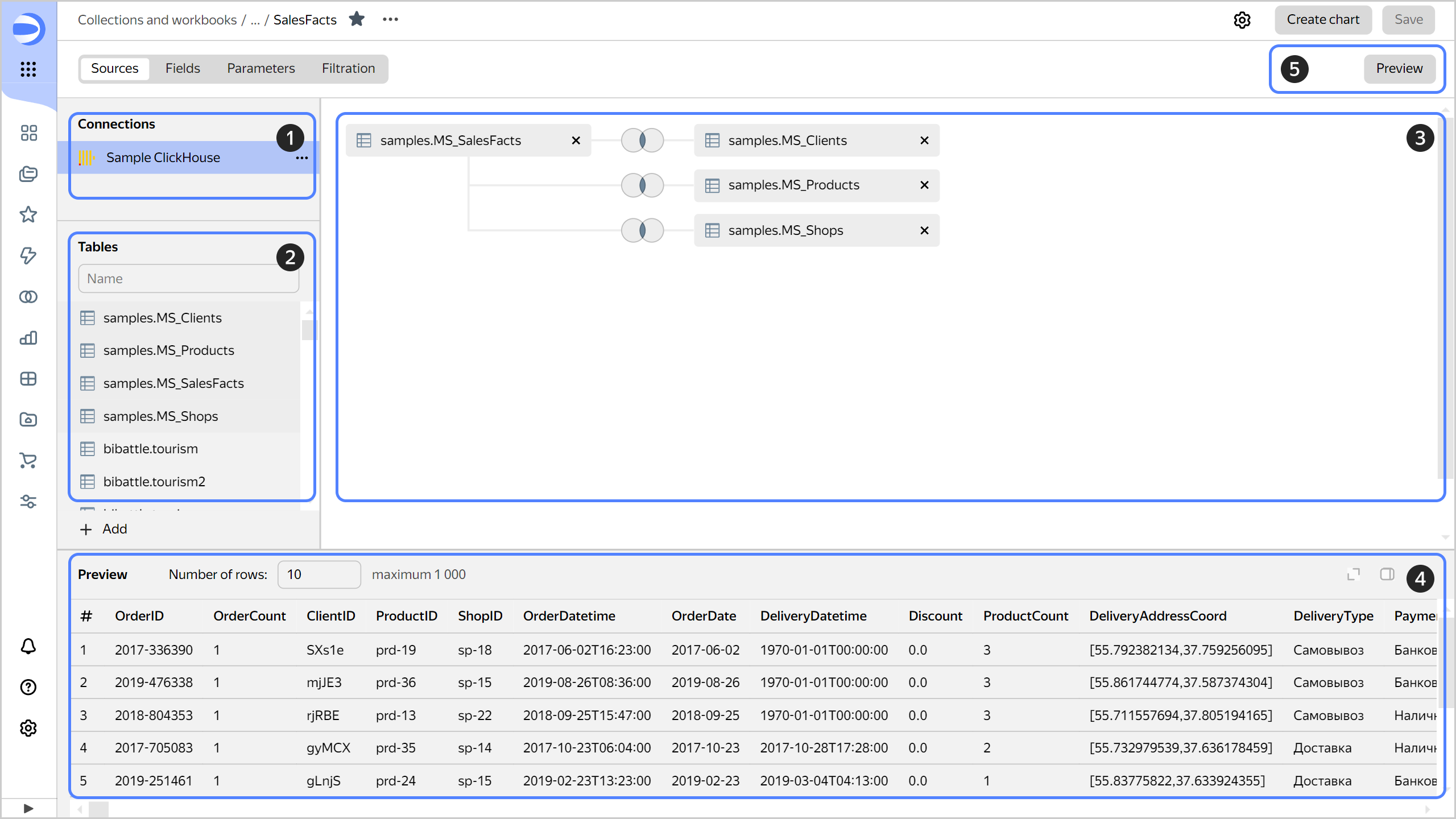
  1. Connections panel. Displays the connection to the data source the dataset is based on.

  2. Tables panel. Contains a list of tables available in the data source.

  3. Workspace. You can drag here the tables you need and set up links between them.

  4. Preview area. Here you can see what the dataset's content will look like. You can disable the default preview display.

  5. Preview button. Hides or shows the preview area.
    screenshot

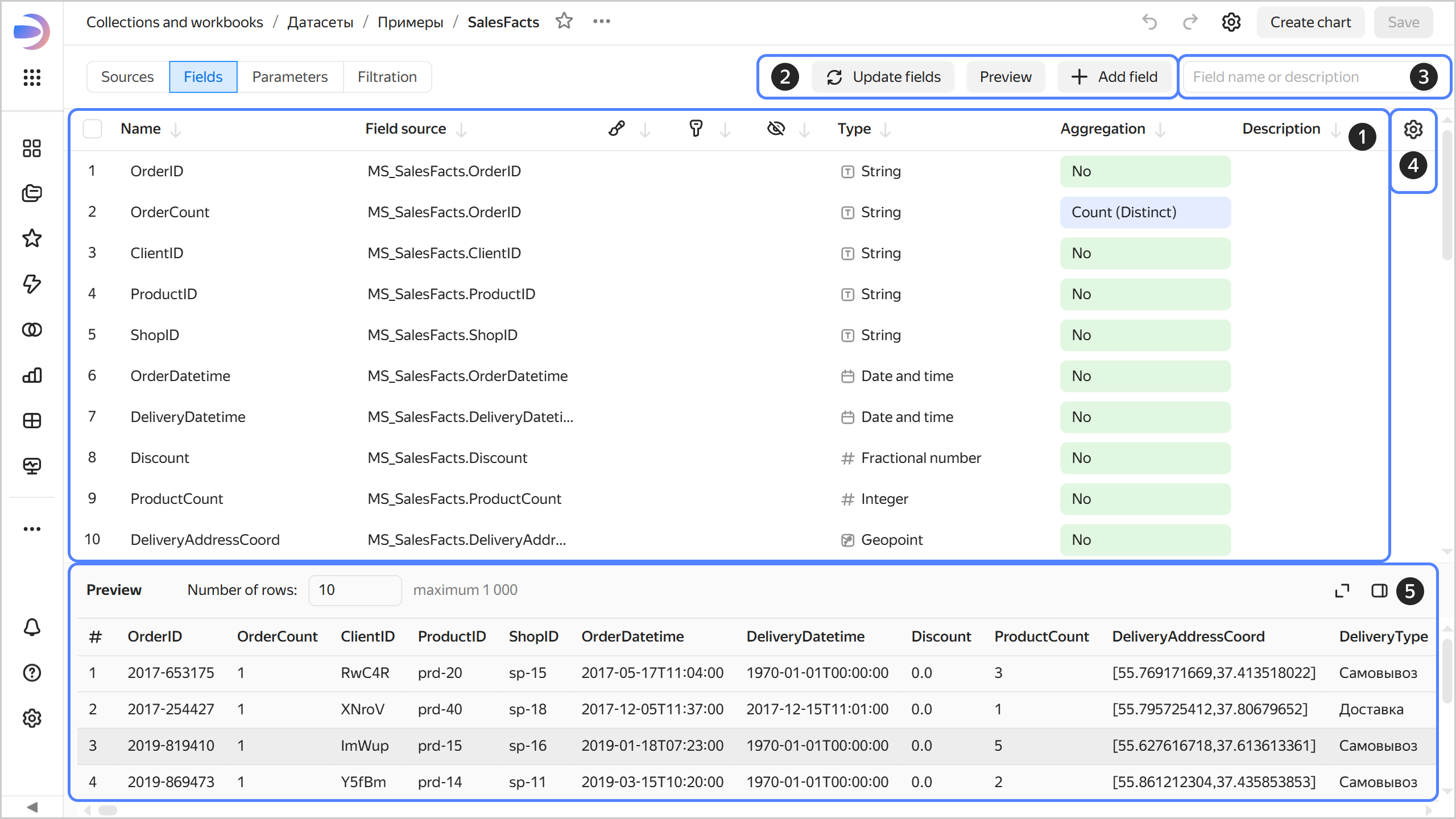
  1. Presents a list of fields. Fields that define the structure and format of the dataset.

  2. Buttons. You can use these to create a new field, update existing ones, and hide the preview area.

  3. Search bar. Allows you to find a field by its name.

  4. Additional settings. Allows customizing the way fields are presented in the list.

  5. Preview area. Here you can see what the dataset's content will look like. You can disable the default preview display.
    screenshot

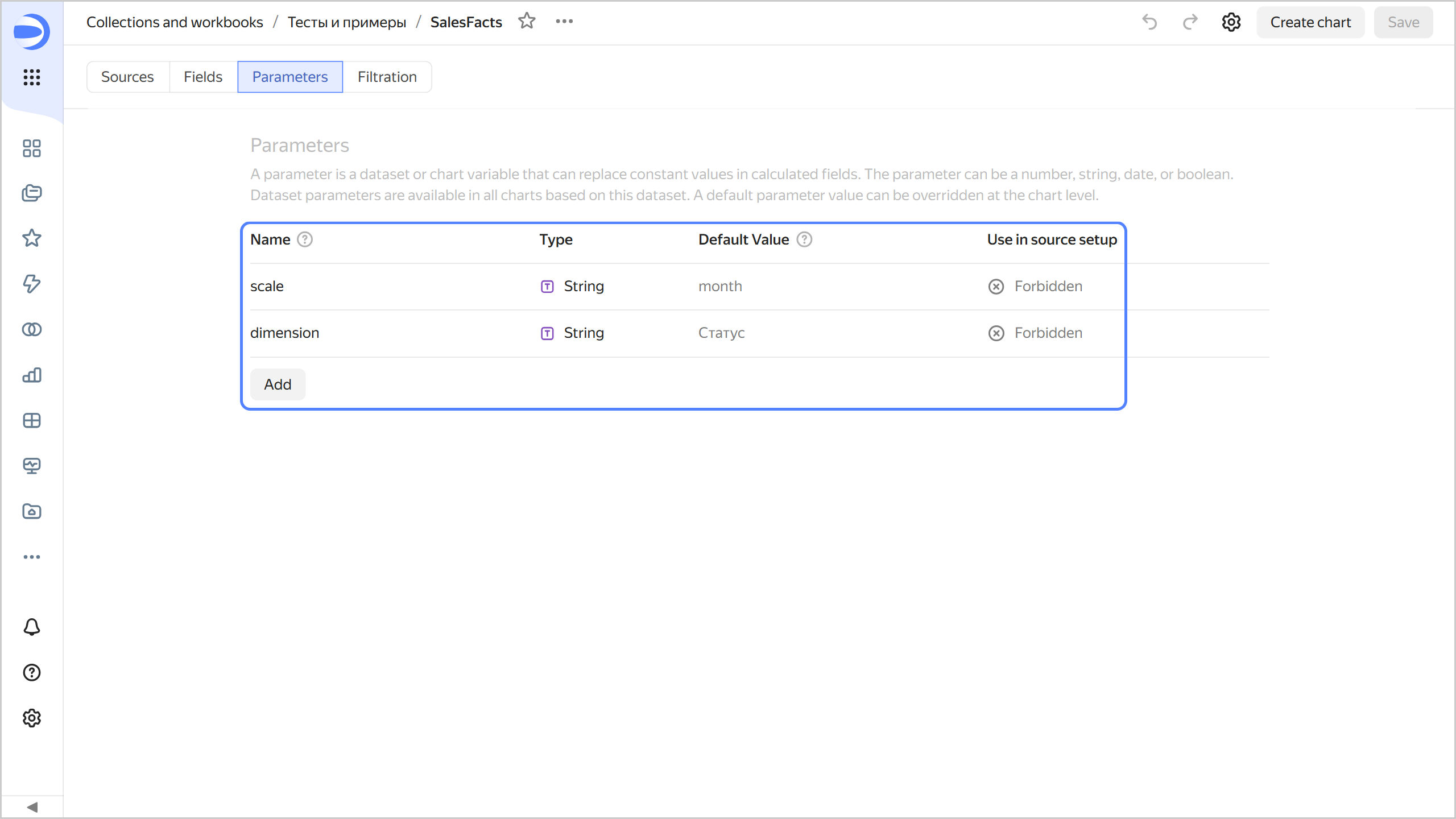
The tab displays the parameters created at the dataset level. Here you can add a new parameter or edit an existing one.
screenshot

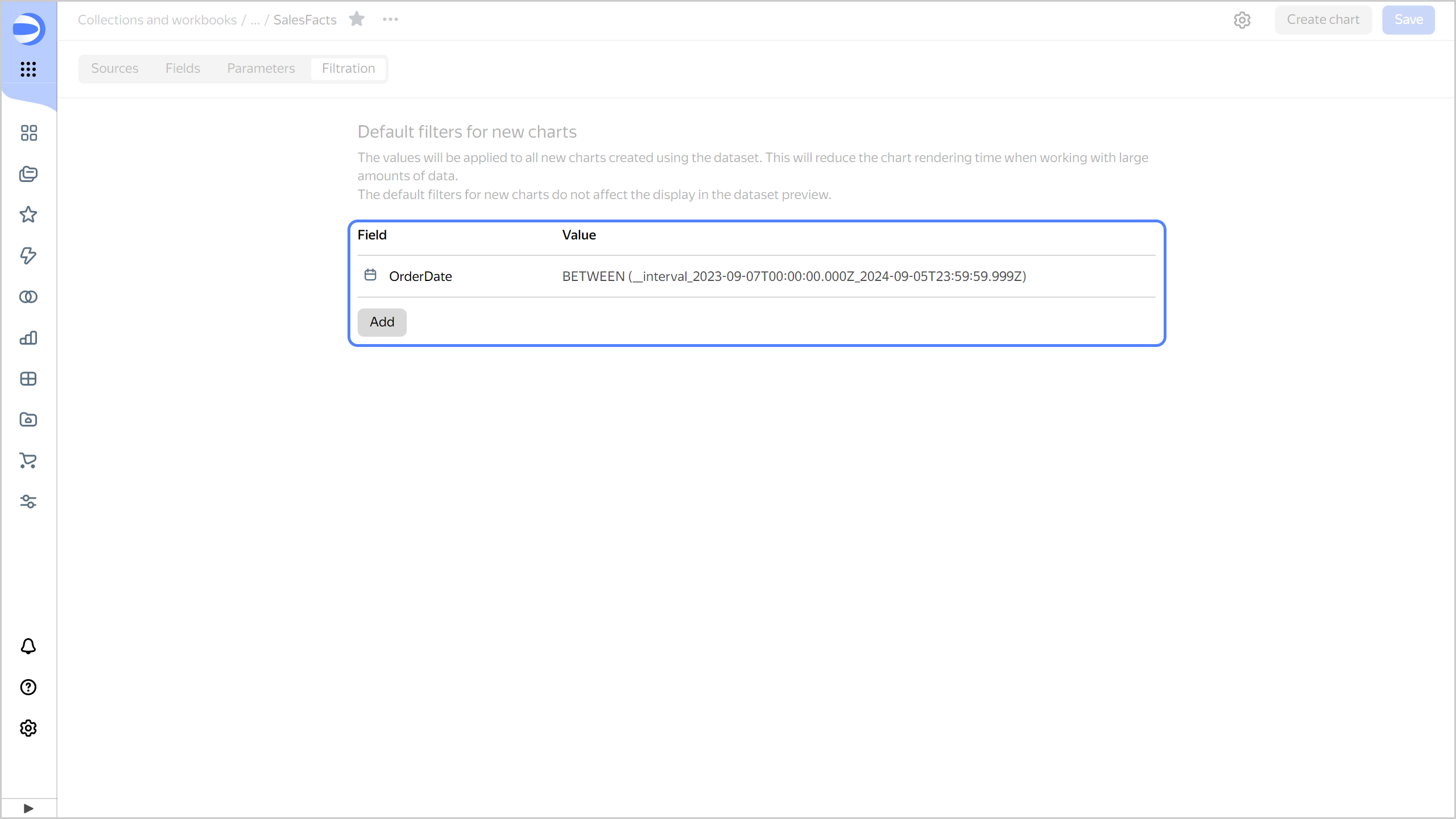
The tab displays filters applied to all new charts built based on the current dataset. Here you can create a new filter or edit an existing one.
screenshot

See alsoSee also

  • Working with a dataset in Yandex DataLens
  • Data model in Yandex DataLens
  • Yandex DataLens data types
  • Yandex DataLens dataset settings
  • Source parameterization in DataLens

Was the article helpful?

Previous
Suggest your partner connector
Next
Working with datasets
© 2025 Direct Cursus Technology L.L.C.